Putting the conference system into operation
40 | ADN Digital Conference System
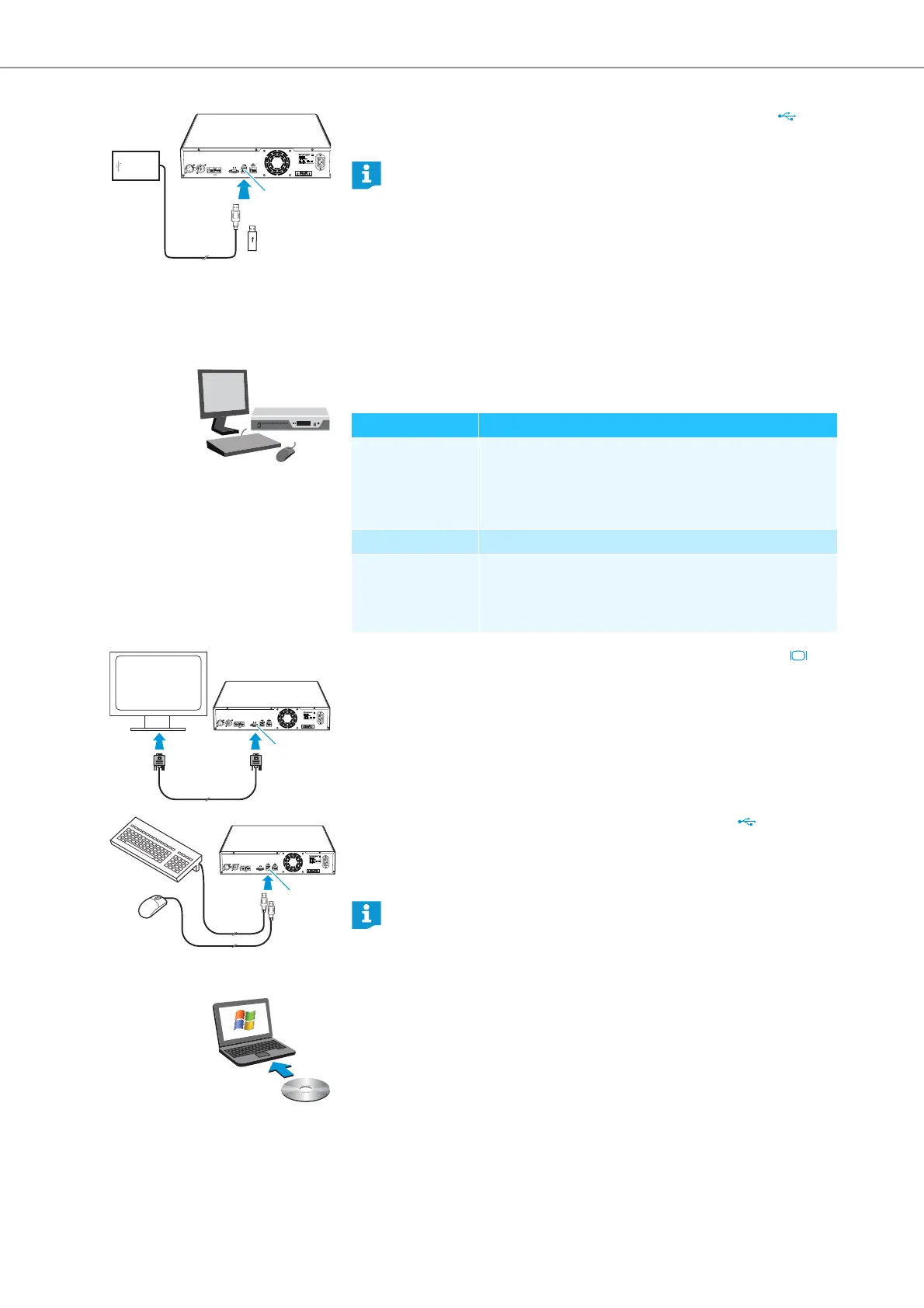
왘 Connect the USB mass storage device to one of the two USB sockets .
왘 If necessary, connect the mains unit of the USB mass storage device.
Preparing to use the “Conference Manager” software
Running the software installed on the central unit
To use the “Conference Manager” software installed on the central unit, you require
the following devices:
왘 Use a Sub-D VGA cable to connect a screen to the VGA monitor output .
왘 Connect the keyboard and the mouse to the two USB sockets .
왘 Configure the screen, keyboard and mouse settings using the “Conference
Manager” software (see page 97).
Your conference system is now ready for operation.
Running the software on a separate Windows PC
To run the “Conference Manager” software on a separate Windows PC, the PC must
meet the system requirements (see page 81).
IN –– AUDIO –– OUT
PORT II PORT I
100-240V~
50/60Hz 240W
2x 52.8V 1.75A
HDD
A
Use a USB hub if the number of USB sockets is not sufficient or if the USB
mass storage device is too large for connection to the central unit.
Device Requirements
Screen Connection: 15-pin Sub-D VGA
Resolution: 800 x 600 pixels or higher
1024 x 768 or 1280 x 1024 pixels recom-
mended
Mouse Standard USB for Windows PCs
Keyboard Standard USB for Windows PCs
Supported language layouts: e.g. English, German, French,
Spanish, Italian, Russian, Dutch (for the complete list, see
“Keyboard layouts” on page 160)
IN –– AUDIO –– OUT
PORT II PORT I
100-240V~
50/60Hz 240W
2x 52.8V 1.75A
0
IN –– AUDIO –– OUT
PORT II PORT I
100-240V~
50/60Hz 240W
2x 52.8V 1.75A
A
Use a USB hub if the number of USB sockets on the central unit is not
sufficient.



 To Next Page