Using the “Conference Manager” software
122 | ADN Digital Conference System
Importing a delegate list* You can import a delegate lists from other configurations:
왘 Click the “Import...” button.
The “Import Participant Data” window appears.
왘 Select the XML file with the delegate list.
왘 Click “OK”.
The window closes and the delegate names are displayed in the “Delegate”
column.
Initializing the conference units –
“Setup” operating mode
In order to assign the conference units connected to the central unit to the confer-
ence unit icons in the software, you have to initialize the conference units. By ini-
tializing the conference units, you can clearly label the icons and assign them to
certain seats or certain conference participants.
You can automatically or manually place conference units on the canvas and ini-
tialize them.
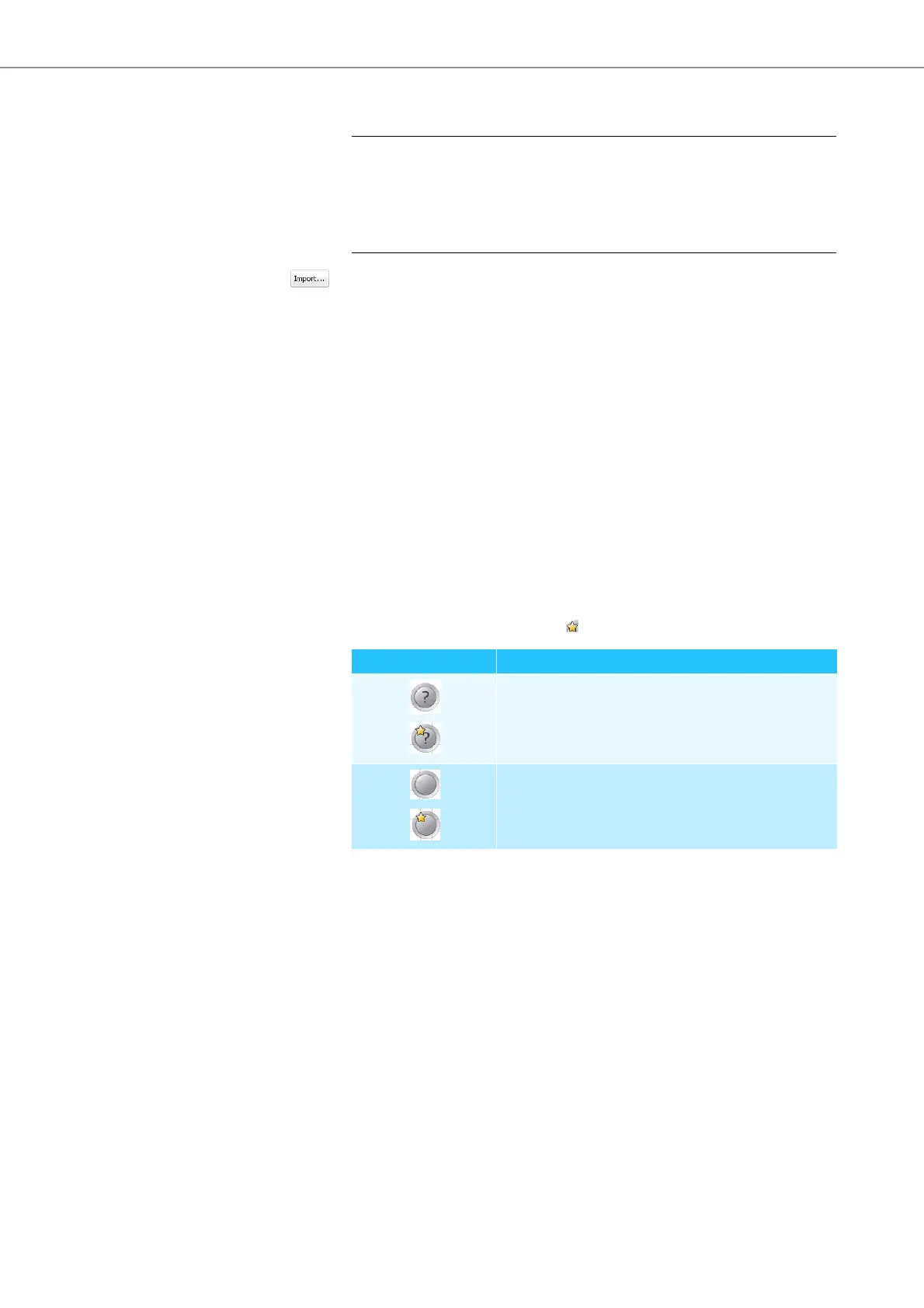
Overview of the conference unit icons The icons display the current status of the conference units. The icons of chair-
person units are marked with a star .
Automatically placing conference units on the canvas and initializing them
왘 Set up the conference system (see page 29).
왘 Establish a connection between the “Conference Manager” software and the
central unit (see page 100).
CAUTION
Loss of delegate data!
If you import a delegate list, all existing delegate names will be deleted. This action
cannot be reversed.
왘 Export the existing delegate list to save the data for later use (see above).
Conference unit icon Meaning
The icon has not yet been assigned a conference unit.
The conference unit is not ready for operation.
The icon has been assigned a conference unit.
The conference unit is ready for operation.



 To Next Page