Using the “Conference Manager” software
126 | ADN Digital Conference System
Changing the orientation/visibility
of the icon labeling
You can change the orientation/visibility of numbers and delegate names assigned
to the conference unit icons:
왘 Select a conference unit icon.
The selected icon is marked with a blue rectangle and the “Label Orientation”
box appears.
To change the orientation/visibility of the number:
왘 Select the desired orientation from the “ID” drop-down list.
The number is displayed at the selected side of the icon or is hidden.
To change the orientation/visibility of the delegate name:
왘 Select the desired orientation/visibility from the “Delegate” drop-down list.
The delegate name is displayed at the selected side of the icon or is hidden.
Adjusting the conference settings –
“Setup” operating mode
Adjusting the conference modes
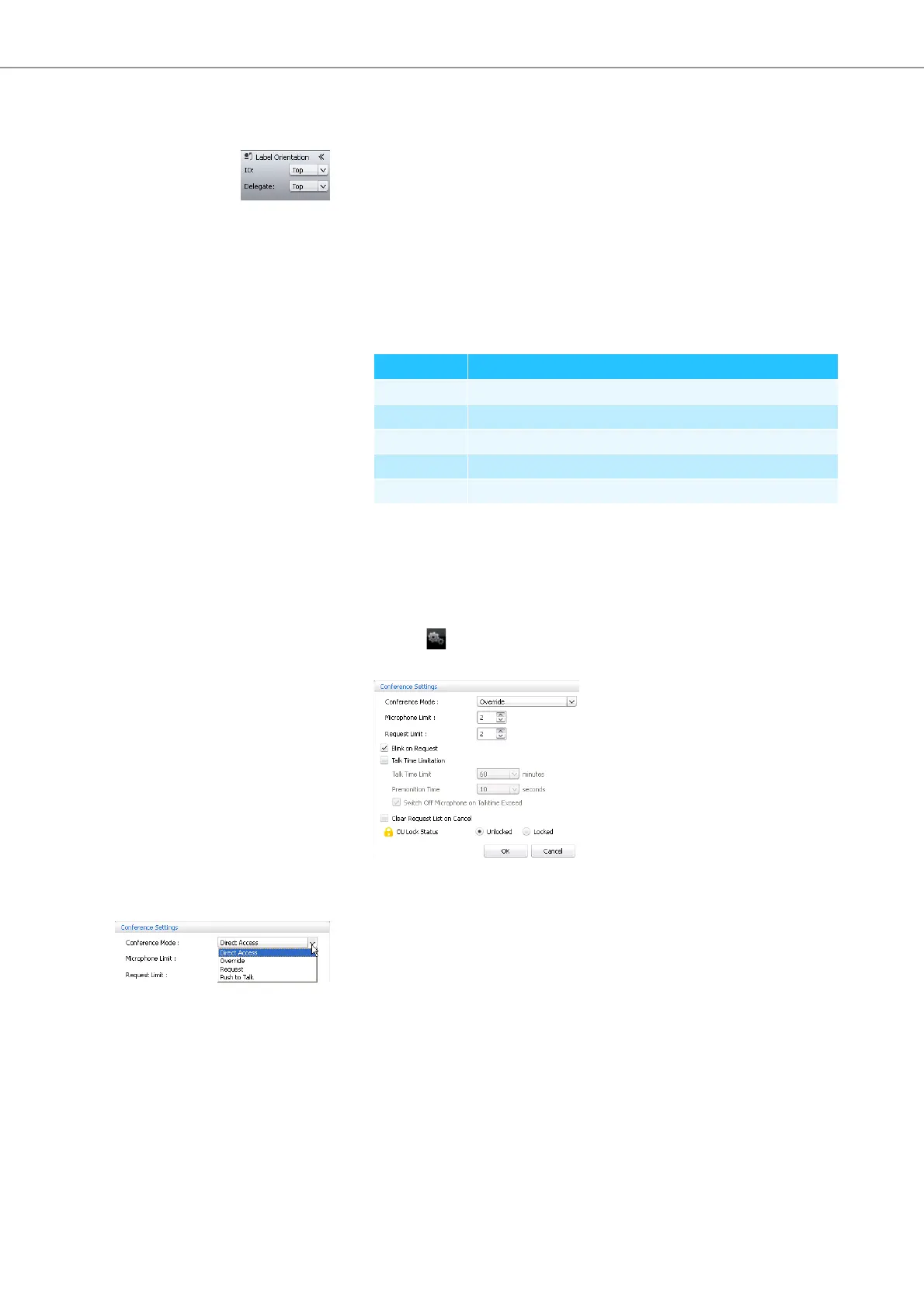
왘 Click the button on the toolbar.
The “Conference Settings” window appears.
Adjusting the conference mode 왘 Select the desired conference mode from the “Conference Mode” drop-down
list.
Possible settings: “Direct Access”, “Override”, “Push To Talk” and “Request”
•“Direct Access” mode and “Override” mode:
These two conference modes do not require the use of a chairperson unit.
If the maximum number of speakers who can take the floor simultaneously
(“Microphone Limit”) has not been reached, a further speaker can take the
floor immediately.
Setting Orientation/visibility
“Left” left
“Top” top
“Right” right
“Bottom” bottom
“Hidden” hidden



 To Next Page