Using the “Conference Manager” software
124 | ADN Digital Conference System
Starting the initialization of all
conference units
왘 Make sure that no conference unit icon is selected.
왘 Click the “Start Initialization” button and confirm the confirmation prompt
with “OK”.
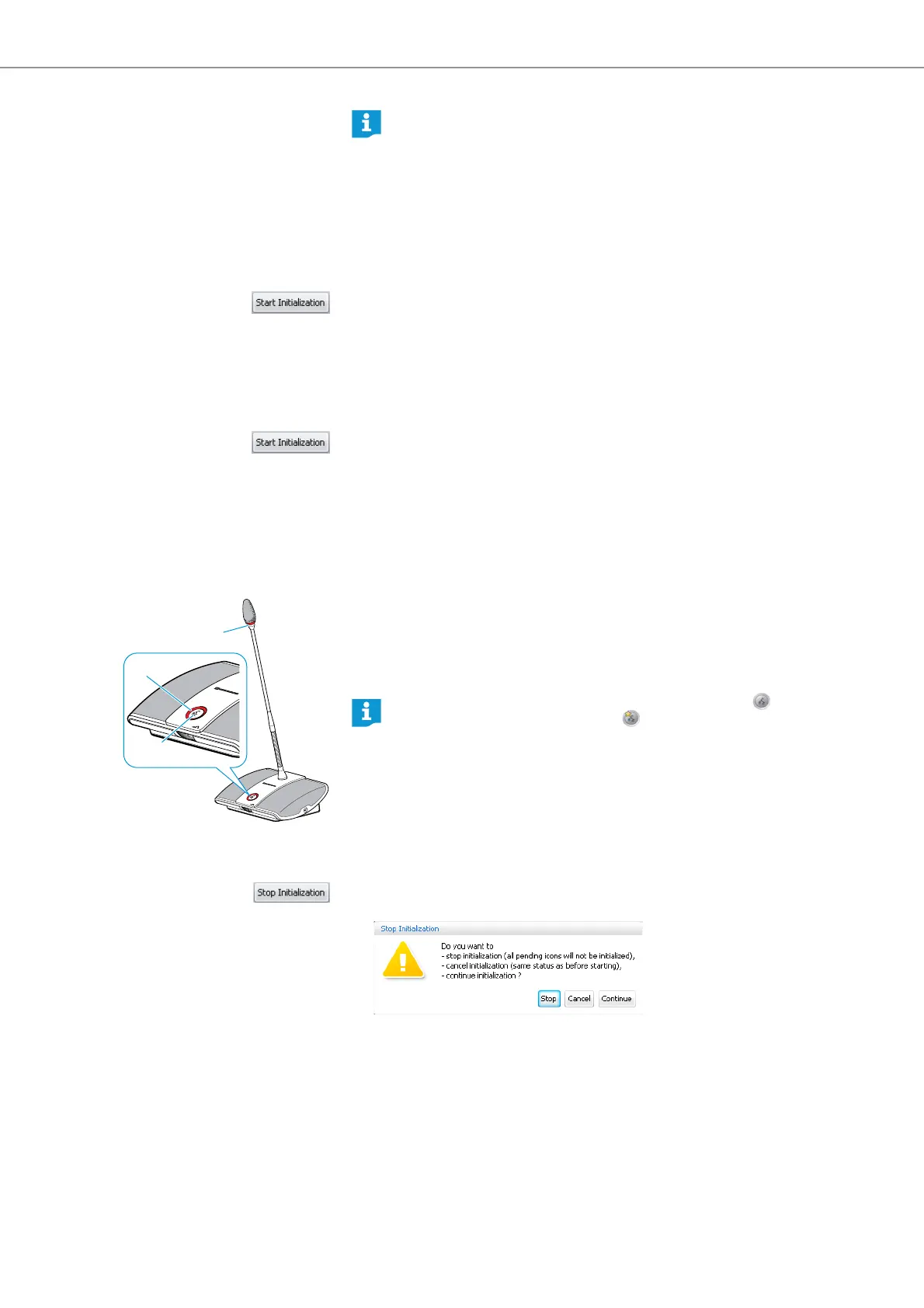
The microphone LEDs and the signal light rings of the connected confer-
ence units light up red. On the canvas, the conference unit icon with the number
“1” is permanently marked with a red circle. All other icons are marked with
flashing red circles.
Starting the initialization of a
selection of conference units
If you only want to initialize a certain selection of conference units:
왘 Select all conference units icons that you want to initialize.
왘 Click the “Start Initialization” button and confirm the confirmation prompt
with “OK”.
The microphone LEDs and the signal light rings of the selected and not
yet initialized conference units flash red. On the canvas, the conference unit
icon with the lowest, not yet initialized number is permanently marked with
a red circle. All other selected icons are marked with flashing red circles.
To assign a conference unit to the conference unit icon which is permanently
marked with a red circle:
왘 Press the microphone key on the conference unit.
The microphone LED and the signal light ring of the conference unit go
off. The next conference unit icon is permanently marked with a red circle.
왘 Repeat this step for the remaining conference units.
The initialization process is complete when all conference units are assigned.
Canceling or stopping the
initialization of the conference units
To cancel or stop the initialization:
왘 Click the “Stop Initialization” button in the “Microphone Unit(s)” library panel.
왘 The “Stop Initialization” window appears.
If you want to stop the initialization and not initialize all uninitialized conference
units:
왘 Click “Stop”.
If you want to cancel the initialization and to reverse the changes made:
왘 Click “Cancel”.
During initialization, you can extend or reduced the selection of conference
unit icons:
왘 Select one or several conference unit icons using the mouse.
왘 Right-click the selection and confirm the confirmation prompt by
clicking “OK”.
The selected conference unit icons are included in or excluded from the
initialization.
쐇
쐆
쐊
You can only assign delegate units to delegate unit icons and chair-
person units to chairperson unit icons .



 To Next Page