Using the “Conference Manager” software
142 | ADN Digital Conference System
Starting the recording 왘 Make sure that the USB mass storage device is correctly connected to the
ADN CU1 central unit (see page 39).
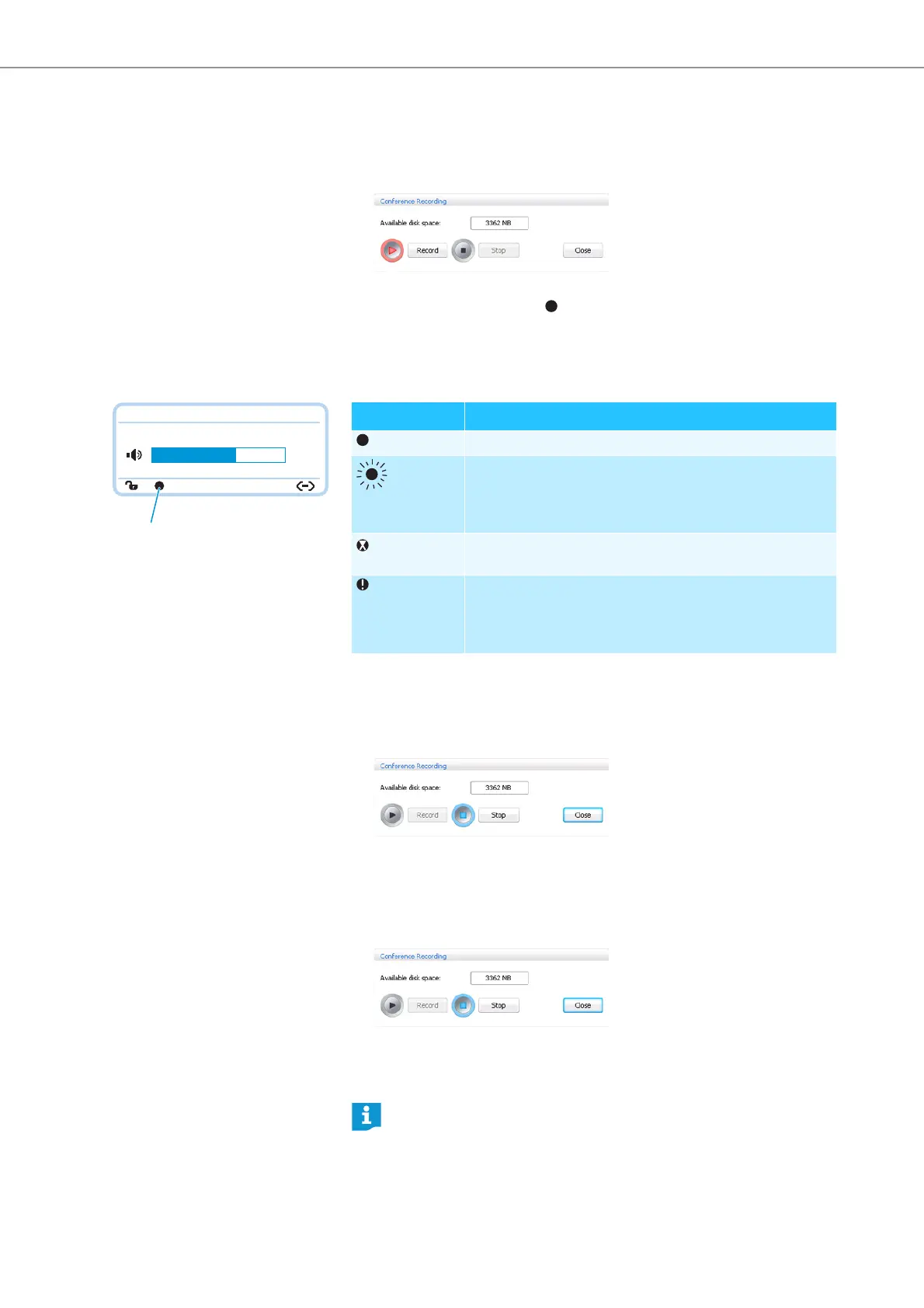
왘 In the menu bar, click “Settings” > “Conference Recording”.
The “Conference Recording” window appears.
왘 Click “Record”.
The recording is started. The icon
is displayed in the CU1 display panel.
Monitoring an audio recording The “Event Log“ function of the “Conference Managers” software logs all informa-
tion on the audio recording (see page 143).
The CU1 display panel displays the status of the audio recording:
To view available memory space:
왘 In the menu bar, click “Settings” > “Conference Recording”.
The “Conference Recording” window appears and the available memory space
(“Available disk space”) is displayed.
To close the “Conference Recording” window:
왘 Click “Close”.
Stopping an audio recording 왘 In the menu bar, click “Settings” > “Conference Recording”.
The “Conference Recording” window appears.
왘 Click “Stop”.
The recording is stopped. The CU1 display panel does not display the recording
icon.
Direct Access 30 Units
22
O
icon
Meaning
Audio recording in progress
flashing Memory space < 500 MB
Depending on the number of channels recorded, the memory
capacity will suffice for approx. 15 minutes of recording.
Change the USB mass storage device or stop the recording.
After finishing the audio recording, data is still written to the
mass storage device.
The central unit’s
display panel
lights up red.
An error occured during recording. The recording was inter-
rupted.
If you exit the “Live” operating mode, the audio recording is not stopped.



 To Next Page