Doc. 177/5250x
Rev A
5-4
Menu and screen changing
When the display has completed its power on initialisation, the first screen is shown. The first
screen will be one of the screens shown below, and is configurable. To change between
screens, the display has a simple menu.
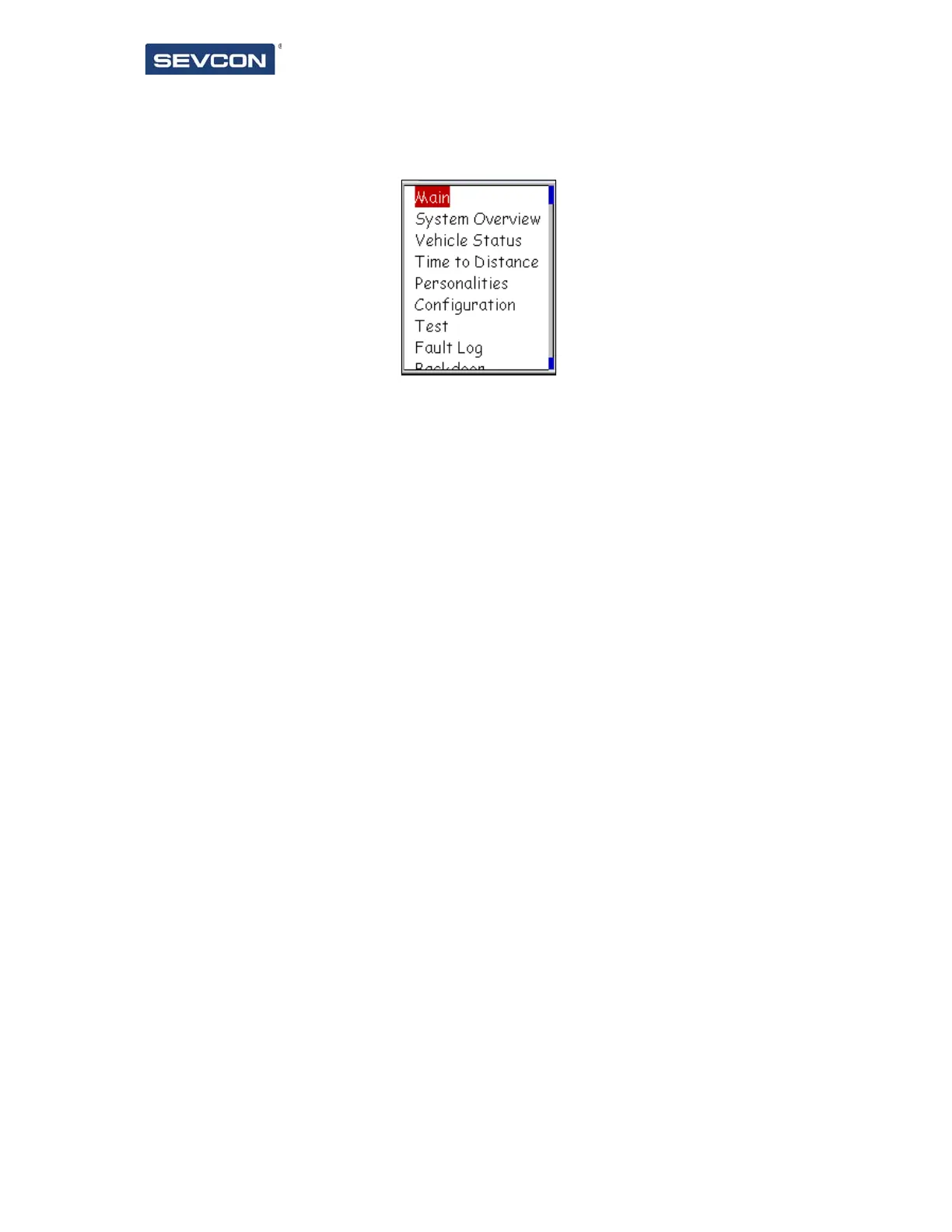
To show the menu, press and hold the enter button for at least 1 second. The menu will
then be shown. Use the up and down buttons to select the screen that you would like to
see, and press enter. The screen will then change to the selected screen.
Only screens which have been enabled will show in the menu. Instructions on how to
configure the available screen list are provided in section “Configuring the display”
Figure 4 – The menu



 To Next Page