16
Product Version 1.0 | Revision D | Released 2022-06-20
SETTINGS AND FIXTURE DEFAULTS
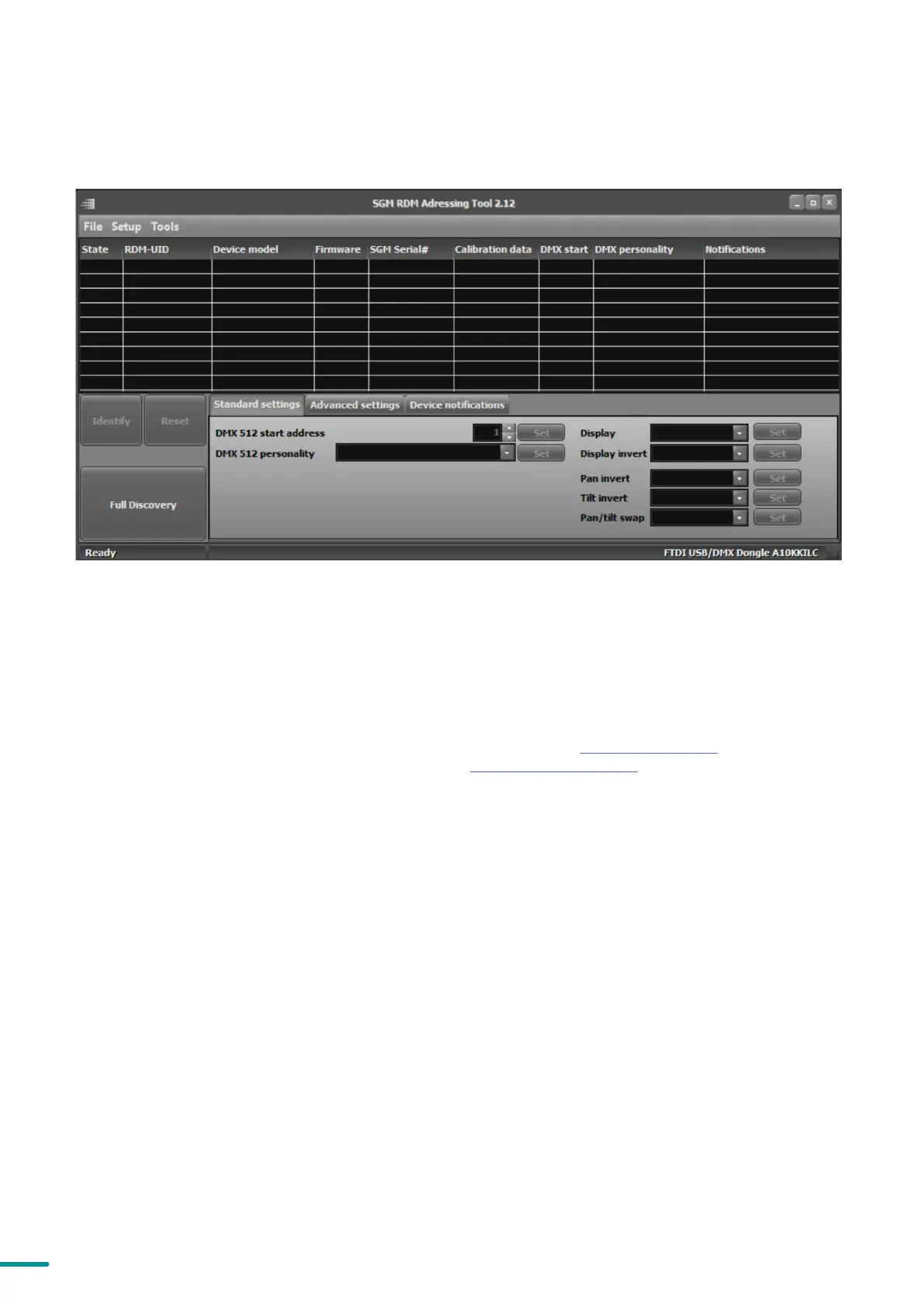
All configuration of POI fixtures is done through the SGM Addressing Tool. The SGM Addressing Tool is a windows
based program designed to allow the user to configure the fixture through the RDM protocol. All settings on a stadard
fixture are available on a POI fixture. But on POI, these settings are changed through the Addressing Tool.
STEP 1: Launch SGM RDM Addressing Tool. Click Full Discovery and look for the green light to illuminate on the fixture.
If the green light does not appear, cycle power or refer to troubleshooting.
STEP 2: Select the standard settings tab and enter a DMX address and a personality/mode of operation. These modes
must match the control mode in the controller which will control the fixture. Look for the LED indicator to blink to
confirm setting change. DMX modes for POI and Std versions are identical. Refer to CONFIGURING THE DEVICE later
in this manual for specifics and more information on fixture functions. Visit www.sgmlight.com to see all DMX charts
available under the respective product, or upon request via support@sgmlight.com.
STEP 3: If necessary for the application, click advanced settings to set the fan mode, dimming curve, calibration or to
reset to factory defaults.
STEP 4: Disconnect POI Uploader cable.
Repeat as required for multiple fixtures.
Factory Defaults are as follows:
• DMX address = 1.
• DMX mode = Default mode (6 channel).
• Startup mode = DMX.
• Display saver = Off.
• Flip screen = Off.
• RDM device label set to = Fixture type name.
• Internal program reset.
DMX CABLE.
When setting addresses through RDM and using USB dongles, it may be necessary to disable “USB selective sus-
pend” to ensure a proper voltage to the DMX link. If any lag or trouble occurs when addressing, decrease the cable
length range to <12 m. and only address one fixture at a time.
Figure 10: SGM Addressing tool


 To Next Page