EasyManua.ls Logo

Sharp MX-M950 - User Manual

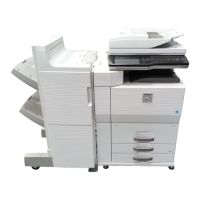
Sharp MX-M950
108 pages
Print Icon
To Next Page IconTo Next Page
Loading...
MODEL:
Image sending
Using the Image Send function.
Image sending
Using the Image Send function.
MX-M850
MX-M950
MX-M1100
DIGITAL MULTIFUNCTIONAL SYSTEM
Quick Start Guide
Quick Start Guide
Quick Start Guide
General information
Functions of the machine and
procedures for placing originals and
loading paper.
Copying
Using the copy function.
Printing
Using the printer function.
Document filing
Storing jobs as files on the hard
drive.
Manual finishing
Finishing functions using the
inserter.
System settings
Configuring settings to make the
machine easier to use.
Keep this manual close at hand for reference
whenever needed.
Downloaded From ManualsPrinter.com Manuals

Table of Contents

Other manuals for Sharp MX-M950

Questions and Answers

  • M
    Michele LongAug 25, 2025
    What to do if transmission does not take place on my Sharp MX-M950 due to file size?
    • M
      Martin LopezAug 25, 2025
      If your administrator has set a limit on the size of transmitted files, a file that exceeds the limit cannot be transmitted. Check with your administrator. Reduce the size of the file attachment by reducing the number of pages scanned or by scanning using a lower resolution setting. You can also ask your mail server administrator what the file size limit is for one e-mail transmission. If the destination folder is not configured as a shared folder, select "share" in the folder properties. If the folder was moved or otherwise changed, the "share" setting may have been canceled.
  • K
    Kimberly BarberAug 25, 2025
    What to do if my Sharp MX-M950 transmitted fax prints out blank at the receiving side?
    • A
      Adrian MoralesAug 26, 2025
      Ensure the original is placed correctly (face up or face down, as required by the sending method) and send the fax again.
  • R
    Richard JacobsAug 26, 2025
    Why does my Sharp MX-M950 All in One Printer not print after reception?
    • C
      charlottewalkerAug 26, 2025
      If a message appears on the display indicating that you need to add toner or paper, printing will not be possible. Restore printing capability by following the instructions provided in the message.
  • C
    Chelsey GilmoreAug 27, 2025
    Why is the scanned image clipped on my Sharp All in One Printer?
    • H
      hansenwilliamAug 27, 2025
      The original scan size setting might be smaller than the actual original size. Set the scan size to the actual original size. If you have intentionally set a smaller size than the actual original size, note carefully the placement position of the selected scan size when placing the original.
  • A
    Alicia ChenAug 27, 2025
    How to fix poor quality of scanned image on Sharp MX-M950 All in One Printer?
    • P
      Patrick SchneiderAug 27, 2025
      If the original is printed matter such as a book or magazine, vertical patterns (moiré) may occur. Touch the [Exposure] key in the base screen to open the exposure setting screen; the [Moiré Reduction] checkbox appears in this screen. Also, if you are scanning a color or grayscale original, ensure that the color mode is not set to "Mono2". Setting the color mode to "Mono2" replaces the colors in the original with either black or white, which is suitable for text-only originals; however, originals with illustrations should be scanned with the color mode set to [Grayscale], [Full Color], or [Auto] - [Grayscale].
  • A
    Arthur SilvaAug 28, 2025
    Why is the transmitted fax reduced by the receiving fax machine from my Sharp MX-M950 All in One Printer?
    • R
      Robert MyersAug 28, 2025
      This issue might occur if image rotation has not been enabled. Enable "Rotation Sending Settings" before transmission.
  • D
    David WrightAug 29, 2025
    Why is the scanned image blank on my Sharp MX-M950?
    • J
      Juan CampbellAug 29, 2025
      Check whether the original is placed face up or face down correctly. When using the document glass, the original must be placed face down. When using the automatic document feeder, the original must be placed face up.
  • Z
    Zachary HarrisAug 30, 2025
    What to do if I cannot write to USB memory when using USB Memory Scan on my Sharp All in One Printer?
    • G
      Gina WalshAug 30, 2025
      Ensure that the USB memory device is connected securely to your Sharp All in One Printer.
  • J
    Justin WatkinsAug 23, 2025
    What to do if transmission does not take place on my Sharp All in One Printer?
    • K
      Kelsey RodriguezAug 25, 2025
      First, ensure the destination information is correct and the destination is properly selected. For e-mail delivery issues, check for "Undelivered Message" errors sent to the administrator's e-mail, as it may help identify the problem. Also, if you are trying to scan a long original, it cannot be scanned from the document glass; use the automatic document feeder instead. If a folded original is placed in the automatic document feeder, unfold it and rescan, following the display instructions. If the original size is not detected correctly, try placing the original again or manually specify the original size.
  • B
    Barbara SmithAug 31, 2025
    Why does my Sharp All in One Printer save JPEG as TIFF?
    • T
      Thomas YoungAug 31, 2025
      If the color mode is set to [Mono2], change the color mode to [Full Color] and then press the [START] key.

Sharp MX-M950 Specifications

General IconGeneral
BrandSharp
ModelMX-M950
CategoryAll in One Printer
LanguageEnglish

Related product manuals