EasyManua.ls Logo

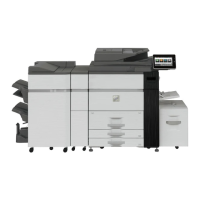
Sharp MX-M950 - User Manual

Sharp MX-M950
108 pages
Print Icon
To Next Page IconTo Next Page
Loading...
MODEL:
Image sending
Using the Image Send function.
Image sending
Using the Image Send function.
MX-M850
MX-M950
MX-M1100
DIGITAL MULTIFUNCTIONAL SYSTEM
Quick Start Guide
Quick Start Guide
Quick Start Guide
General information
Functions of the machine and
procedures for placing originals and
loading paper.
Copying
Using the copy function.
Printing
Using the printer function.
Document filing
Storing jobs as files on the hard
drive.
Manual finishing
Finishing functions using the
inserter.
System settings
Configuring settings to make the
machine easier to use.
Keep this manual close at hand for reference
whenever needed.
Downloaded From ManualsPrinter.com Manuals

Table of Contents

Other manuals for Sharp MX-M950

Questions and Answers

  • C
    Caitlin AdamsSep 1, 2025
    Why can't I specify a destination on my Sharp MX-M950?
    • J
      jordan94Sep 1, 2025
      Some functions may have been disabled in the system settings (administrator). Check with your administrator. When user authentication is enabled, the functions that you can use and page counts may be restricted in your user settings. Check with your administrator.
  • M
    Michael PerezSep 2, 2025
    What to do if a destination is pre-selected on my Sharp MX-M950?
    • M
      Matthew AndersonSep 2, 2025
      If you wish to send to a destination other than the default destination, touch the [Cancel] key. If you are the administrator and wish to change or disable the default destination, change the settings as appropriate in "Default Address Setting".
  • R
    Rachael GriffinSep 3, 2025
    Why doesn't transmission begin at the specified time on my Sharp MX-M950 All in One Printer?
    • C
      Claudia JohnsonSep 3, 2025
      If another transmission is in progress when the specified time arrives, the timer operation will begin after that transmission is finished.
  • R
    Richard WilsonSep 3, 2025
    How to delete or edit an individual key if I don't know which group key it is stored in on my Sharp All in One Printer?
    • C
      Connor WalkerSep 3, 2025
      If multiple group keys have been stored, print the Group List in "Sending Address List" in the system settings.
  • M
    Mark SimmonsSep 4, 2025
    What to do if Sharp All in One Printer stops printing during a job?
    • J
      Jared StevensSep 4, 2025
      When the output tray becomes full, a detector activates and stops printing. Remove the output from the tray to resume printing.
  • M
    Michelle BellSep 5, 2025
    Why does my Sharp All in One Printer keep misfeeding paper?
    • E
      etorresSep 5, 2025
      Paper misfeeds can occur for several reasons. First, make sure all paper is removed from the machine. Ensure the paper stack in the tray is not higher than the indicator line. Fan the paper well before loading it. Use SHARP-recommended paper, as unsupported paper may cause misfeeds. If paper has absorbed moisture, store it in a dark, dry location. Adjust the bypass tray guides to the paper width and pull out the extension when loading a large paper size. Finally, clean the surface of the bypass feed roller.
  • A
    aaron27Sep 6, 2025
    Why does Sharp All in One Printer leave smudges on printed output?
    • R
      ronnieroachSep 6, 2025
      Smudges on printed output may occur if you are not using SHARP-recommended paper. Using unsupported paper can result in smudges. Also, if printing on pre-punched paper, the image may overlap the punch holes, causing smudges. If a message appears indicating the need for maintenance, contact your dealer or nearest SHARP Service Department as soon as possible.

Sharp MX-M950 Specifications

General IconGeneral
BrandSharp
ModelMX-M950
CategoryAll in One Printer
LanguageEnglish

Related product manuals