Rev 4 March 2019 10 41110030
2
2: Installation and Startup
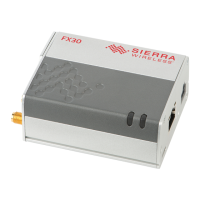
This chapter shows how to connect, install and start the Sierra Wireless FX30. It also
describes the front panel LEDs and I/O functionality.
Note: The FX30 must be installed by a qualified technician.
Tools and Materials Required
• mini-SIM card (provided by your mobile network operator)
• #1 Phillips screwdriver
• Laptop computer
• AC adapter or DC power cable
• micro-B USB cable
• Cellular antenna
• GNSS antenna (optional)
Optional Software
Depending on your operating environment, you may want to download and install the
following software:
• Windows USB driver—Install the USB drivers for WP Series modules, available
from http://source.sierrawireless.com/devices/fx-series/FX30/ (in the Software
section under Windows drivers).
• A Windows terminal emulator program such as Tera Term.
Installation Overview
The steps for a typical installation are:
1. Insert the SIM card and optional IoT Expansion card.
2. Mount and ground the FX30.
3. Connect the antennas.
4. Connect the data cables.
5. Connect the power and I/O.
6. Check the FX30 operation.
7. Use the FX30.
The following sections describe these steps in detail. Read these sections carefully
before performing the installation.





 To Next Page