CN-Series Hardware Installation and Maintenance Guide Task 5—Configuring IPMI for Remote Management
• An IP address. The address can be static or assigned by DHCP.
• Provide the following using a static address:
◦ Gateway
◦ Subnet mask
◦ [Optional] Up to two DNS servers. The servers can be static or assigned by DHCP.
• An Ethernet cable to connect to the rack-mounted switch that can reach your network (as specified in
the preceding network address requirements).
• You initially use the default address of 192.168.0.120 to access the IPMI software and reconfigure its
network settings.
• A Windows client laptop computer with a Web browser. You can use a MAC or Linux OS, however
the procedure describes Windows:
◦ You might need to temporarily change the IP address used by the laptop's physical Ethernet port.
◦ You might need to temporarily disconnect the laptop from wireless networks.
To configure IPMI:
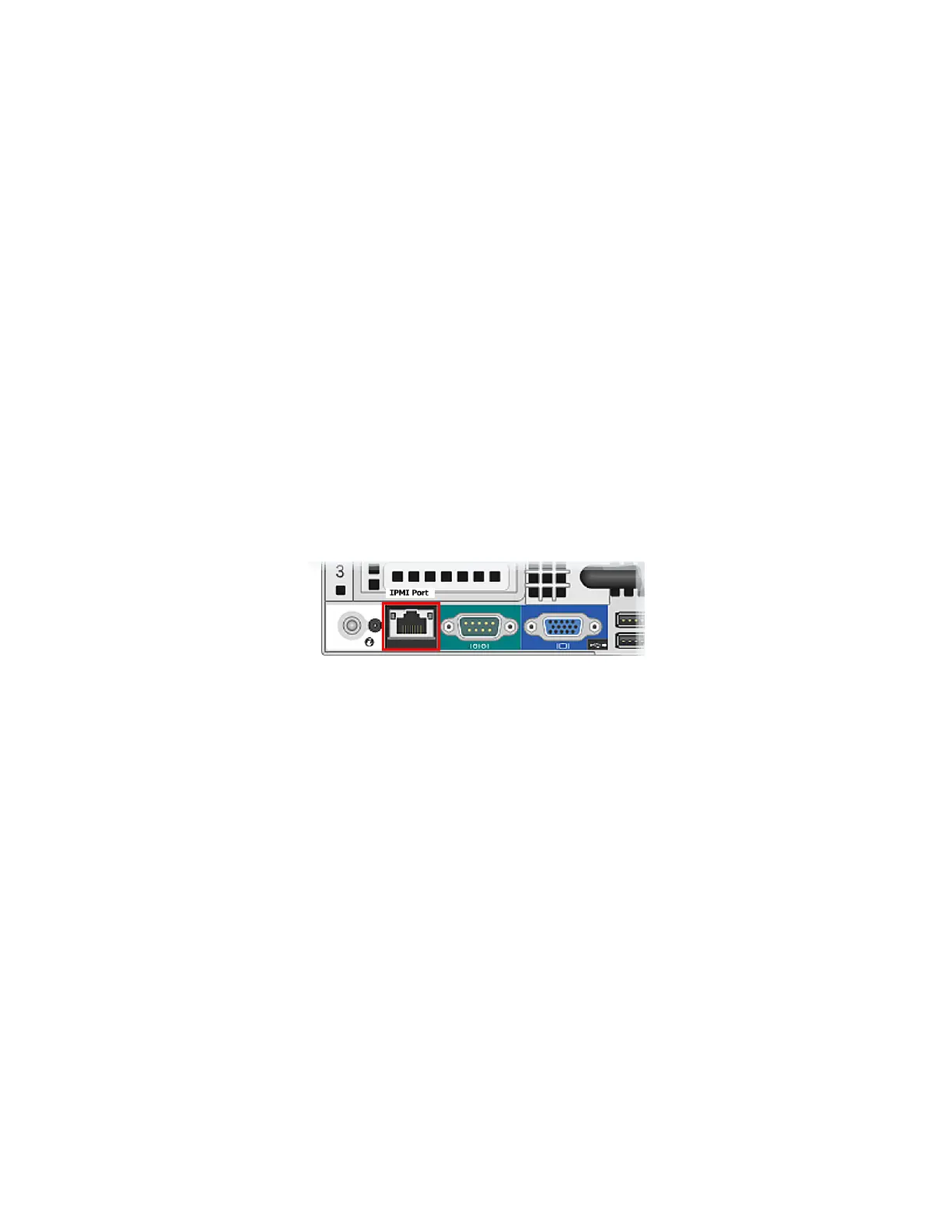
1. Connect an Ethernet cable from the laptop's Ethernet port to the IPMI Ethernet port on the rear of the
OmniCube.
2. If necessary, change the IPv4 address of the Ethernet port on your laptop:
– Open Network and Sharing center and select the Ethernet port connection. This is typically Local
Area Connection.
– Click Properties, then Internet Protocol Version 4 (TCP/IPv4).
– Record the current settings so that you can restore them later.
– Check the button labeled Use the following IP address.
– Enter an IP address in the range 192.168.0.[0-255], excluding 192.168.0.120.
– Enter a subnet mask of 255.255.255.0.
– Close the dialogs and exit from Network and Sharing center.
3. Point your browser to the IPMIdefault IP address:
HTTP://192.168.0.120.
4. Use the default user name root and the default password calvin to log in.
5. You can optionally change the default IPMI password if prompted to do so, according to your site-
specific security requirements.
6. Click IPMI Settings - Network in the left panel.
28


 To Next Page