CN-Series Hardware Installation and Maintenance Guide Task 5—Configuring IPMI for Remote Management
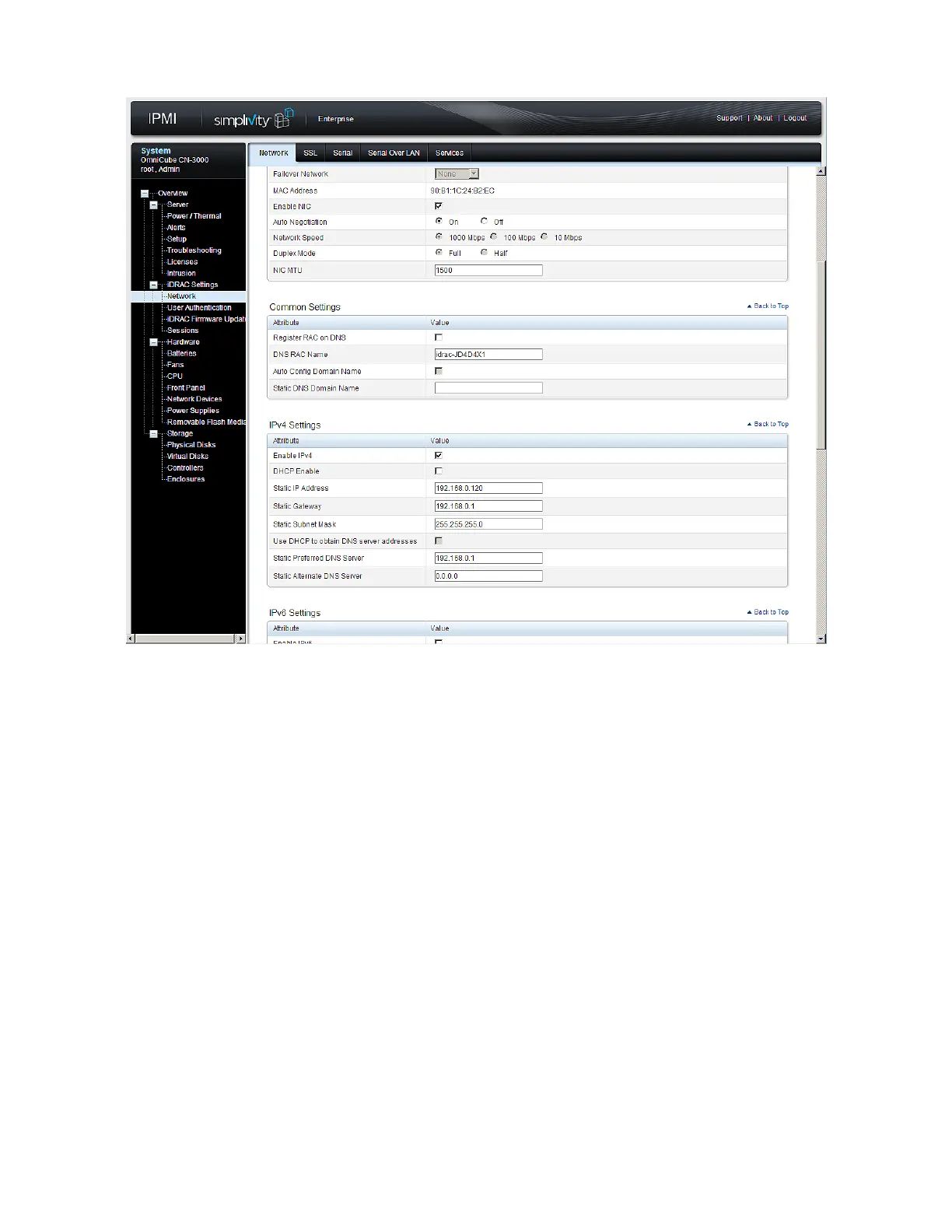
7. Check the box for Enable IPv4.
8. Do one of the following:
– Check the box for Enable DHCP.
– Assign a static IP address, Gateway, Subnet Mask and [Optional] DNS servers, if used.
9. Verify the VLAN settings at the bottom of the screen complies with your network settings. If you are not
using VLANs, this must be unchecked.
10. Click Apply then Logout to exit IPMI.
11. Remove the Ethernet cable from the IPMIport in the OmniCube and replace it with a cable that is
connected to a rack switch. This switch must be in the network that you specified in Step 8.
12. Reset the IPv4 properties for your laptop, reversing the changes that you made in Step 2.
You can now connect to IPMI from any remote location.
Related Topics
Ports Required for Network Communication on page 46
Connecting to IPMI and Launching the Virtual Console on page 30
29


 To Next Page