5:3
EMBROIDERY TEXT EDITOR
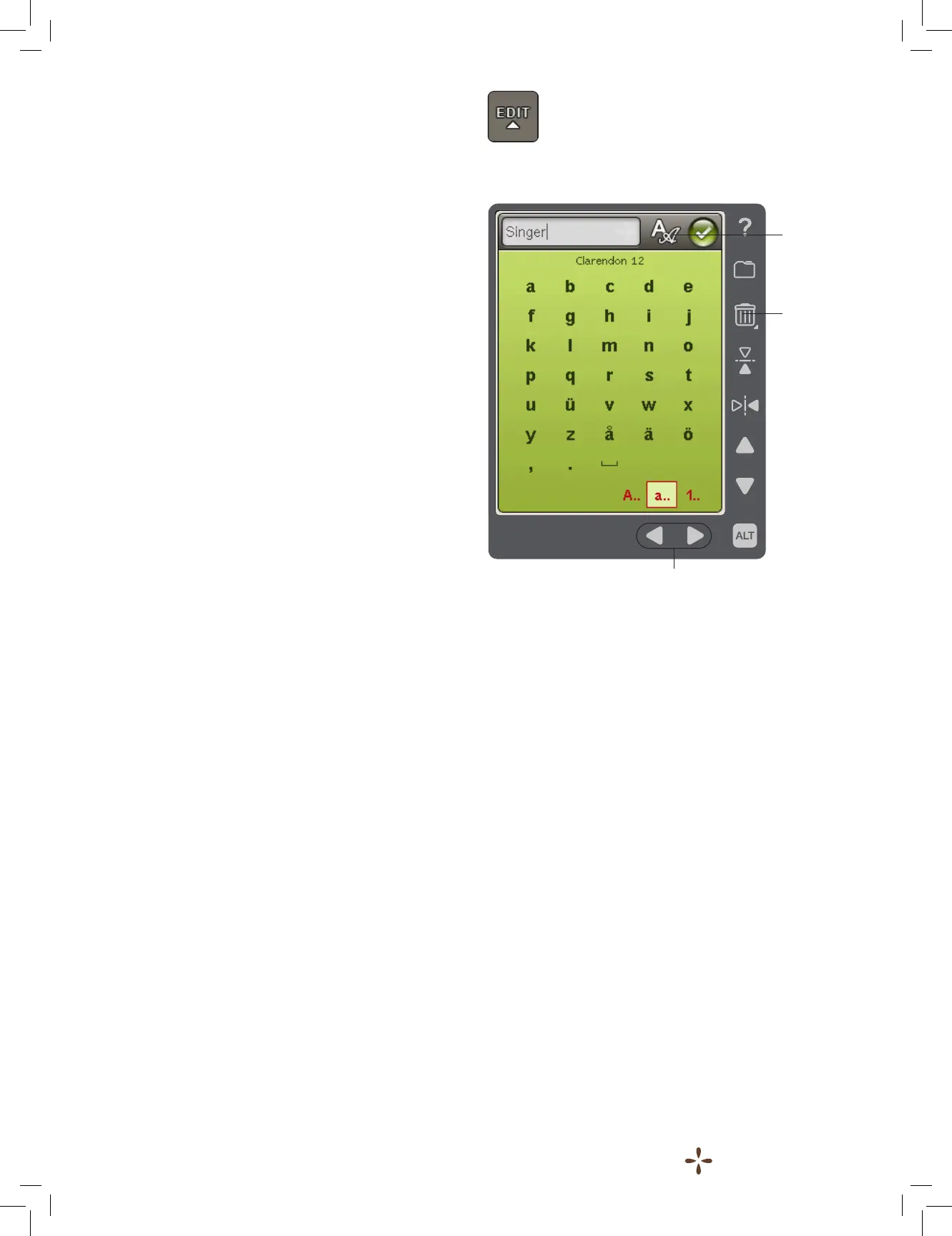
If you touch the Embroidery Text Editor icon, a window will
open so you can edit an embroidery text that you have created.
You can insert or delete letters or change font.
To use the Editor
Use the stylus and touch the characters you want to add to
the text. The text is shown in the text area with the cursor at
the active character. Use the arrows below the screen to step
forward or backward.
Change Font or Font Size
You can change the font or the size of the entire text by
touching the Change Font icon. Select a different font/font size
and the entire text you have written will change to the new
font/font size.
Add a Letter into a Text
Use the arrows to move the cursor to where you want to add
a letter. Touch the letter and it will be inserted at the cursor
position.
Delete a Letter
To delete one letter, place the cursor after the letter to be
deleted. Touch Delete. If you want to delete all the text you
have written, Touch & Hold Delete.
Change
Font
Delete
character
Arrows to step forward or
backward in the text





 To Next Page