5:6
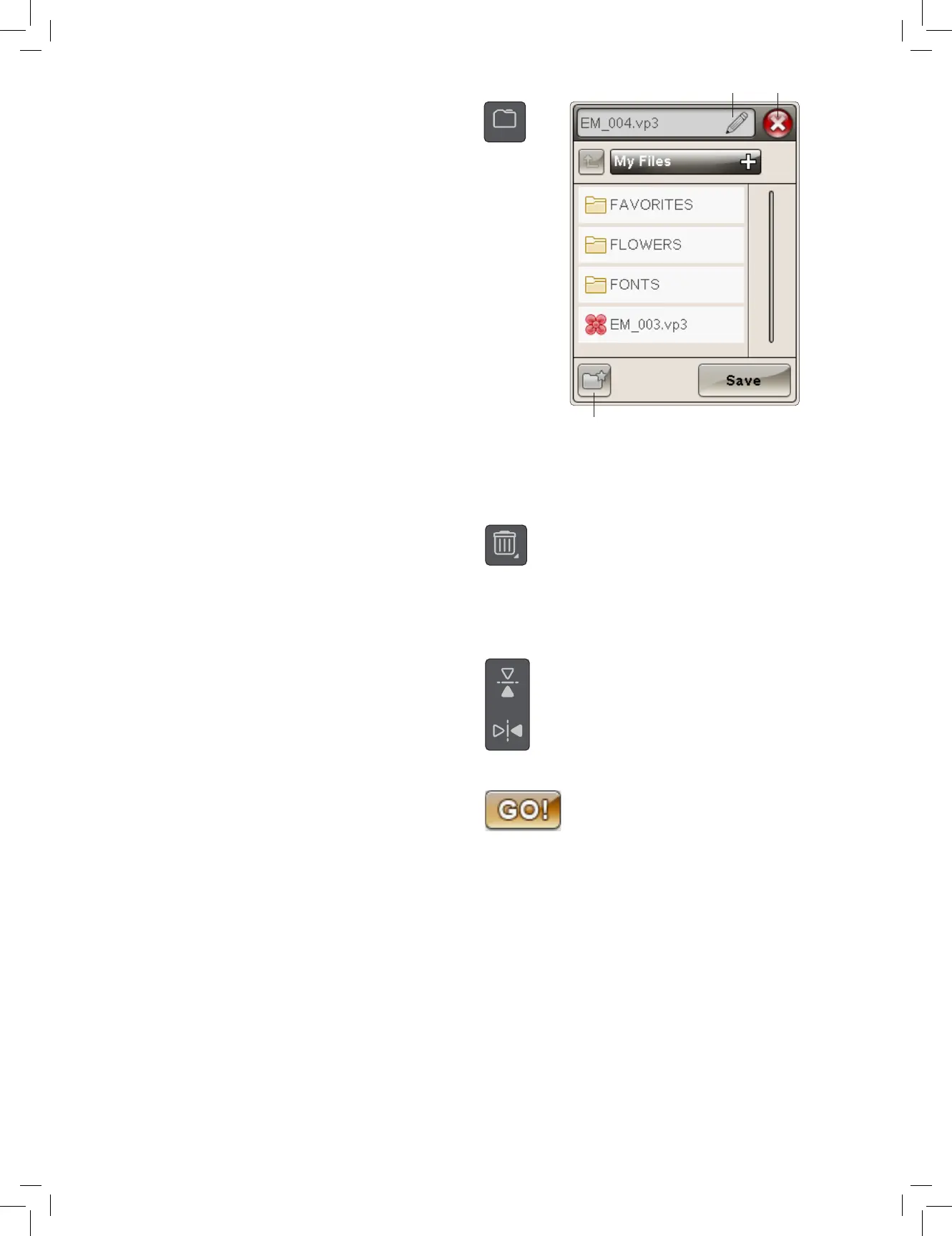
SAVE TO MY FILES
Touch the Save to My Files icon to open the dialogue for
saving the actual design(s). A new window will open where
you can select where to save your design. You can save either
in My Files or to an approved USB device. You can also create
folders to organize your designs.
To change the name of the design, touch the rename icon and
change the name. Touch Save to conrm. If you want to abort
the save, touch cancel and you will return to Embroidery edit.
DELETE
When you touch Delete in Embroidery Edit mode, the selected
design(s) will be removed from the embroidery eld.
Touch & Hold the Delete icon to delete all designs from the
embroidery eld. A pop-up message will appear asking you to
conrm that you want to delete all designs.
MIRROR END-TO-END AND SIDE-TO-
SIDE
To mirror vertically, touch the Mirror End-to-End icon. To
mirror a design horizontally, touch the Mirror Side-to-Side
icon.
GO!
Once you have edited your design and you want to stitch it
out, attach the embroidery unit. Attach the hoop, thread the
machine and touch GO! in the lower left hand corner to enter
Embroidery Stitch-Out Mode and start to embroider.
Note: If the embroidery unit has not been calibrated before it
will calibrate when you enter Embroidery Stitch-Out. A popup
will inform you. See “Embroidery Unit Calibration” on page
6:8.
Rename Cancel
New Folder





 To Next Page