7:4
ORGANIZE
CREATE A NEW FOLDER
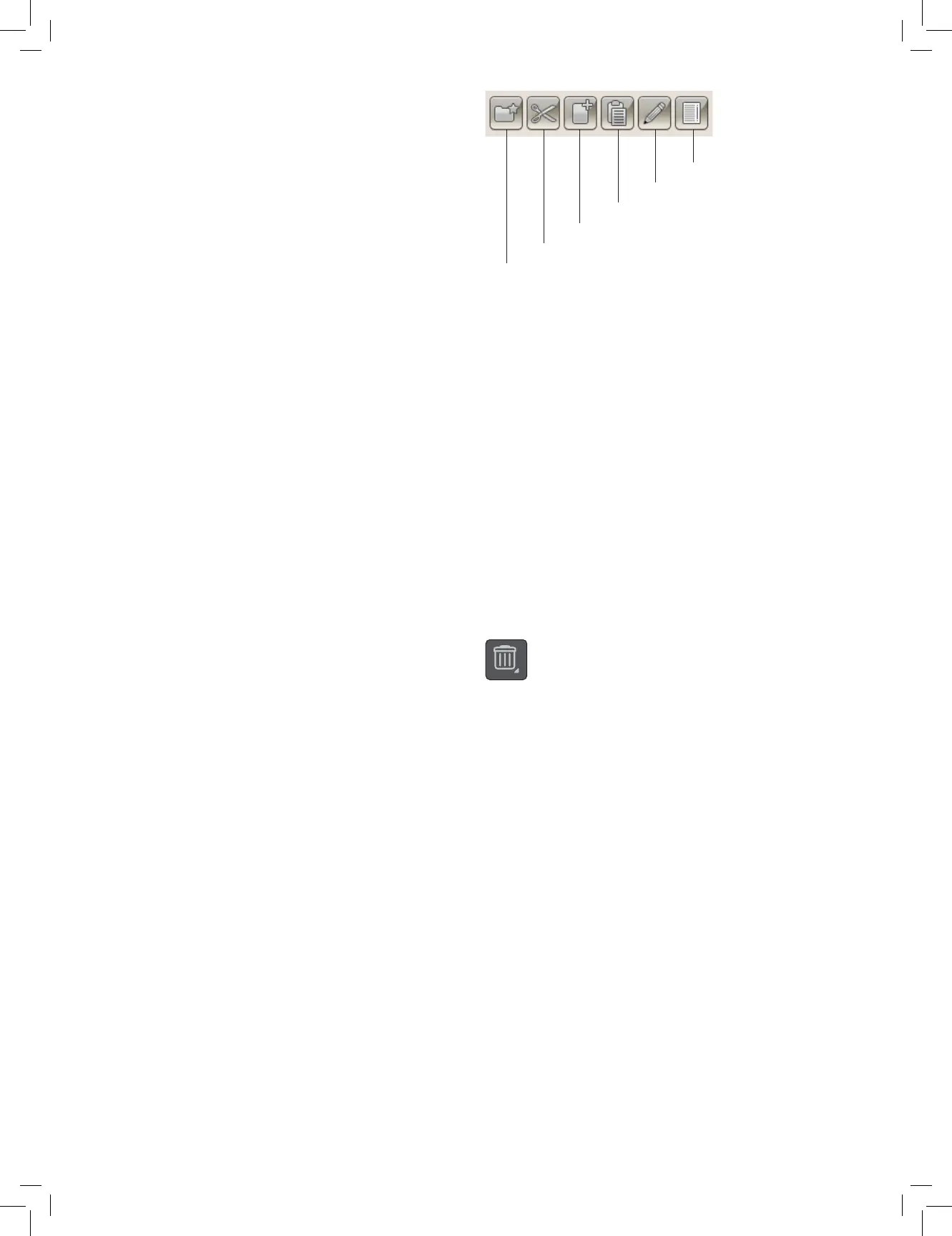
Touch the create new folder icon to create a new folder. A pop-
up message opens where you can enter a name for your folder.
MOVE A FILE OR FOLDER
Use cut and paste to move a le or folder to another storage
location.
Select the le or folder by touching it, then touch Cut. Open
the folder where you want to place the le or folder. Touch
Paste. The le or folder is now stored in the new location and is
removed from the previous location.
COPY/PASTE A FILE OR FOLDER
Use Copy and Paste to copy a le or folder to another place.
Select the le or folder, then touch Copy. Open the folder
where you want to place the le or folder. Touch Paste.
RENAME A FILE OR FOLDER
To change the name of a le or folder, touch the folder, then
touch the Rename le or folder icon. A pop-up message opens
where you can change the name.
DELETE A FILE OR FOLDER
To delete a le or folder, select it and touch Delete. A pop-up
message asks you to conrm the deletion. If a folder is deleted,
all les within the folder are deleted as well. To delete all
les or folders in the currently open folder, Touch & Hold the
Delete icon for a few seconds.
FILE MANAGER POP-UP MESSAGES
There is not enough available memory
Your machine can store les in the built-in memory. When the
memory is full, you can move them to an external device by
using the Cut and Paste functions.
When there is a small amount of memory left, your machine
will alert you once. If you continue to ll the memory, it will
not remind you again, until the memory is completely full.
System Busy
When the machine is loading, saving, moving les or
performing a function that takes time, an hour glass is shown.
Create a new folder
Move a le or folder
Copy a le or folder
Paste a le or folder
Rename a le or folder
List/Thumbnail view





 To Next Page