CONTROL SYSTEM
TB20J Plus Maintenance Manual 155
© Feb. 2023
flashes, a yellow warning will appear on the EAT
INFO interface.
• When regeneration request indicator light is solid
on, a red warning will appear on the EAT INFO
interface.
• When regeneration execution indicator light
(green) is solid on, it indicates that regeneration
is being performed at this time.
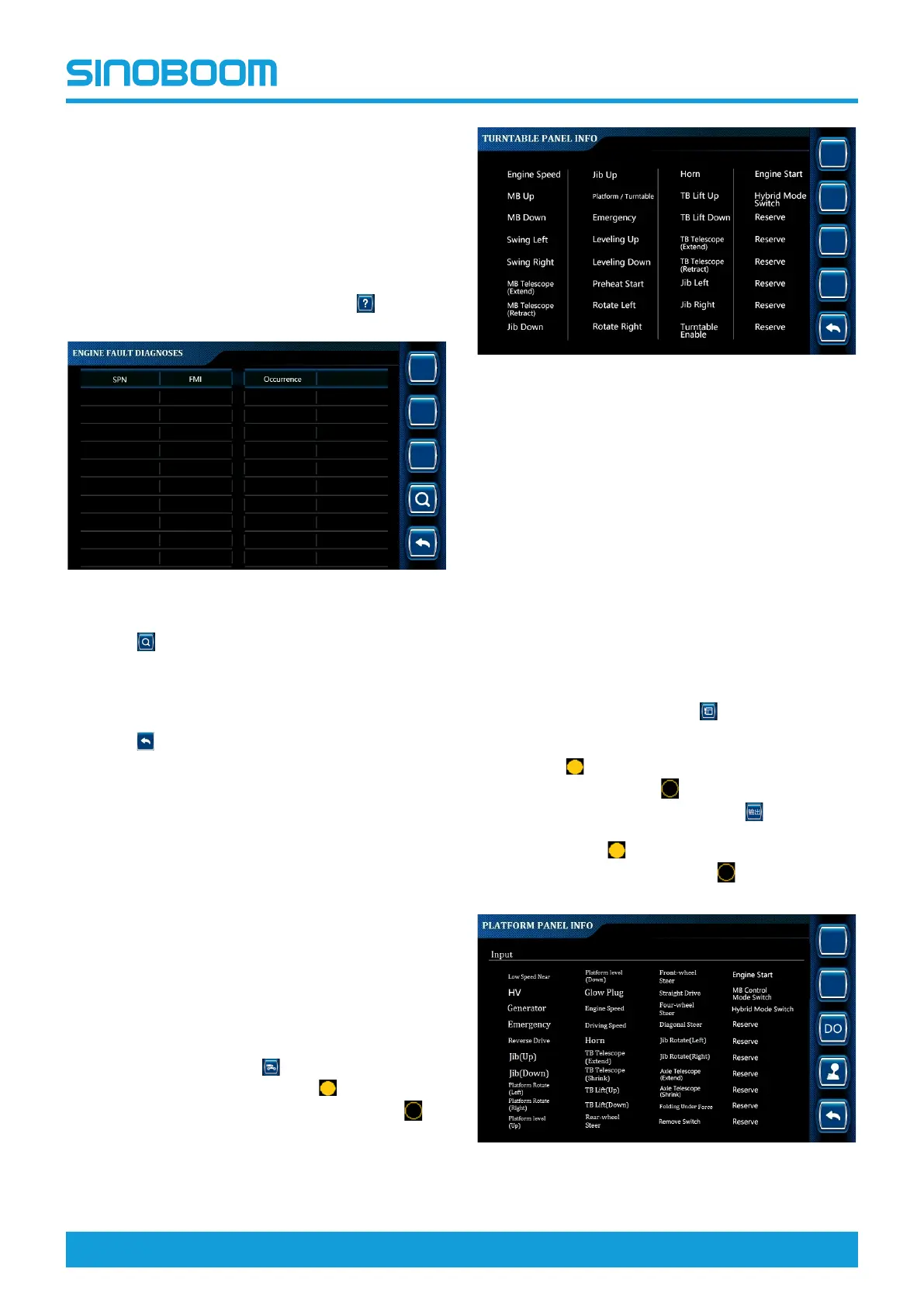
4. On the ENGINE INFO interface, press
to enter
ENGINE FAULT DIAGNOSES interface.
Fig 34 ENGINE FAULT DIAGNOSES interface
5. Press
to query the detailed description of the
main fault codes. For detailed fault descriptions,
please refer to the Fault Code Description in the
Maintenance Manual or the engine maintenance
manual provided with the machine.
6. Press
successively to return to the main inter-
face, and power off the machine as required.
11.8 TURNTABLE PANEL
INFORMATION
• The turntable panel information option is mainly used
to query the input status of switches on the ground
controller panel, so as to check whether the circuit
from the switches to the controller, input signal, etc.
are normal, thus assisting in determining the trouble
causes.
• The configuration of switches on the turntable panel
is subject to the actual machine configuration.
On the main interface, press
to enter the TURNTA-
BLE PANEL INFO interface (the icon
before the op-
tion means that the switch has input, and the icon
before the option means that the switch has no input).
Fig 35 TURNTABLE PANEL INFO interface
11.9 PLATFORM INFORMATION
• The platform information option is mainly used to
query the input and output status of switches on the
platform controller panel and the status of joystick on
the platform controller, so as to check whether the
circuit from the switches to the controller, input sig-
nal, etc. are normal, thus assisting in determining the
trouble causes.
• The configuration of switches and joystick on the
platform panel is subject to the actual machine
configuration.
1. On the main interface, press
to enter the PLAT-
FORM PANEL INFO interface to check the input
status of switches on the platform controller panel
(the icon
before the option means that the switch
has input, and the icon
before the option means
that the switch has no input). Press
to check the
output status of switches on the platform controller
panel (the icon
before the option means that the
switch has output, and the icon
before the option
means that the switch has no output).
Fig 36 PLATFORM PANEL INFO interface-input




 To Next Page