65 48 510 D3509
46 D3509.201.03.03.23 10.2016
4Operation Sirona Dental Systems GmbH
4.2Operating concept of the touchscreen Operating Instructions (USA) TENEO
4.2
Operating concept of the touchscreen
4.2.1 Virtual function keys
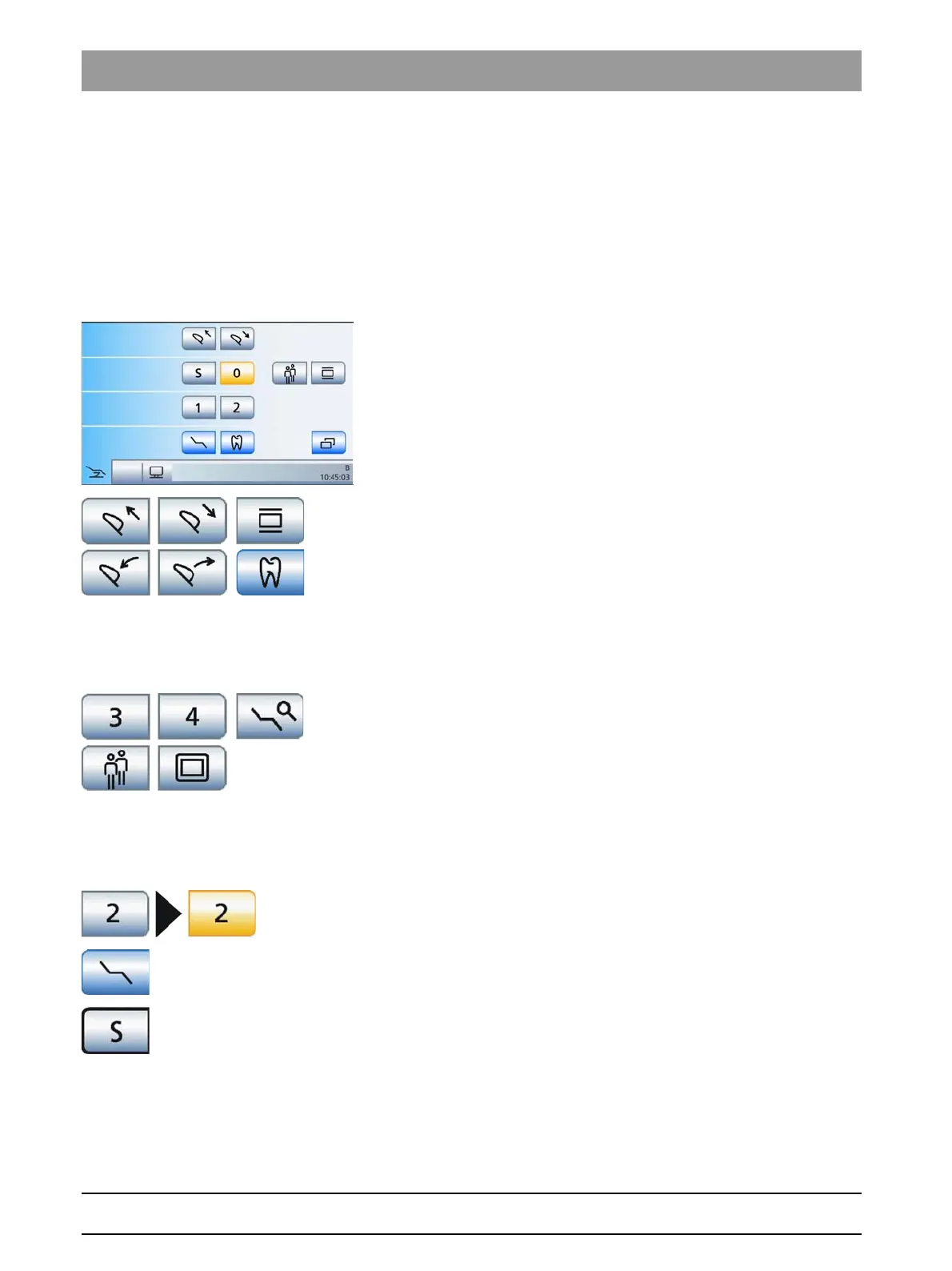
The touchscreen displays virtual function keys according to the program
selected. Required functions can be activated either by touching the
function keys with your finger or via cursor with the foot control.
Missing function keys
The adjacent illustration shows the touchscreen of a dental treatment unit
as supplied to the customer and maximally equipped.
Function keys for functions not included with the dental treatment unit are
not displayed on the touchscreen. Moreover, the touchscreen user
interface may vary due to individual setup settings, see "Configuration of
the dental treatment unit (Setup)" [ → 186].
In the
Start program
, this pertains to function keys for the following
equipment options:
● Motor-driven headrest*
● X-ray viewer
● Treatment (endodontics and implantology)*
The keys marked with an asterisk (*) are not displayed in the
EasyMode
Start program
. However, the equipment options may be available, see
"Start program operating modes" [ → 47].
Furthermore, the screens may vary due to individual setup settings. The
following configurations may influence the
Start program
, see:
● "Show/hide" chair programs 3 and 4" [ → 189]
● "Show/hide the fine adjustment key" [ → 190]
● "Preselect the number of user profiles"
● "Show/hide key for white screen on SIVISION monitor" [ → 192]
Key background color
General functions are represented by gray keys. If the corresponding
function is switched on or active, the key is displayed in orange.
Keys that initiate a program change or which lead to sub-screens and
settings screens are displayed in blue.
As long as a key remains activated, its active state is marked by a bold
black border.





 To Next Page