N N O T E
For information on using Mixed Reality Tools, see Using Mixed Reality Tools for the
SMARTDocumentCamera on page 49.
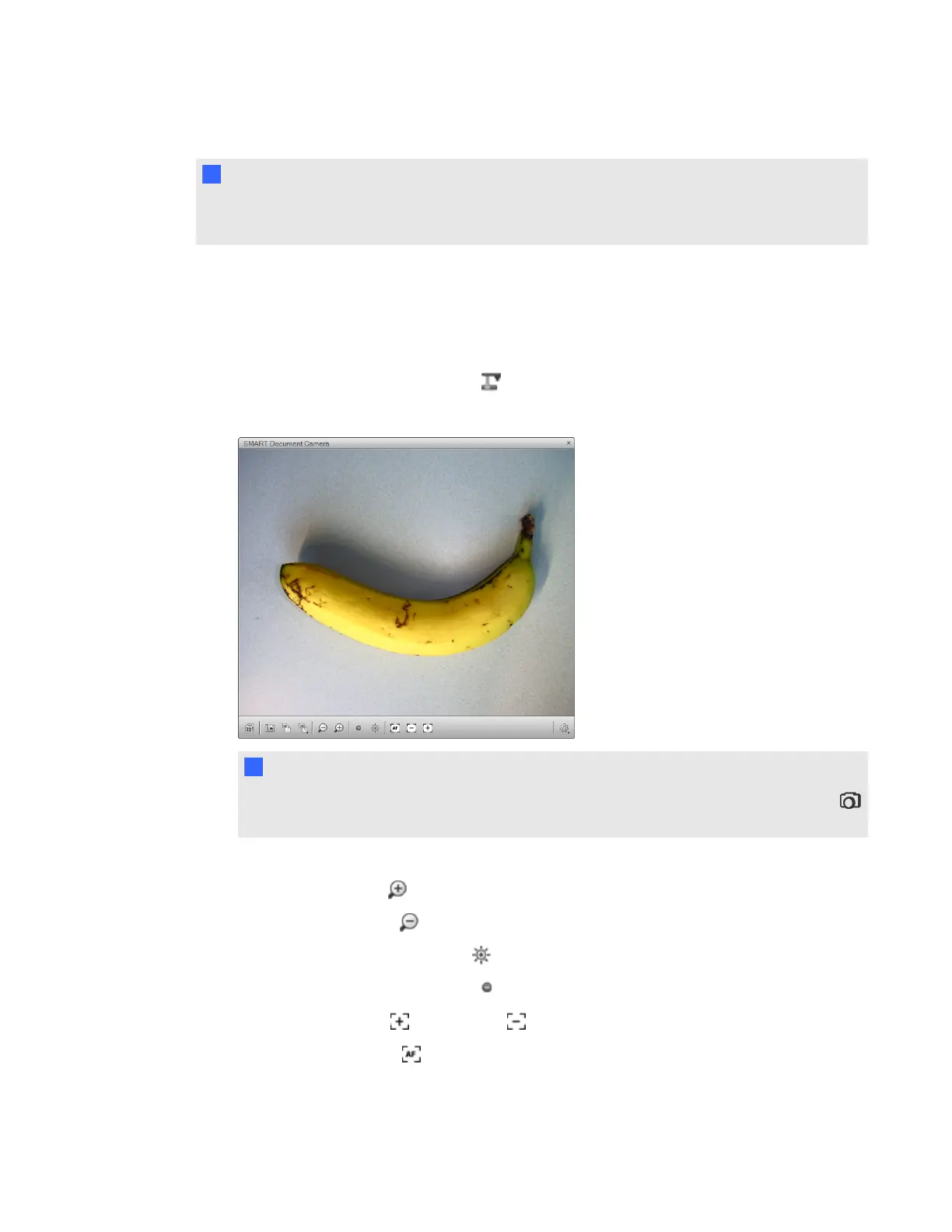
g To open a SMARTDocumentCamera window
1. Connect your SMARTDocumentCamera to your computer and turn on the document camera.
2. Place the object or objects you want to display under the camera.
3.
Press SMARTDocumentCamera .
A SMARTDocumentCamera window appears.
N N O T E
Alternatively, you can open the SMARTDocumentCamera window by pressing Capture
on the SMARTDocumentCamera control panel.
4. Do any of the following:
o
Press Zoom In to zoom in.
o
Press Zoom Out to zoom out.
o
Press Increase Brightness to brighten the image.
o
Press Decrease Brightness to darken the image.
o
Press Focus In or Focus Out to change the focus manually.
o
Press Autofocus to change the focus automatically.
5. Press Close when you’re done.
C H A P T E R 3
Using your SMARTDocumentCamera
23



 To Next Page