61
D375 | Snom 370 User Manual Configuring the Function Keys
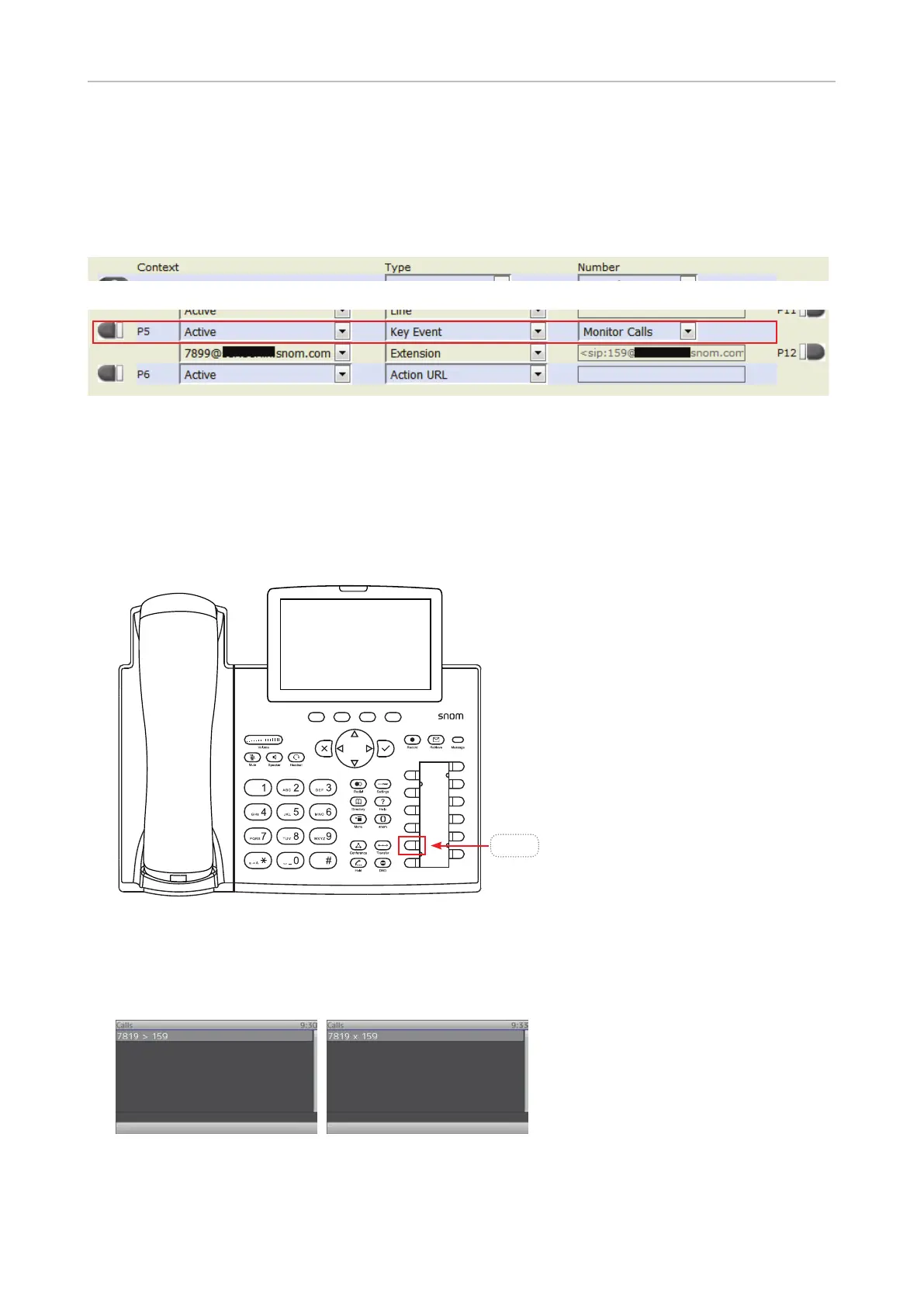
Example 2, Monitoring calls on-screen
When you are monitoring another extension or phone line, you may want to see more information on
the display, for example the number of an incoming call to that extension or line. In our example, key
P5 will be programmed to show ongoing activity on monitored extensions or lines on the display.
1. On the phone's web interface, click on "Function Keys" in the menu on the left.
2. Under "Context" of P5, select Active or one of the configured identities from the drop-down list.
3. Under "Type" of P5, select "Key Event" from the drop-down list.
4. Under "Number" of P5, select "Monitor Calls" from the drop-down list.
5. Click on "Apply" and "Save".
Press key P5 on the phone to show any ongoing activity on all extensions monitored by your phone
on the display. In the following example, extension 159 from Example 2 on the preceding page is a
monitored extension. "7819 > 159" in Fig. 1 indicates that extension 7819 is calling extension 159;
"7819 x 159" indicates that 7819 is connected to 159 and that 7819 is the caller, 159 the callee.
Fig. 1 Fig. 2
P5



 To Next Page