98
Adjusting Headset Volume
On the phone
When the headset is the active audio mode, as indicated by the headset symbol
in the status line and
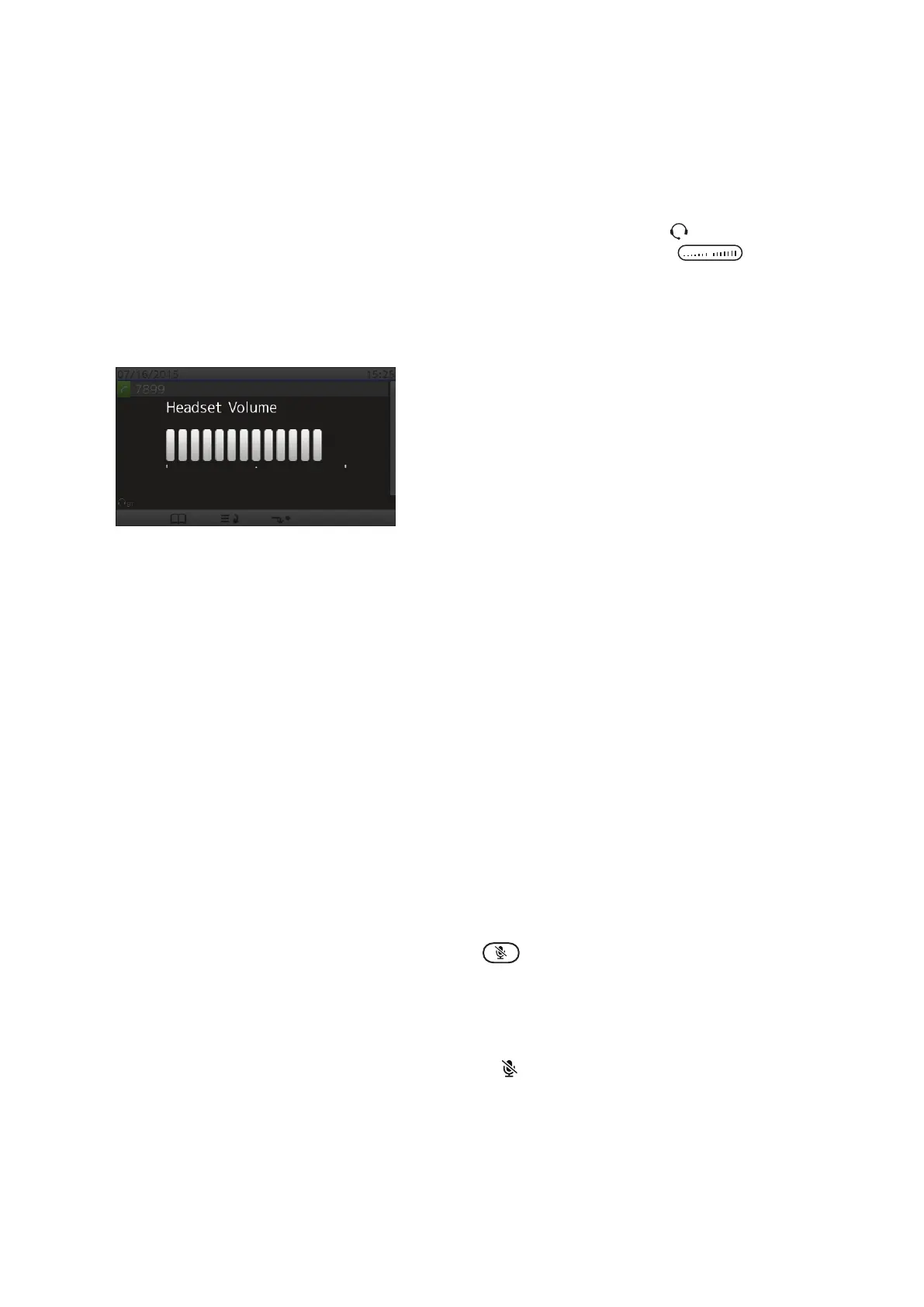
by the bright green LED on the headset key, you can use the phone‘s volume key
to set the call
volume for the headset. The phone will save the setting for calls with any headset. The next time the BT
headset is connected or reconnected to the phone and headset BT audio mode is activated on the phone,
the phone will transmit the saved volume setting to the BT headset, overwriting any dierent setting on
the headset.
Fig. 8
On the headset
Use the volume key(s) on the headset to adjust the volume immediately.
When headset BT mode is the active audio mode on the phone, the new volume setting will also be
transmitted to the phone and saved.
When headset BT mode is not the active audio mode on the phone, the headset will not transmit the new
volume setting to the phone; the next time audio is activated from the phone, the headset volume setting
will be overwritten by the volume setting stored on the phone.
Muting the Microphone
During a call, you can mute/unmute the headset‘s microphone by pressing the Mute button on the
headset. Please, refer to the headset‘s manual for further information.
With some headsets, you can also press the Mute key
on the phone. If you wish to use this feature,
please test any headset you want to use to see if it works.
Mute microphone indication
• On the phone. The symbol of the muted microphone
is shown in the status line next to the "BT"
symbol (Fig. 9). When the microphone is unmuted, the symbol disappears. Additionally, the red LED
on the mute key is on. When the microphone is unmuted, the red LED is turned o.



 To Next Page