28
D375 | Snom 370 User Manual Getting to Know Your Phone
Note: When the phone is in administrator mode and the Maintenance menu is on the
display, pressing
will switch the phone to user mode.
When the phone is in user mode and the Maintenance menu is on the display, press
to switch the phone to administrator mode. You will be asked for the administrator
password. The default administrator password is 0000 (4 x zero).
Most of the individual settings are described elsewhere in this manual: See "Using the phone" on
page 44 and "Customizing the phone settings" on page 64.
Adjusting the backlight
The backlight on the display of the phone and any connected expansion modules can be adjusted
separately for the times when the phone is active and when the phone is idle. Lowering backlight
intensity lowers the energy consumption of the devices.
The backlight when idle can be turned o by reducing the number of vertical bars to one. The phone
will switch the backlight to idle mode after the period of inactivity in seconds specified on the phone's
web user interface.
Adjusting the backlight on the phone's display
• Intensity
1. Press
.
2. Press 1 Preferences.
3. Press 5 Display.
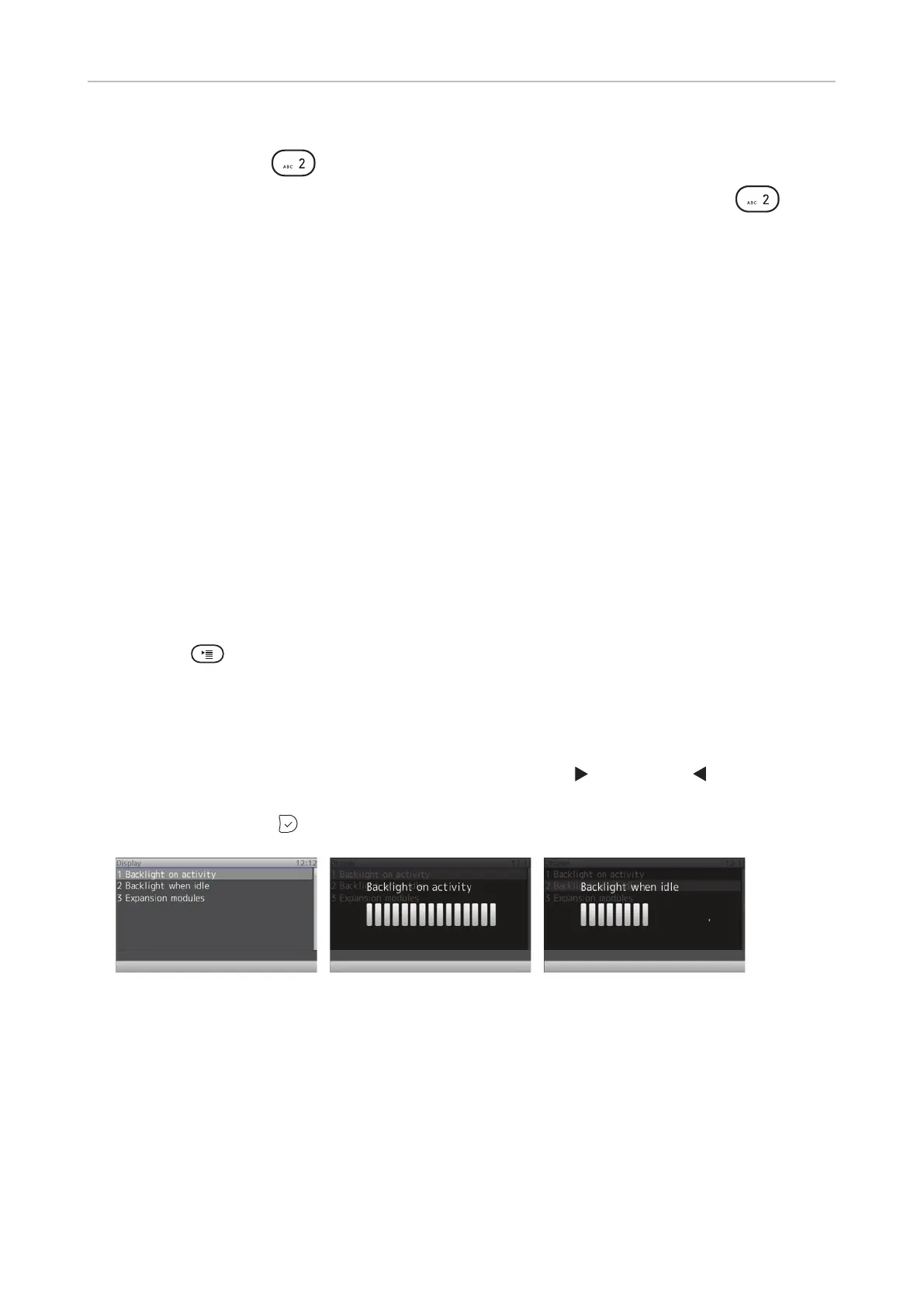
4. Press 1 Backlight on activity or 2 Backlight when idle.
5. Press right or left arrow on the navigation key to increase (
) or decrease ( ) the backlight's
intensity.
6. When done, press
to save and return to Display menu (Fig. 1).
Fig. 1 Fig. 2 Fig. 3
• Setting the number of seconds after which the phone will switch from activity to idle backlight
1. Open the phone's web interface (see "Opening the web interface" on page 32).
2. Click on "Preferences" (see "How the web interface works" on page 33).
3. Enter the number of seconds in the text field of "Dim after (in seconds)" (in the section
"General Information". default is 20 seconds.
4. Click on "Apply" and "Save".



 To Next Page