29
D375 | Snom 370 User Manual Getting to Know Your Phone
Adjusting the display settings on connected expansion modules
The intensity of the backlight on the displays can be adjusted separately for the phone and the
connected expansion modules, both for the times when the phone is active and when the phone is
idle. Lowering backlight intensity lowers the energy consumption of the devices.
Note: The number of seconds after which the expansion modules will switch from
activity to idle backlight is the number set for the phone display's backlight (see
"Adjusting the backlight on the phone's display" on page 28).
• Adjusting the intensity of the backlight.
1. Press
.
2. Press 1 Preferences.
3. Press 5 Display.
4. Press 3 Expansion Modules.
5. Press 2 Backlight on activity or 3 Backlight when idle.
6. Press right or left arrow on the navigation key to increase (
) or decrease ( ) the backlight's
intensity. The setting applies to all expansion modules connected to the phone.
7. When done, press
to save and return to Expansion modules menu (Fig. 3).
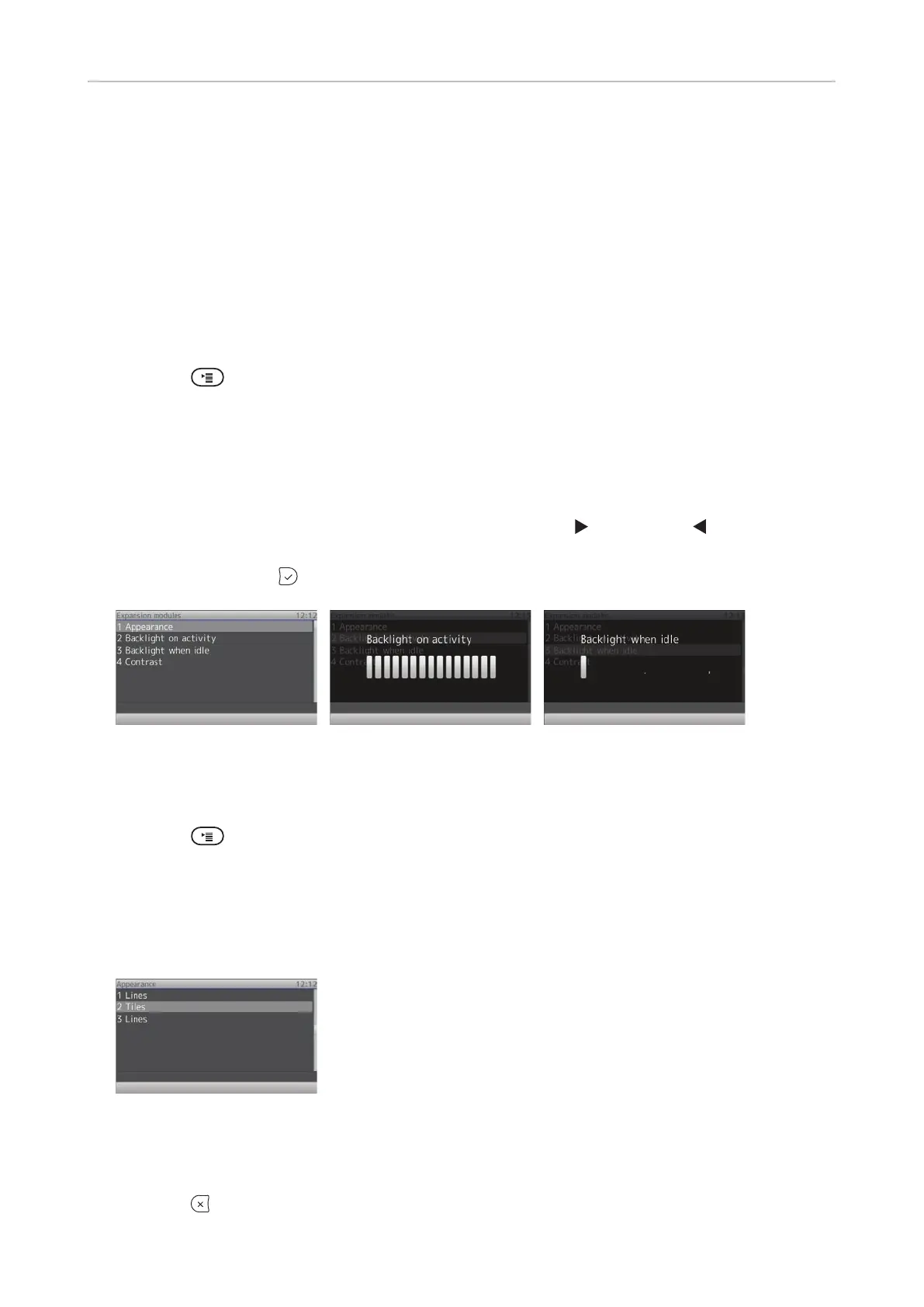
Fig. 3 Fig. 4 Fig. 5
• Adjusting the appearance of the data on the display (tiles or lines; for more information, see the
user manual of the expansion module, chapter Display layout) and the contrast.
1. Press
.
2. Press 1 Preferences.
3. Press 5 Display.
4. Press 3 Expansion Modules.
5. Press 1 Appearance.
Fig. 6
6. Press 1, 2, and/or 3 to change and simultaneously save the display layout of the first, second,
or third connected expansion module, respectively, from lines to tiles and vice versa.
7. Press
to return to the Expansion modules menu (Fig. 3).



 To Next Page