34
D385 User Manual Getting to Know Your Phone
Adjusting the backlight on the phone's primary display
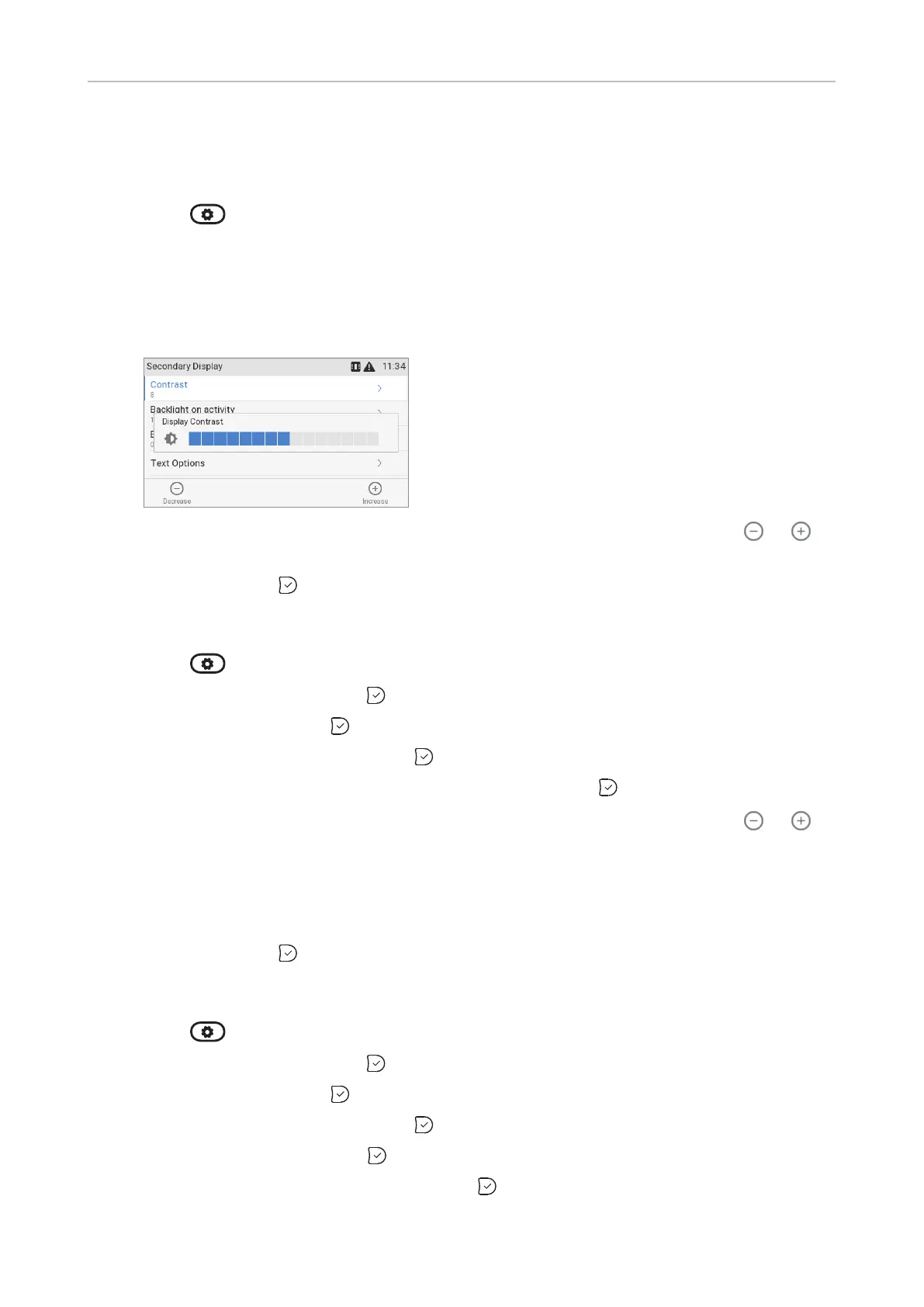
• Contrast (second display only).
1. Press
.
2. Select Preferences.
3. Select Display.
4. Select Secondary Display.
5. Select Contrast.
6. Press the right or left arrow on the navigation key or the function key underneath or to
decrease or increase the contrast.
7. When done, press
to save and return to the Secondary Display menu.
• Intensity of backlight.
1. Press
.
2. Select Preferences and press
.
3. Select Display and press
.
4. Select Secondary Display and press
.
5. Select Backlight on activity or Backlight when idle and press
.
6. Press the right or left arrow on the navigation key or the function key underneath
or in
the function key line (Fig. 3 and 4) to decrease or increase the backlight's intensity.
Note: The number of seconds after which the function key display will switch from
activity to idle backlight is the number set for the primary display's backlight (see
"Period of Inactivity" on page 33).
7. When done, press
to save and return to the Display menu (Fig. 2).
• Font size and text alignment for the function key labels are adjustable.
1. Press
.
2. Select Preferences and press
.
3. Select Display and press
.
4. Select Secondary Display and press
.
5. Select Text Options and press
.
6. Select Font size or Text alignment and press
.



 To Next Page