48
D385 User Manual Directories
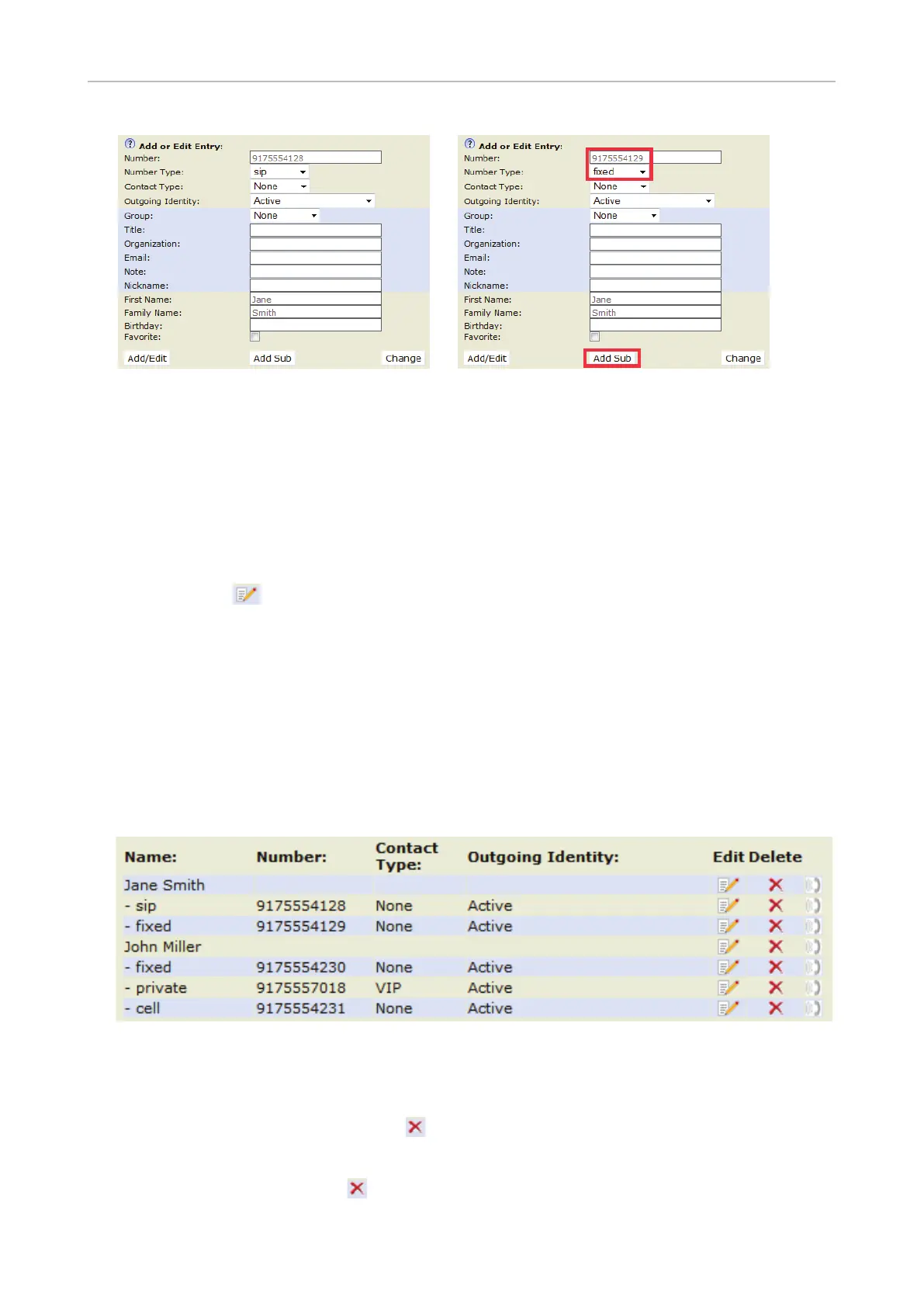
Fig. 2 Fig. 3
- Enter the phone number in the text field of "Number" (Fig. 3).
- Select "fixed" from the drop-down menu of "Number type" (Fig. 3).
- Optional: Select a contact type and an outgoing identity from drop-down lists (Fig. 3).
- Click on Add Sub (Fig. 3).
◦ John Miller's entry has a SIP number and a private number. In this example, his cell phone
number will be added as a third number.
- Click on
in the line containing John Miller's name. The data is shown in "Add or Edit"
area.
- Enter the phone number in the text field of "Number".
- Select the number type.
- Optional: Select a contact type and an outgoing identity from the respective drop-down
list.
- Click on Add Sub.
The directory now contains Jane Smith's landline number and John Miller's mobile phone number
(Fig. 4).
Fig. 4
Deleting entry on web interface
• Entry with one phone number. Click on
in the entry's lines to delete the entry.
• Entry with more than one phone number.
◦ Deleting the entry. Click on
in the line of the master record to delete the name and all
associated phone numbers.



 To Next Page