72
D385 User Manual Configuring the Function Keys
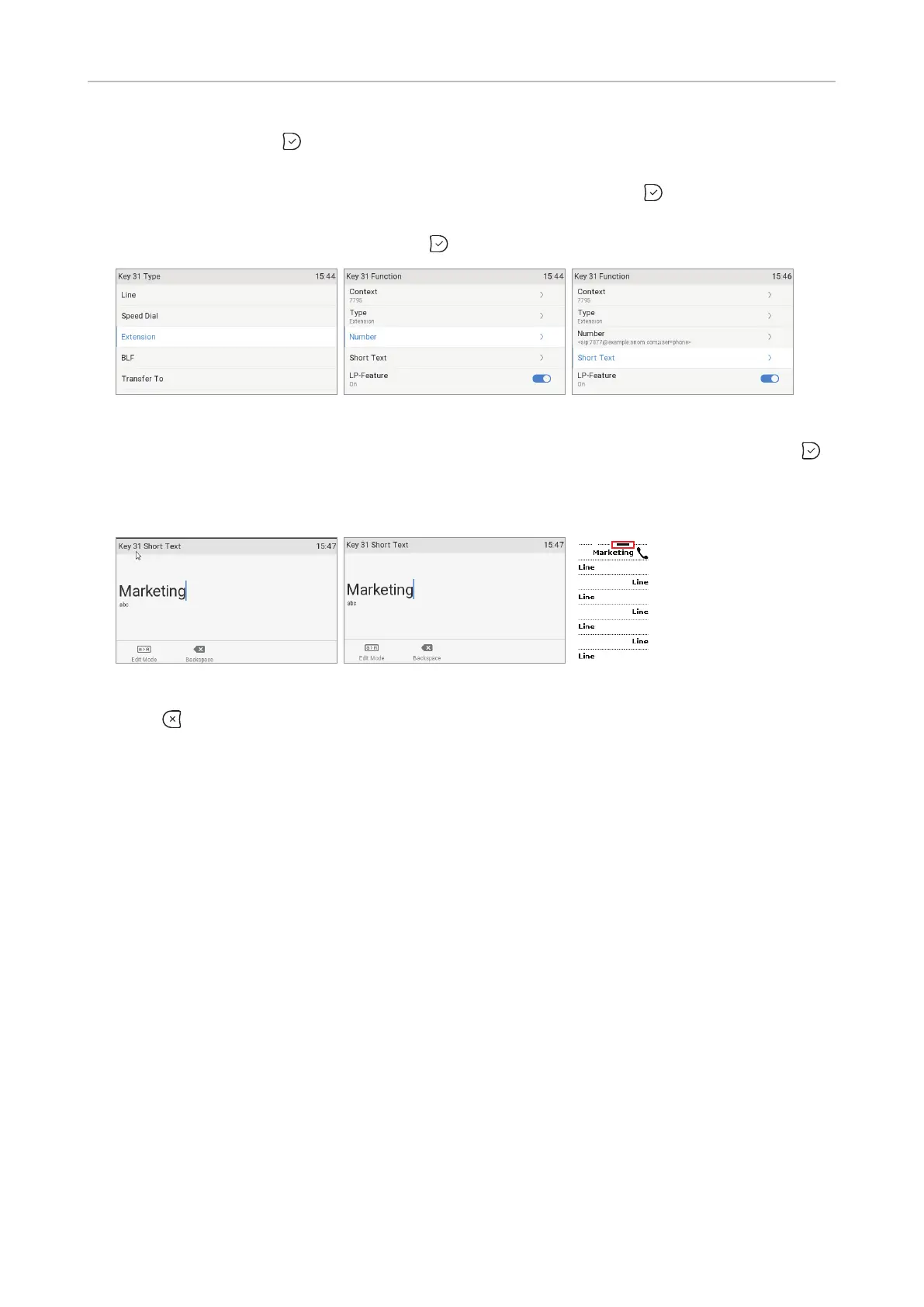
5. Select Type and press (Fig. 7). The information you will then be prompted to enter depends on
the selected functionality.
a. In our example, the functionality is Extension (Fig. 8). After pressing
, the line below Type is
Number (Fig. 9).
b. Enter the extension number and press
(Fig. 10).
Fig. 8 Fig. 9 Fig. 10
6. The Short Text (Fig. 11) is optional. Enter a name or other descriptive text (Fig. 12) and press .
This is the data displayed on the key's label area on the phone's function key screen and on the
D7's display, respectively. If you leave the field blank, the number will be displayed in the key
label area.
Fig. 11 Fig. 12 Fig. 13
7. Press to return to the idle screen. The top key on page 3 can now be used to dial the extension
by briefly pressing the key and to monitor the extension. See "Example 1, Extension monitoring
and call pick-up" on page 72 for more information on how to configure and use extension
monitoring.
Settings on the web interface
The location of the freely programmable function keys on the phone's web interface corresponds to
the location on the left and right side of the phone's function key screen (see Fig. 1 on page 71.
1. On the phone's web interface, click on Function Keys in the menu on the left.
2. Under Context of the key, select "Active" or one of the configured identities from the drop-down
list.
3. Under Type of the key, select the functionality from the drop-down list.
4. Depending on the selected functionality, there will be a text field or a drop-down menu in the
Number column. Enter the number or select an item from the list.
5. Optional: In the Short Text text field of the key, enter a name or descriptive text. This is the text
that will be displayed in the key's label area on the phone's function key screen or on the D3's
display. If the text field is empty, the label area will display the number.
6. Click on Apply and Save.



 To Next Page