ModelName: Falcon_E
PartNumber: 4-164-613-11
74
74
Enjoying Podcast
Table of
Contents
Home
Menu
Index
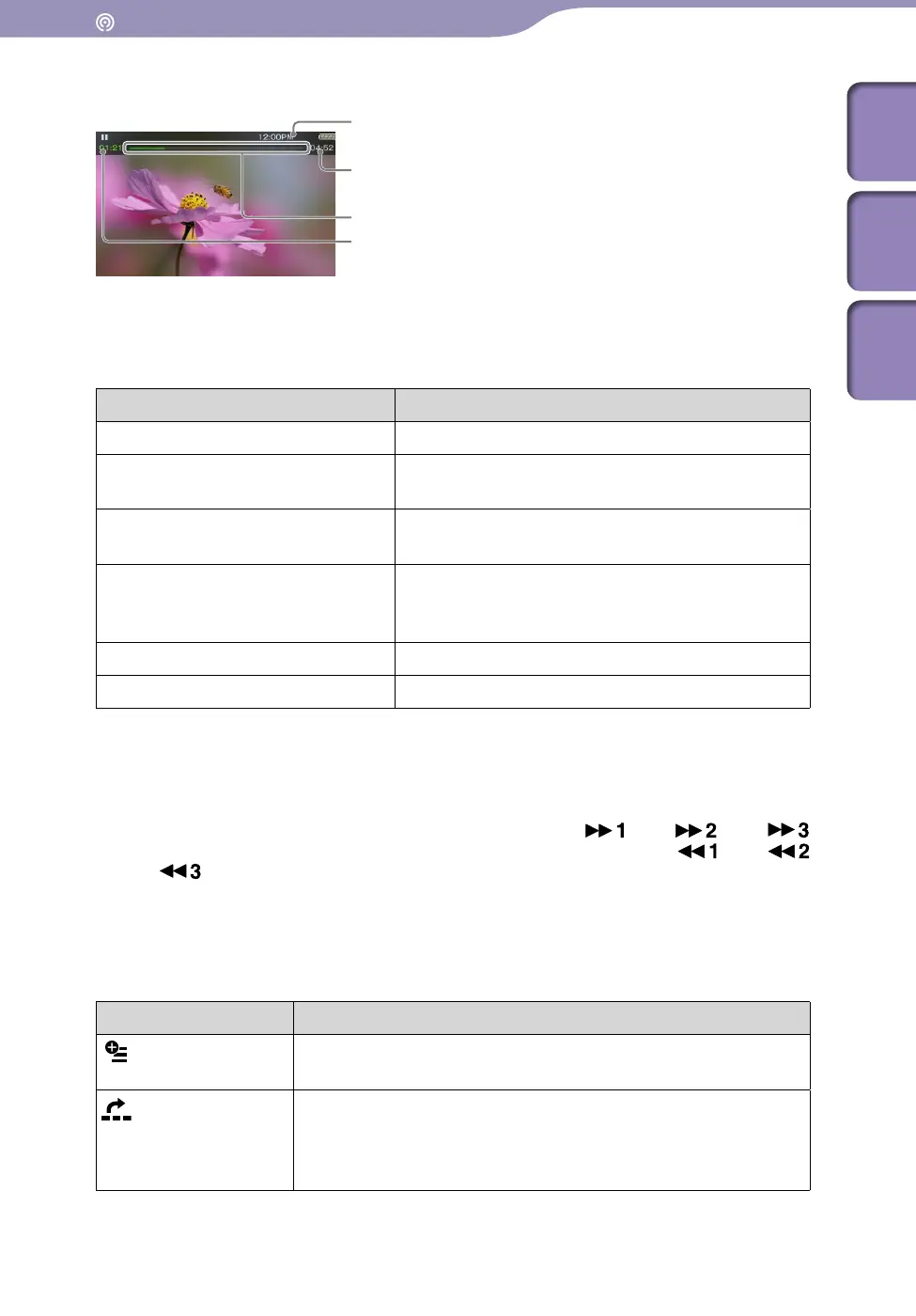
Video playback screen
Operations on the video playback screen
While the player is playing back a video in landscape orientation, / buttons
and / buttons interchange their functions with each other.
To (Screen indication) Do this
Play ()/pause ()
*1
Press the button.
Fast forward ()/fast rewind
()
*2*3
Press and hold the / button.
*4
Fast forward ()/fast rewind
() during pause
*5
Press and hold the / button during pause.
Move to the previous scene
*6
()/move to the next scene
()
Press the (previous)/ (next) button.
Rewind slightly/forward slightly
Press the / button during pause.
Return to the list screen Press the BACK/HOME button.
*1
During pause, if there is no operation for a while, the player automatically enters standby mode.
*2
If you fast-forward to the end of the episode, the playback pauses. If you fast-rewind to the
beginning of the episode during playback, the playback restarts automatically. If you fast-rewind
to the beginning to the episode during pause, the playback remains paused.
*3
These buttons may not work as described above depending on the episode.
*4
Forward speed changes through 3 levels by repeatedly pressing ( (×10), (×30),
(×100)). Also, rewind speed changes through 3 levels by repeatedly pressing (
(×10),
(×30),
(×100)). Release the / button to exit the operation and resume normal playback.
*5
The speed of fast forward/fast rewind during pause varies depending on the length of the video.
*6
If there is only one chapter in the video, the playback position moves with an interval of 5
minutes.
Icons which appear by pressing the OPTION/PWR OFF button
Icon Description
(Option Menu)
Shows the option menu. For details on the podcast option
menu, see “Using the Podcast Option Menu” (
p
.
79).
[Scene Scroll]
*1
Shows the scene scroll screen. You can browse scenes or
chapters by scrolling the thumbnail
*2
on the screen, to select the
desired scene. For details, see “Browsing scenes (Scene Scroll)”
(
p
.
62).
*1
Scene Scroll icon appears on the video playback screen only.
*2
Thumbnail refers to a reduced size image of one scene of a video.
Information area
Total time
Progress bar
Elapsed time





 To Next Page