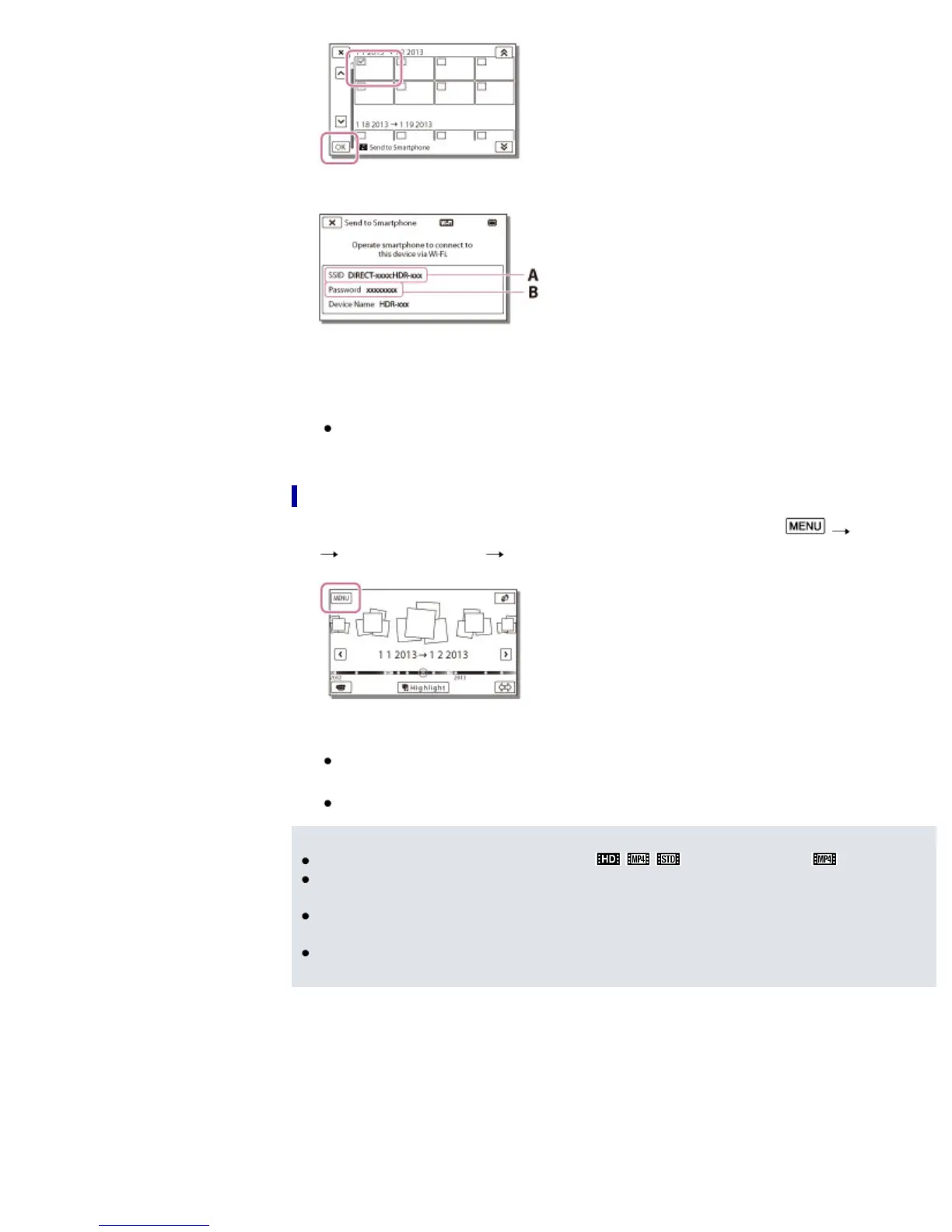
6. Confirm that the SSID and a password are displayed on the camcorder LCD screen.
A: SSID
B: Password
7. On your smartphone, select the SSID displayed on the camcorder LCD screen, and then enter the
password displayed on the camcorder LCD screen.
A connection is established between the smartphone and camcorder, and images are
transferred from the camcorder to the smartphone.
To select images to transfer using a smartphone
1. Perform the procedures in step 3 of “Send to Smartphone,” and then select [Edit/Copy]
[Send to Smartphone] [Select on Smartphone].
2. On your smartphone, select the SSID displayed on the camcorder LCD screen, and then enter the
password displayed on the camcorder LCD screen.
A connection is established between the smartphone and camcorder.
3. On your smartphone, select the image you want to transfer, and then select [Copy] or [Upload].
The images are transferred from the camcorder to the smartphone.
Notes
[Send to Smartphone] is not available when [
/ / Setting] is not set to [ MP4].
[Send to Smartphone] is not available when MP4 movies or still images have not been saved on the
camcorder.
If you want to import images recorded on a memory card, insert the memory card to the camcorder,
and then select the memory card in [Media Select] (models with internal memory).
If the distance between the camcorder and smartphone is too far, a connection may not be
established. Connect the camcorder and smartphone within 5 m.
To connect an Android smartphone to the camcorder
1. Start up “PlayMemories Mobile” on the smartphone.



 To Next Page