"Handycam" User Guide
PrintSearch
Operation Search
Before use
Getting started
Recording
Playback
Playing images on a TV
Saving images with an external
device
Using the Wi-Fi function
Customizing your camcorder
Troubleshooting
Maintenance and precautions
Contents list
Top page > Playback > Playback > Playing movies and photos from the Event View screen
Playing movies and photos from the Event View screen
You can search for recorded images by date and time of recording (Event View).
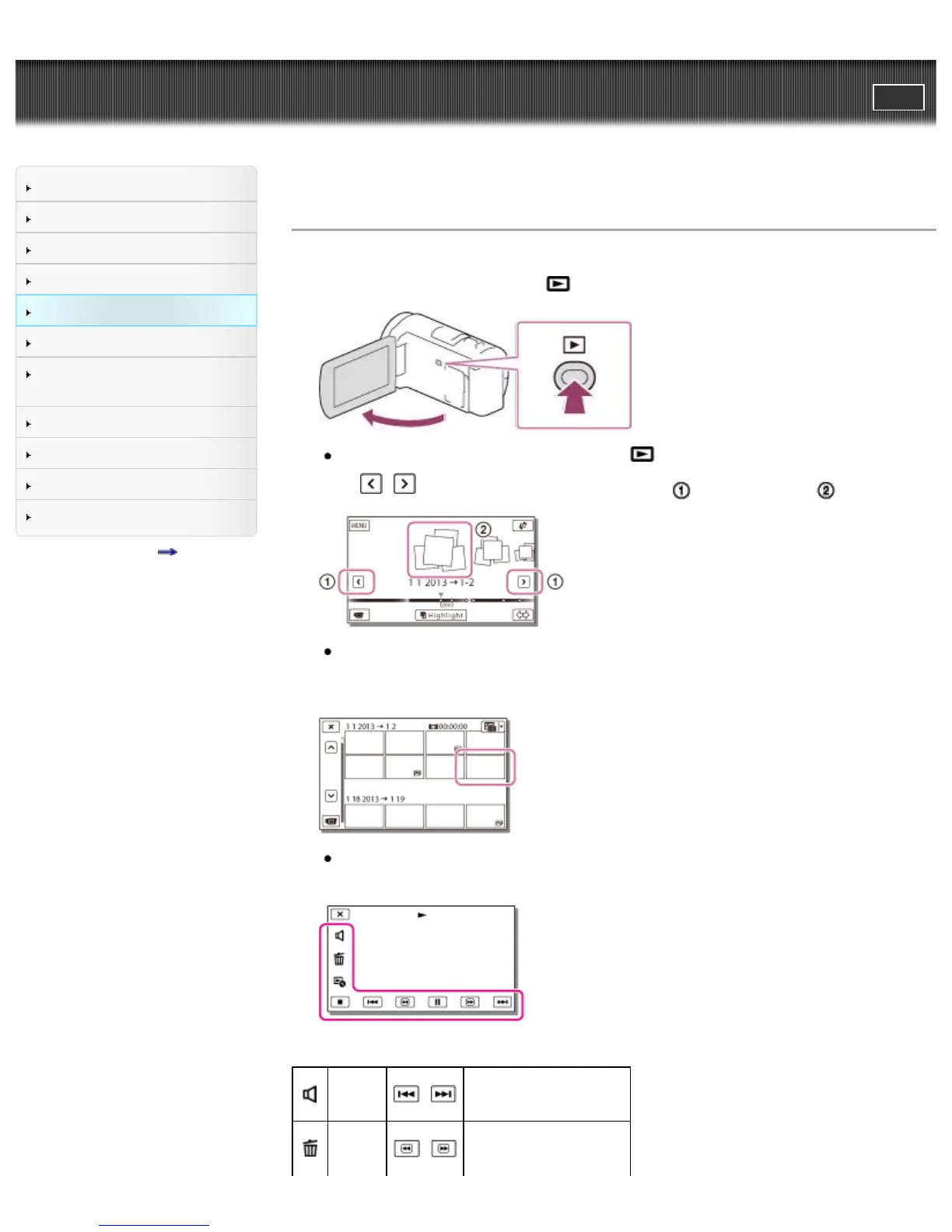
1. Open the LCD screen and press the
button on the camcorder to enter the playback mode.
You can enter the playback mode by selecting on the LCD screen. [Details]
2. Select
/ to move the desired event to the center ( ) and then select it ( ).
The camcorder displays recorded images as an event automatically, based on the date and
time.
3. Select the image.
The camcorder plays from the selected image to the last image in the event.
4. Select the appropriate buttons on the LCD screen for various playback operations.
Volume
/
Previous/Next
Delete
/
Fast-reverse/fast-forward



 To Next Page