"Handycam" User Guide
PrintSearch
Operation Search
Before use
Getting started
Recording
Playback
Playing images on a TV
Saving images with an external
device
Using the Wi-Fi function
Customizing your camcorder
Troubleshooting
Maintenance and precautions
Contents list
Top page > Customizing your camcorder > Shooting Mode > Golf Shot
Golf Shot
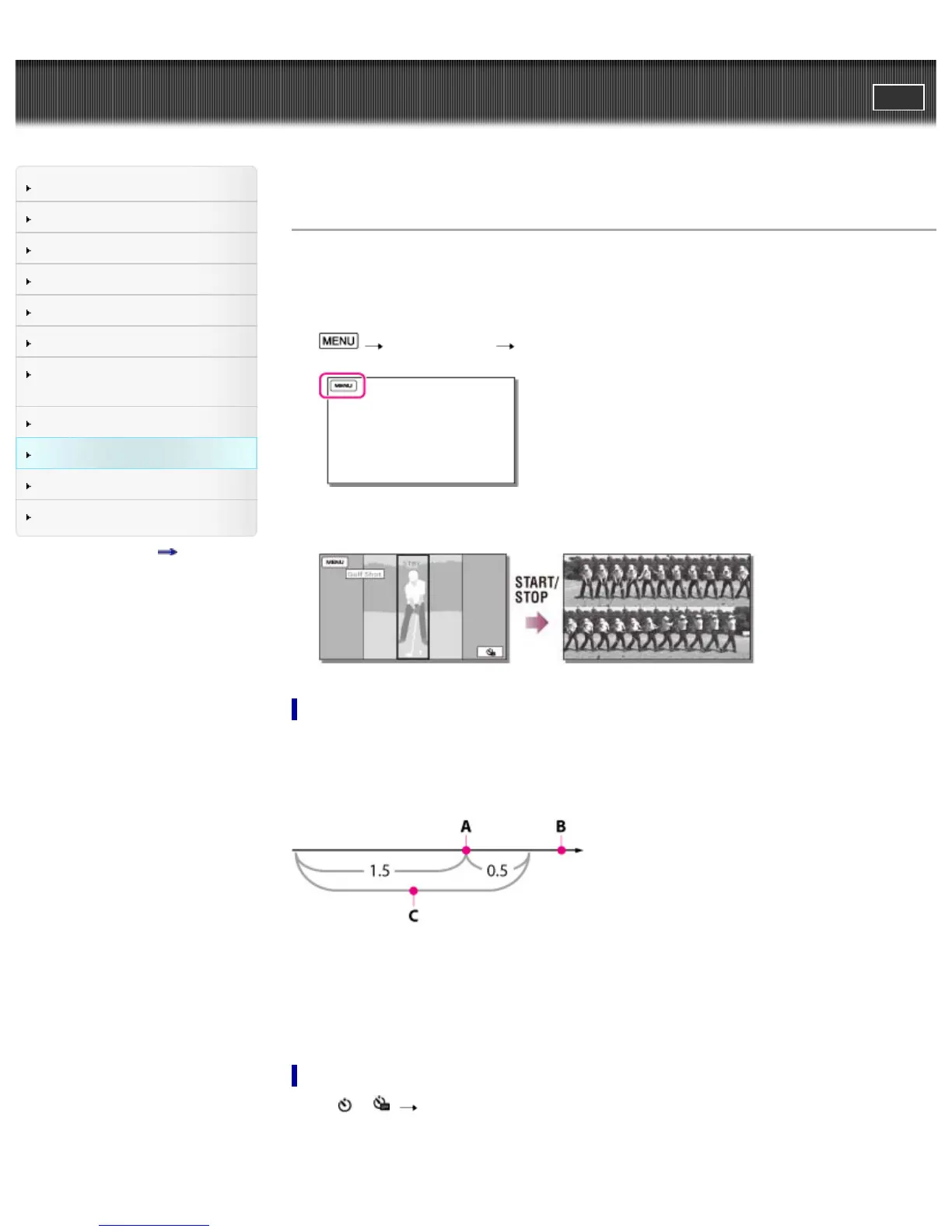
Divides 2 seconds of fast movement into frames which are then recorded as a movie and photos. You
can view a series of movement when playing back, which is convenient in cases such as checking golf
swing or tennis form.
1.
[Shooting Mode] [Golf Shot].
2. On the [Golf Shot] screen, frame the subject in the grid in the center of the screen, then press
START/STOP right after the subject has taken a swing.
Timing that the camcorder starts recording
If the moment when the largest sound in 1 second after the START/STOP button is pressed has been
detected, the camcorder assumes the moment as the sound of a club hitting the ball.
When the sound of a club hitting the ball is detected, the recording time period is automatically adjusted
according to at that moment.
A: The sound of a club hitting the ball*
B: The point when you press START/STOP
C: The camcorder records images in this 2 seconds period.
* The camcorder sets the point when the loudest sound in the past 1 second is detected, as the sound of a club
hitting the ball.
To check your form using self-timer
Select [ ] / [ ] [On].
The camcorder starts countdown of the timer after you press the START/STOP button.
The point when the count reaches 0 is assumed as the moment of impact and motion before and after 0
is recorded.



 To Next Page