"Handycam" User Guide
PrintSearch
Operation Search
Before use
Getting started
Recording
Playback
Playing images on a TV
Saving images with an external
device
Using the Wi-Fi function
Customizing your camcorder
Troubleshooting
Maintenance and precautions
Contents list
Top page > Playing images on a TV > Playing images on a non-high-definition TV > Connecting the
camcorder to a non-high-definition TV
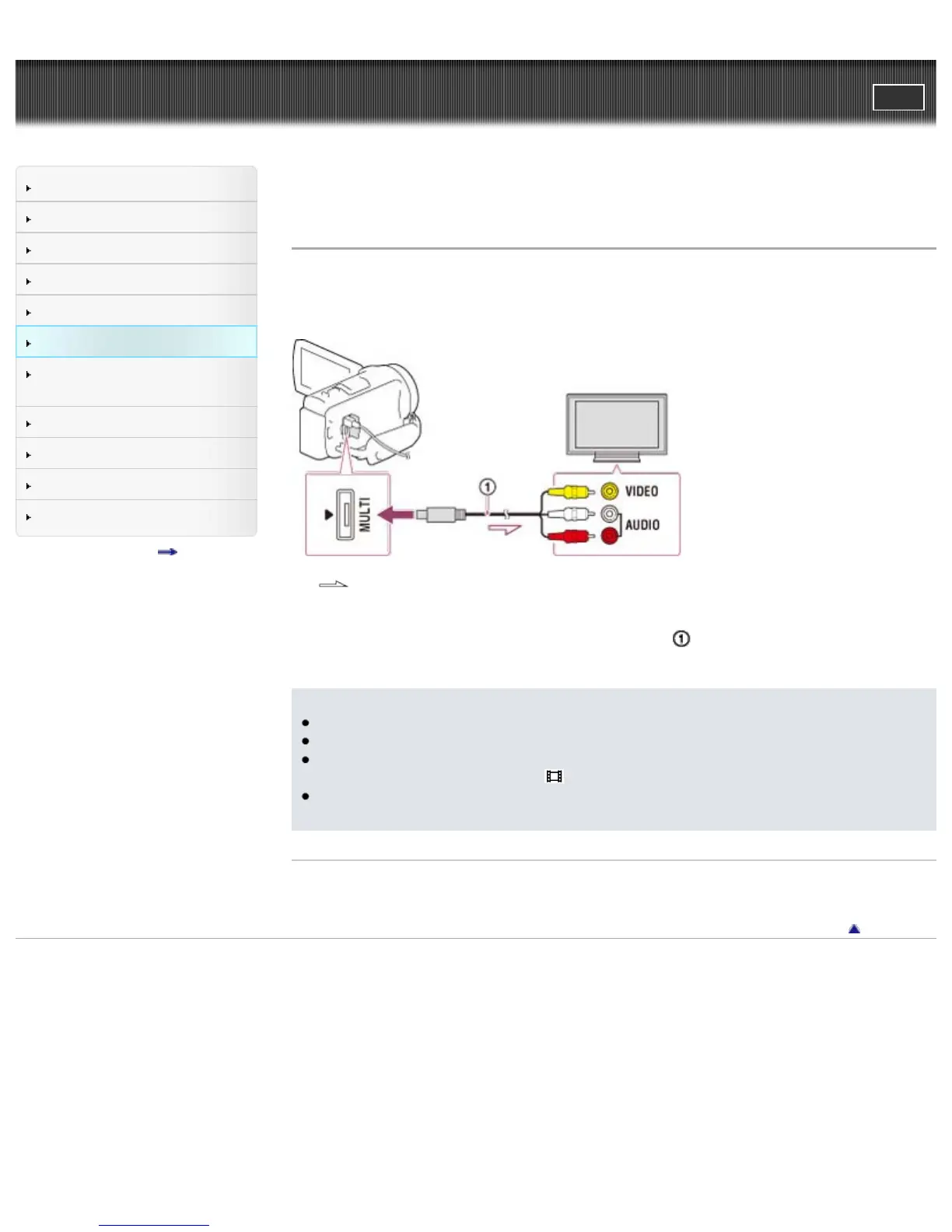
Connecting the camcorder to a non-high-definition TV
When movies are recorded with high definition image quality (HD), they are played back in standard
definition image quality (STD) on a non-high-definition TV. When movies are recorded with standard
image quality (STD), they are played back in standard definition image quality (STD).
:Signal flow
1. Switch the input on the TV to the connected jack.
2. Connect your camcorder and the TV using an AV Cable (
; sold separately).
3. Play a movie or a photo on the camcorder.
Notes
Refer to the instruction manuals of the TV as well.
Use the supplied AC Adaptor as the power source. [Details]
When you play back standard definition image quality (STD) movies on a 4:3 TV that is not
compatible with the 16:9 signal, set [
Wide Mode] to [4:3] to record movies with 4:3 aspect ratio.
If you connect your camcorder to the TV using more than one type of cable to output images, HDMI
input takes priority on the TV.
Related topics
[TV Type]
Back to top
Copyright 2013 Sony Corporation



 To Next Page