23
GB
1
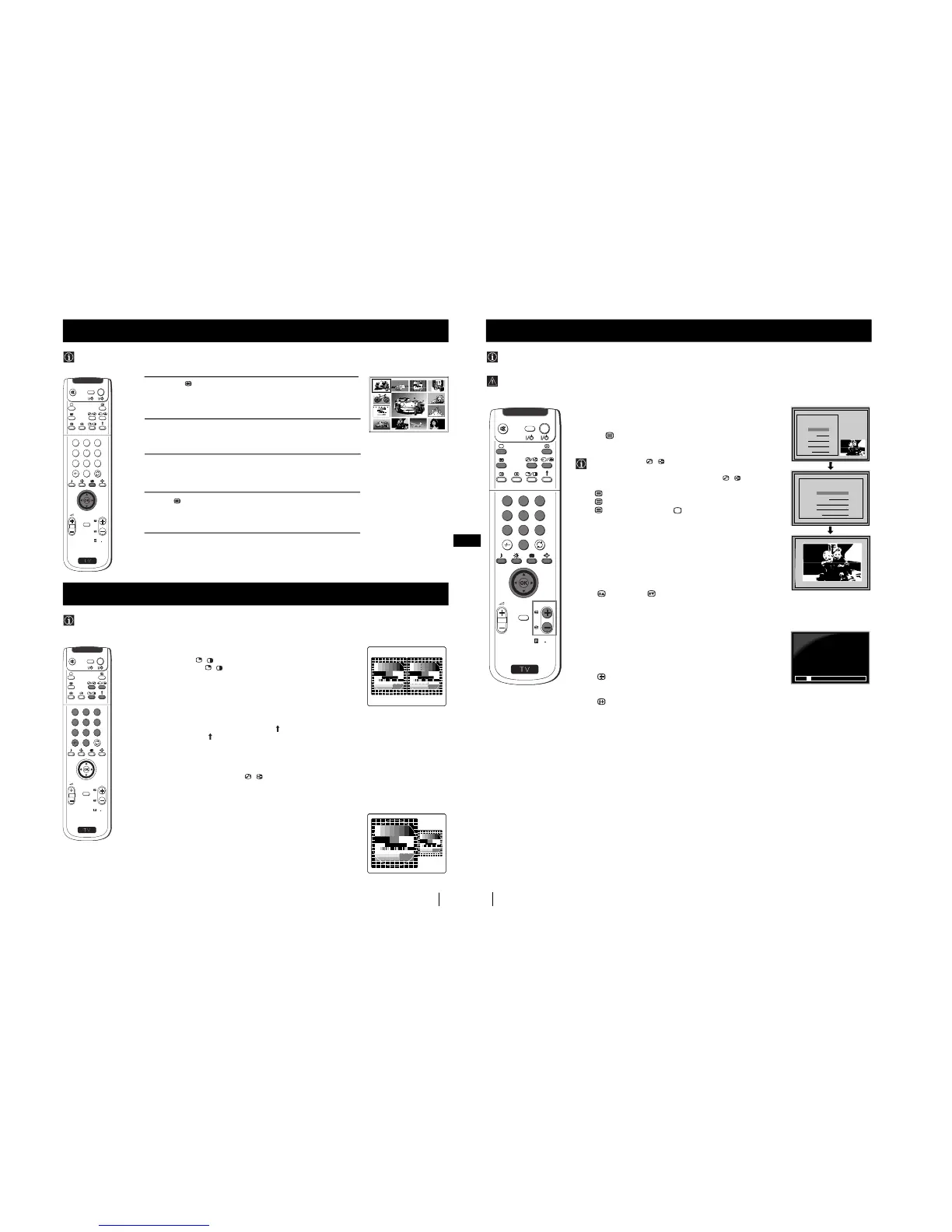
Press the button on the remote control to select the PIP mode.
Now 13 programme positions appear on the screen, with the current
channel in the centre.
2
Push the joystick $, 4, Z or z to move within the 13 displayed
channels.
3
Press the OK button to select the framed channel. The selected
channel moves to the centre.
4
Press to return to the normal TV mode.
Menu System
Menu System
Multi PIP (Picture in Picture) mode displays a succession of 12 still pictures and a 13th that is live. You can manually select which
channel you wish to watch, either full-screen or in the PIP.
Using Multi PIP (Picture In Picture)
S
RM
903
PROGR
MENU
1
4
7
2
5
8
0
3
6
9
TV
V
I
D
E
O
03 05
01 06
11 09 08
02
10
07
13
12
04
Switching PAP on and off
Press the button / on the remote control to display the two screens
in format 4:3. Press / again to switch PAP off.
Selecting PAP source
1
To change the source of the left screen:
With PAP switched on, press the number buttons (to select a TV
channel) or press … (to select a video source).
2
To change the source of the right screen:
With PAP switched on, press the button on the remote control.
When the symbol appears at the bottom of the right screen,
press the number buttons (to select a TV channel) or press … (to
select a video source).
Swapping screens
With PAP switched on, press the / button on the remote control to
swap the two screens.
Zooming the screens
With PAP switched on, push the joystick repeatedly Z or z to
change the size of the two screens.
Selecting the sound of the right screen
You can select the sound of the right screen via headphones. With
PAP switched on, refer to the "Adjusting the Sound" section of this
instruction manual and set the option "l Dual Sound" to "PAP".
PAP divides the screen into two for watching two channels simultaneously. One of the pictures can be selected to come from a
video source.
The sound of the left screen comes through the set loudspeakers, the sound of the right screen is selectable via
headphones.
Using PAP (Picture And Picture)
S
RM
903
PROGR
MENU
1
4
7
2
5
8
0
3
6
9
TV
V
I
D
E
O
24
Teletext
Teletext
Most TV channels broadcast information via Teletext. The index page of the teletext service (usually page 100) gives you
information on how to use the service.
! Please use a TV channel with a strong signal, otherwise there may be Teletext errors.
Teletext
Switching Teletext on and off
1
Select the TV channel which carries the teletext service you want
to view.
2
Press the button once for Picture and Teletext (P&T). The screen
is divided in two, with the TV channel in the right corner and the
Teletext display on the left.
P&T mode: Press / then press PROGR +/- to change
the channel of the TV screen. Push the joystick Z or z to
change the size of the TV screen then press / again to
resume normal teletext reception.
3
Press twice to get Teletext only.
4
Press three times for Mix mode.
5
Press a fourth time or press to switch off Teletext.
Selecting a Teletext page
Input three digits for the page number using the numbered buttons on
the control. If you make a mistake, type in any three digits then re-enter
the correct page number.
Using Other Teletext Functions
Selecting the next or preceding page
Press the (PROG+) or (PROGR-) buttons on the remote
control to select the previous or next page.
Selecting a sub page
A teletext page may consist of several sub pages. In this case, after a
few seconds, an information line is displayed showing the number of
subpages.
Select the sub page by pressing 4 or $.
To freeze a Teletext page
Press the button to freeze the page. Press again to cancel the freeze.
Revealing the index page
Press the button to reveal the index page (normally page 100).
Fastext
(only available if the TV station broadcasts Fastext signals)
When the colour coded menu appears at the bottom of a teletext page,
press a coloured button on the remote control (red, green, yellow or blue)
to access the corresponding page.
Using the feature "Page Catching"
1
Press the numbered buttons on the remote control to select a teletext
page which has several page numbers on it (eg the index page).
2
Press the OK button.
3
Push the joystick 4 or $ to select the desired page number then
press the OK buttons. The requested page is displayed after
some seconds.
continued...
S
RM
903
PROGR
MENU
1
4
7
2
5
8
0
3
6
9
TV
V
I
D
E
O
TELETEXT
Index
Programme
News
Sport
Weather
25
153
101
98
01
TELETEXT
Index
Programme
News
Sport
Weather
25
153
101
98
TELETEXT
Index
Programme
News
Sport
Weather
25
153
101
98
TELETEXT
Index
Programme
News
Sport
Weather
25
153
101
98
TELETEXT
Index
Programme
News
Sport
Weather
25
153
101
98
TELETEXT
Index
Programme
News
Sport
Weather
25
153
101
98
TELETEXT
Index
Programme
News
Sport
Weather
25
153
101
98
TELETEXT
Index
Programme
News
Sport
Weather
25
153
101
98
TELETEXT
Index
Programme
News
Sport
Weather
25
153
101
98
01
TELETEXT
Index
Programme
News
Sport
Weather
25
153
101
98
216-02
01 03 04 05 06 07 08
02



 To Next Page