10 User manual 208898
3. Taking an Exposure CRANEX Novus e
DIGORA for Windows software (not in USA)
1. PC: Switch on the PC that is connected to the
unit.
2. PC: Open DIGORA for Windows software and
then open a patient card.
3. Switch the unit on. The on/off switch is at the
rear of the column near the base.
The unit display will come on and the unit will
carry out a self test (Starting up).
Single user:
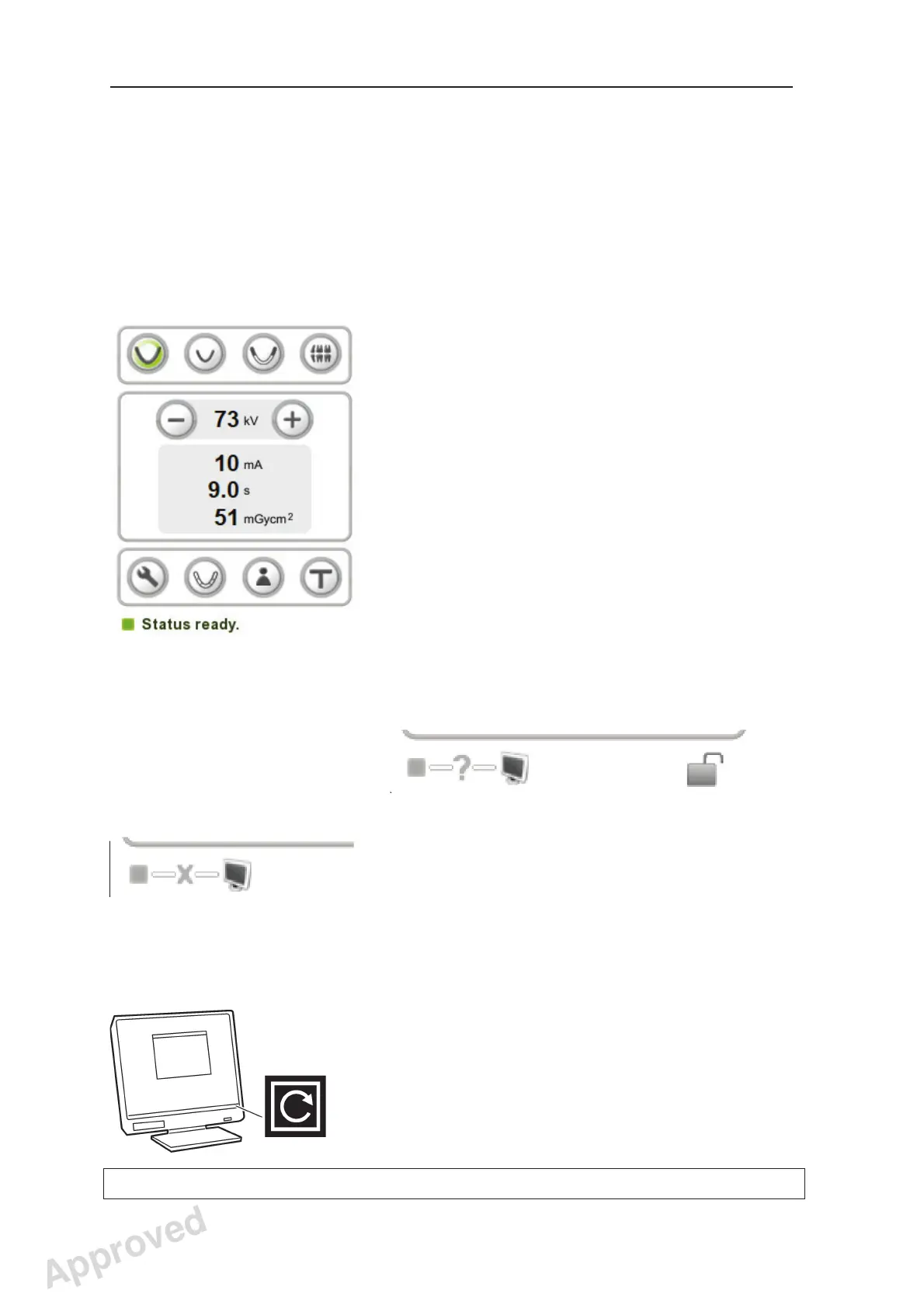
When the self test is complete, the unit status
indicator will turn GREEN and the text Status
ready will appear. The unit can now be used to
take an exposure.
Go to step 6 to complete unit preparation.
Multiple users:
When the self test is complete, a question mark
(?) will appear next to the unit status indicator.
This indicates that you need to reserve the unit
before you can take an exposure.
NOTE:
If the no connection symbol (X) appears next to
the unit status indictor, it indicates that there is
no connection between the unit and the PC. See
section 6. Troubleshooting and Maintenance
for more information.
4. PC: To reserve the unit, click the GREEN
Multiconnect icon, which is in the bottom right-
hand corner of the PC display. The Connect
window will appear.
Approved: Ukkonen Juha-Pekka 2015-03-13 13:08
Reviewed: Savinen Antti Juhani 2015-03-12 11:32
Approved
See PDM system to determine the status of this document. Printed out: 2016-01-27 12:19:26
D508980, 4
Copyright © 2015 by PaloDEx Group Oy. All rights reserved.


 To Next Page