User Manual
8.2: COPY AND PASTE
MIX FEATURES > COPY AND PASTE
8.2: MIX FEATURES > COPY AND PASTE
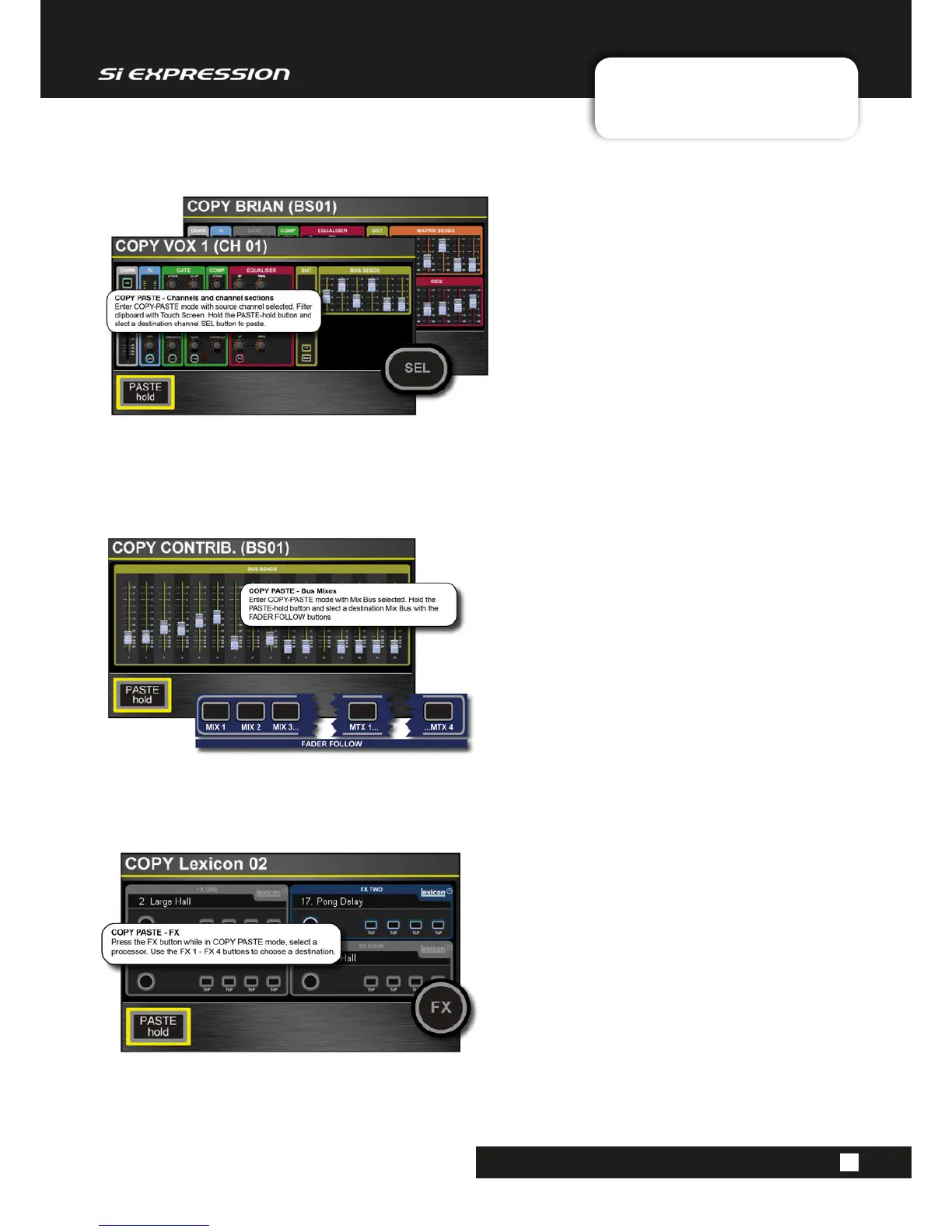
DSP Channel COPY-PASTE
With a DSP channel (Input Channel or Mix/Matrix
Bus Master) selected, COPY PASTE mode will
display a version of the ACS (with GEQ for Bus
Masters). By touching sections in this Touch Screen
display you can remove individual sections from
the paste operation. To select a single section only,
touch and hold that section in the Touch Screen.
To paste channels and channel selections, touch
and hold the PASTE-hold Touch Screen button and
choose another channel with its Control Channel
SEL button.
Mix Bus COPY-PASTE
With a tOTEM (FADER FOLLOW) button selected
you can use COPY PASTE mode to copy and paste
an entire MIX, MTX, or FX Bus Mix. For example,
you could copy the MIX 1 contribution levels from
all Input Channels and paste those levels as a MIX
2 mix). When you touch COPY PASTE, the mix to
be copy-pasted will be shown in the Touch Screen
display.
To paste a Bus mix, touch and hold the PASTE-hold
Touch Screen button and choose another Bus mix
via with tOTEM (FADER FOLLOW) buttons.
FX COPY-PASTE
To copy and paste settings between the four
Lexicon processors, start by pressing the round
FX button while in COPY-PASTE mode. This will
display the four processors in the Touch Screen.
Select the processor you want to COPY - it will be
highlighted in blue.
To paste, press and hold the Touch Screen
PASTE-hold button, the select another processor
with the four FX FADER FOLLOW (tOTEM) buttons
- FX 1 - FX 4.



 To Next Page