Installation and Reference Manual
Working with Voicemail
Installation and Reference Manual v3.2/0410/6 209
If a User wishes to be notified of a new voicemail message via an SMS alert this can also be configured
within the Voicemail page of the User’s configuration form.
1 In Manager, select Users
2 Select the User required
3 Select the Voicemail page
4 Select the Add Voicemail Contact button (at the bottom of the page)
5 In the Telephone Number field enter the email address from the SMS provider.
6 From the Type list box select SMS.
7 From the Method list box select Alert.
8 Select Update or Apply when ready.
Using voicemail with a Paging Port
Voicemail can be used to play messages over a tannoy or PA system connected to the system. In a busy
environment this means that several people can be leaving messages rather than having to wait for the
paging extension to become free. For details on how to configure a paging port please refer to page 78.
1 Create a new User with an extension number not currently in use
2 Enable voicemail for this User.
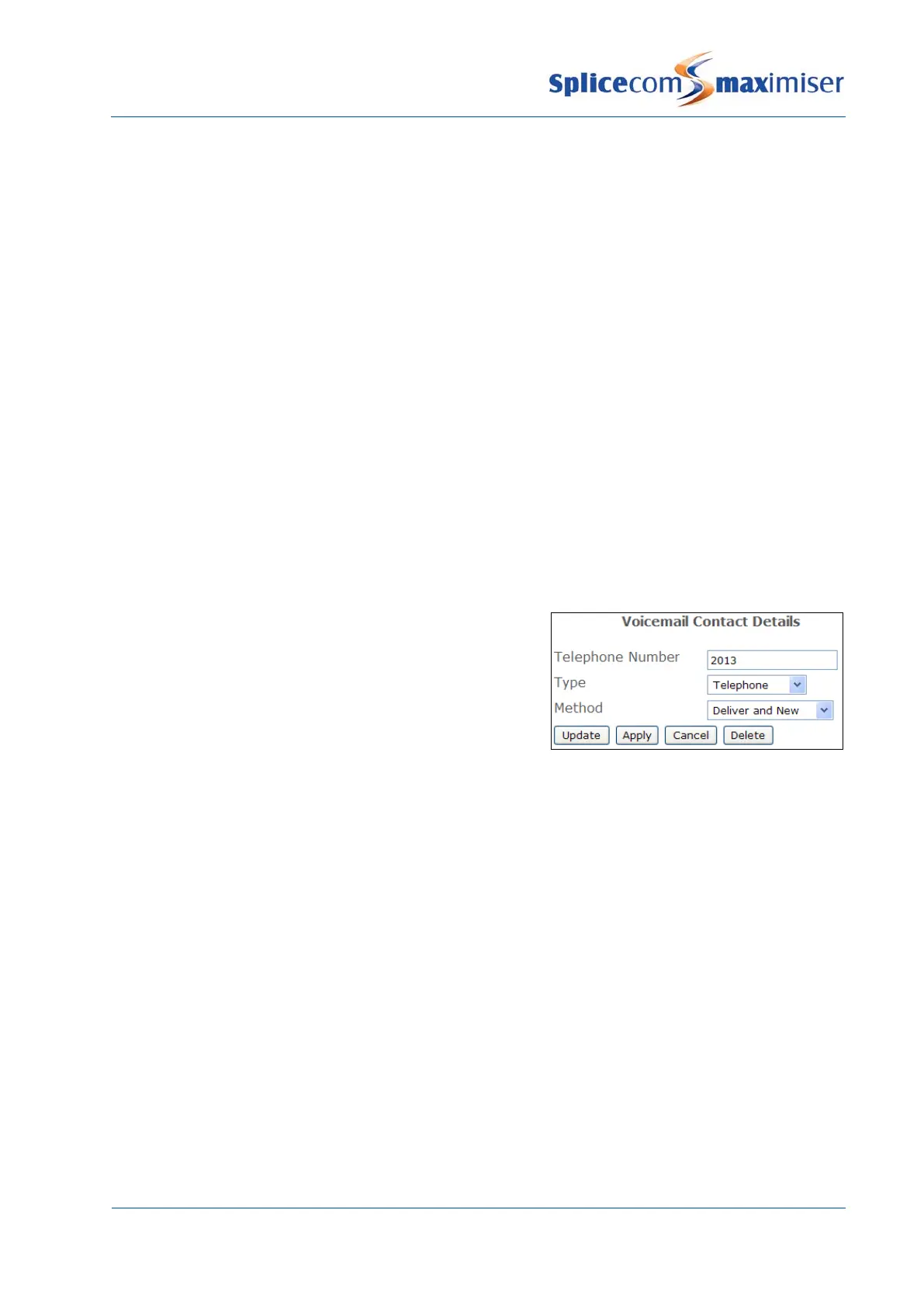
3 Within the Voicemail page click on the Add Voicemail
Contact button
4 In the Telephone Number field enter the extension
number for User assigned to the port to which the PA
system is connected.
5 From the Type list box select Telephone
6 From the Method list box select Deliver and New
7 Select Update or Apply when ready.
8 You may wish to turn on Do Not Disturb for this User.
To play a message over the PA system ring the User created above and leave a message. Voicemail will
then automatically ring the extension number entered in the Telephone Number field and play the
message.
Voicemail for a Department
Enabling voicemail
In order to provide a Department with voicemail functionality a Message Box Licence must be assigned to
that Department.
1 In Manager select Departments
2 From the Departments list select the Department required
3 Select the Licences page
4 Tick the Message Box Licence field
5 Select Update or Apply when ready.



 To Next Page