198/317
7 - Debugger and PROM Programmer Tutorial for ST72251
The address and the type of the variable, shown here, are only displayed if the Misc/Info op-
tion of the box is selected. The Misc/Hot option also allows this window to be refreshed each
time the execution of the program is suspended. This allows you to follow the execution re-
sults step by step, as can be tried by stepping into the Delay500 routine (this is where the pro-
gram spends most of its time, so if you allow it to run for a short time then stop, you will find
yourself in this routine).
Each variable for which the Inspect button has been pressed, is displayed in a separate
window. This can lead to a large number of windows; it may then be more efficient to group
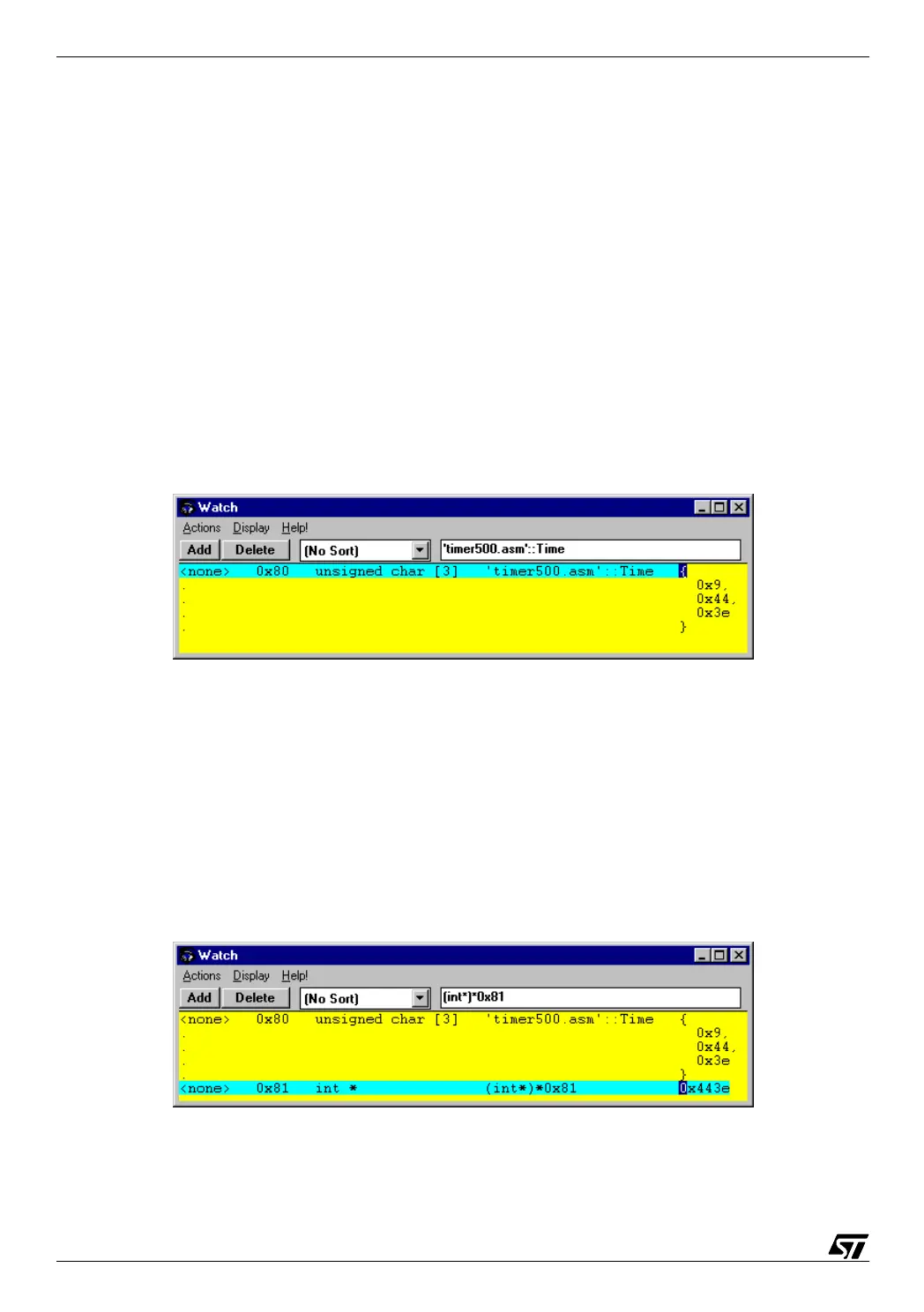
them all in a single window, called the Watch window. To do this, just select the Add Watch-
option in the Inspect window. A new window will open, and display the data in a slightly dif-
ferent format. For each variable, a different format may be selected using the various Display
menu options :
07-emu10c.bmp
By nature, a watch window is Hot; so the information it contains is always up-to-date.
It is also possible to watch any data in memory that is not declared in the source files, or to dis-
play a variable in a different way, using C-like type statements. For example, to display the two
bytes at address 81 that make up an integer word, type
(int*)*0x81 in the box at the top of
the window; then a new variable will be displayed:
07-emu10d.bmp



 To Next Page