Chapter 3 Removing and Replacing Front and Rear Panel Components 41
1. Check that the hard drive you want to remove is visible to the operating system.
2. Determine the correct Ap_Id label for the hard drive that you want to remove.
Caution – Before proceeding, you must remove the hard drive from all its software
mount positions and delete any swap areas in use on the disk. If the drive is the
system boot device, do not proceed further with these instructions. Do not attempt
to unconfigure the boot disk.
3. Unconfigure the hard drive that you intend to remove.
Use the unconfigure command and specify the device you intend to remove. For
example, if it is Disk 1, type:
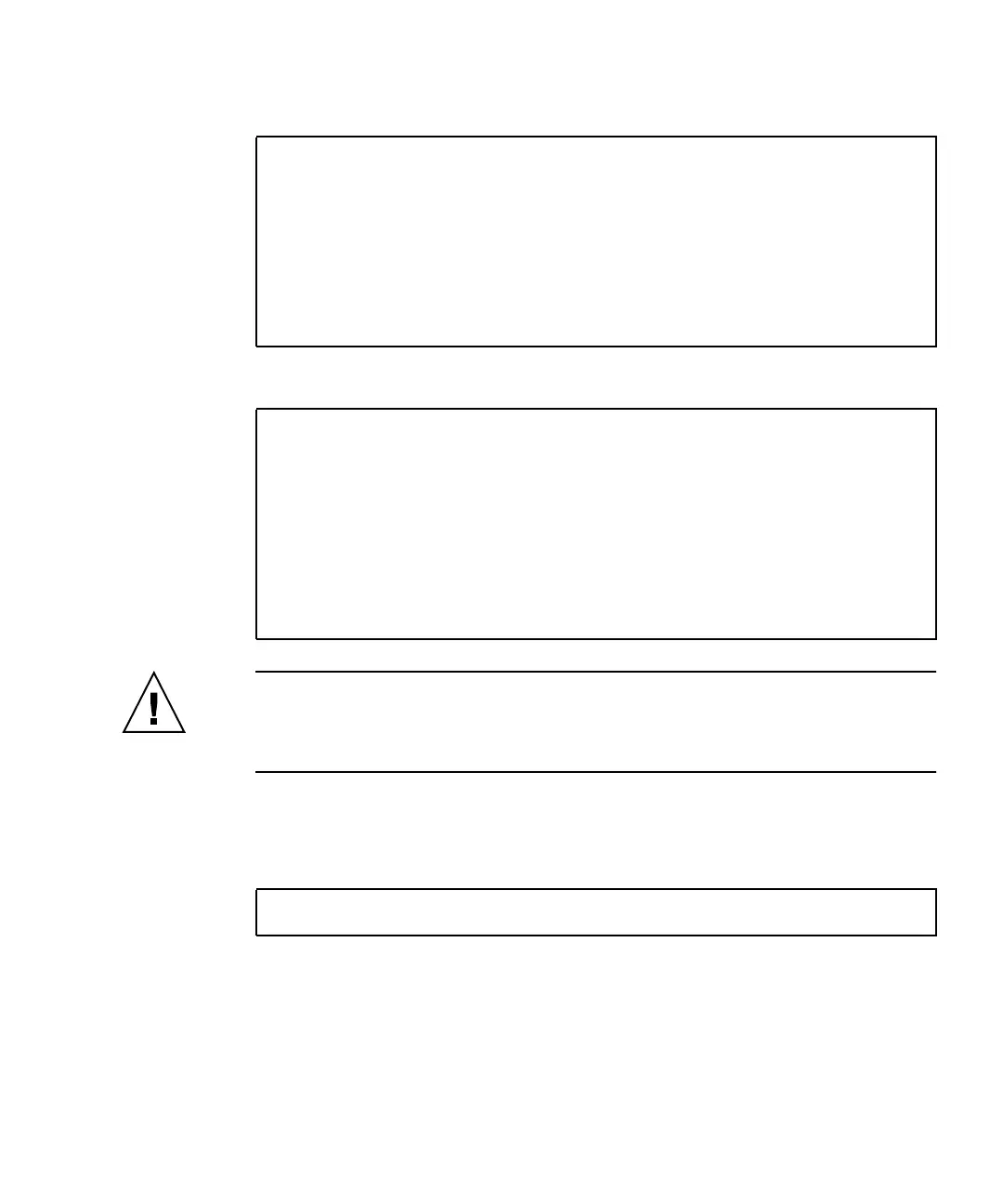
# format
Searching for disks...done
AVAILABLE DISK SELECTIONS:
0. c1t0d0 <SUN36G cyl 24620 alt 2 hd 27 sec 107>
/pci@1c,600000/scsi@2/sd@0,0
1. c1t1d0 <SUN36G cyl 24620 alt 2 hd 27 sec 107>
/pci@1c,600000/scsi@2/sd@1,0
Specify disk (enter its number):
# cfgadm -al
Ap_Id Type Receptacle Occupant Condition
c0 scsi-bus connected configured unknown
c0::dsk/c0t0d0 CD-ROM connected configured unknown
c1 scsi-bus connected configured unknown
c1::dsk/c1t0d0 disk connected configured unknown
c1::dsk/c1t1d0 disk connected configured unknown
c2 scsi-bus connected unconfigured unknown
usb0/1 unknown empty unconfigured ok
usb0/2 unknown empty unconfigured ok
# cfgadm -c unconfigure c1::dsk/c1t1d0











 To Next Page