396-4412Y1 QuickDraw 3000 Operator’s Manual 8 Revised 02/20/2020
QuickDraw Controller (and also on the iPad App)
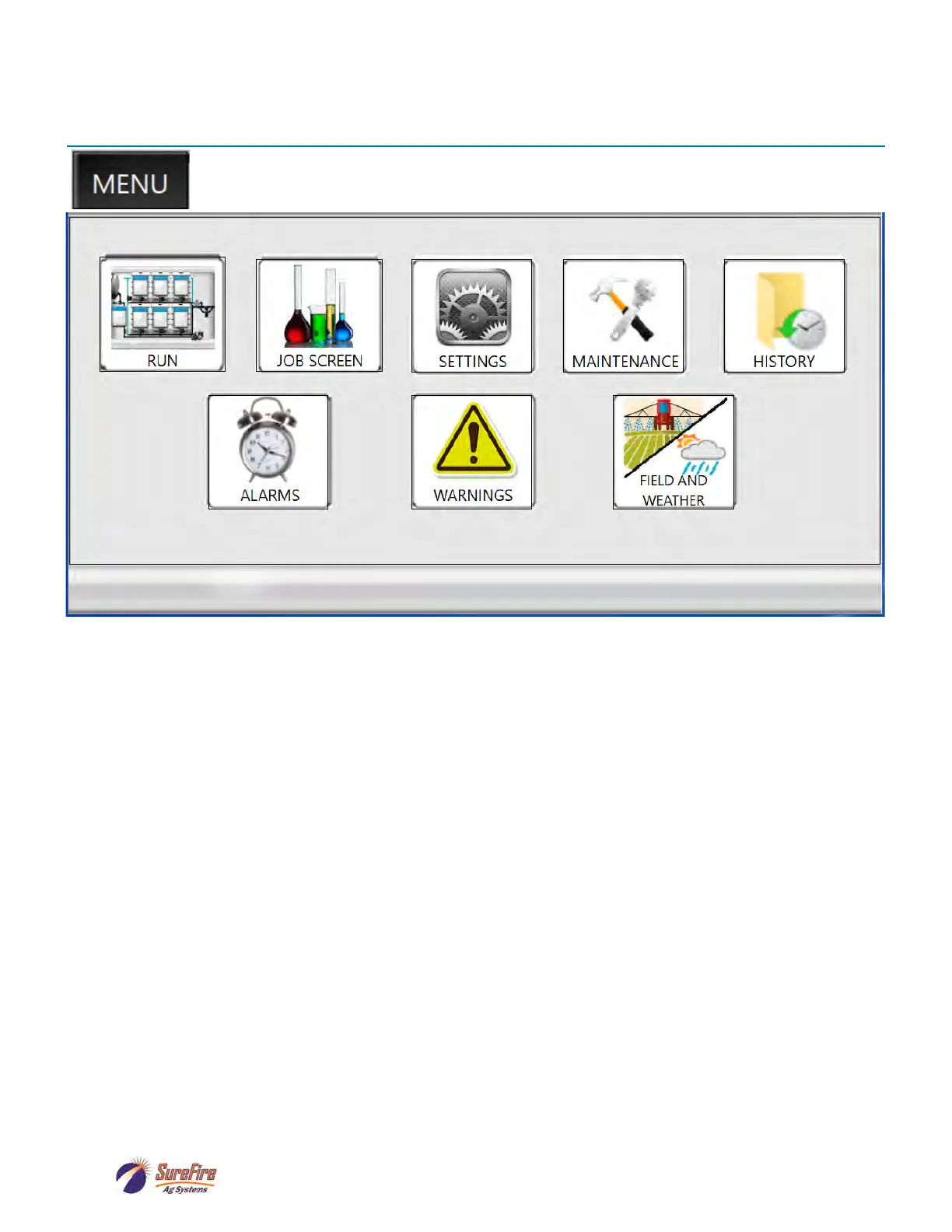
Menu Screen
When the Power is turned on, QuickDraw defaults to the RUN SCREEN. Navigate to the MENU
SCREEN by pressing “MENU ” in the bottom right corner.
Menu Screen:
This screen allows access to the different sections of the controller.
RUN: Gives access to the main operational screen that shows live data during batch operation. All the
operational and data management screens are available from here.
JOB SCREEN: Shows the job screen that is used to set up the current job that will be batched out.
From here a new recipe can be created or an existing recipe can be loaded and edited.
SETTINGS: Global settings to the controller are changed here.
MAINTENANCE: This screen allows access to maintenance items that rarely need accessed.
HISTORY: Allows access to the historical log stored in the controller.
ALARMS: Alarms will prevent a batch from running. Press the ALARMS button to go the ACTIVE
ALARMS screen to resolve the issue to continue running a batch.
WARNINGS: A batch will continue running with Warnings, but there may be a problem with completing
the batch as desired. Press WARNINGS to see ACTIVE WARNINGS to resolve any issues.
FIELD AND WEATHER: This brings up a screen to enter the Grower, Farm, Field, Recipe,
Temperature, Wind Speed/Direction and other information for the current batch record.


 To Next Page