396-4412Y1 QuickDraw 3000 Operator’s Manual 4 Revised 02/20/2020
QuickStart Guide (see the manual for full details)
See page 47 of the QD 3000 manual for more instructions on the iPad app. The QD 3000 iPad app is
not the same as the original QuickDraw iPad app. User must download the QuickDraw 3000 app.
(If using one iPad for more than one QuickDraw, the DATA transfer may be done differently.)
On the iPad app (OFFLINE) MENU > DATA MANAGEMENT > Add Grower/Farm/Field (optional)
DATA MANAGEMENT > Add Carrier and Product(s)
DATA MANAGEMENT > Add Recipe(s). SAVE when recipe is complete.
Repeat for additional Grower/Farm/Field information, additional Products, and additional Recipes.
Connect iPad to QuickDraw:
1. Turn on the QuickDraw controller and open the QuickDraw App on the iPad.
2. On each device go to SETTINGS > REMOTE SETTINGS.
3. On each device enter USER NAME, PASSWORD, and QuickDraw ID. At least one of these must
be changed from the default settings (typically will change the QuickDraw ID).
4. On the controller, press WIFI SETTINGS or WIFI. Note or set up SSID (QuickDraw) and Password
(SureFire).
5. Note the IP Address on the Controller WIFI page. WIFI IP on iPad must match this.
6. Save the WIFI Settings and reboot the controller.
7. After rebooting, connect the iPad to the WIFI network you just set up on the controller: (iPad >
Settings > WIFI > QuickDraw > SureFire (password)).
8. Go to the QuickDraw app. There should be green bars at the top of the iPad App screen,
indicating that the iPad and controller are connected. (If not connected, press the red X.)
On the iPad app: MENU > DATA MANAGEMENT > SEND & DELETE.
The information and recipes you entered on the iPad are now on the QuickDraw controller.
With the iPad connected, the rest of this may be done from the iPad or from the QuickDraw.
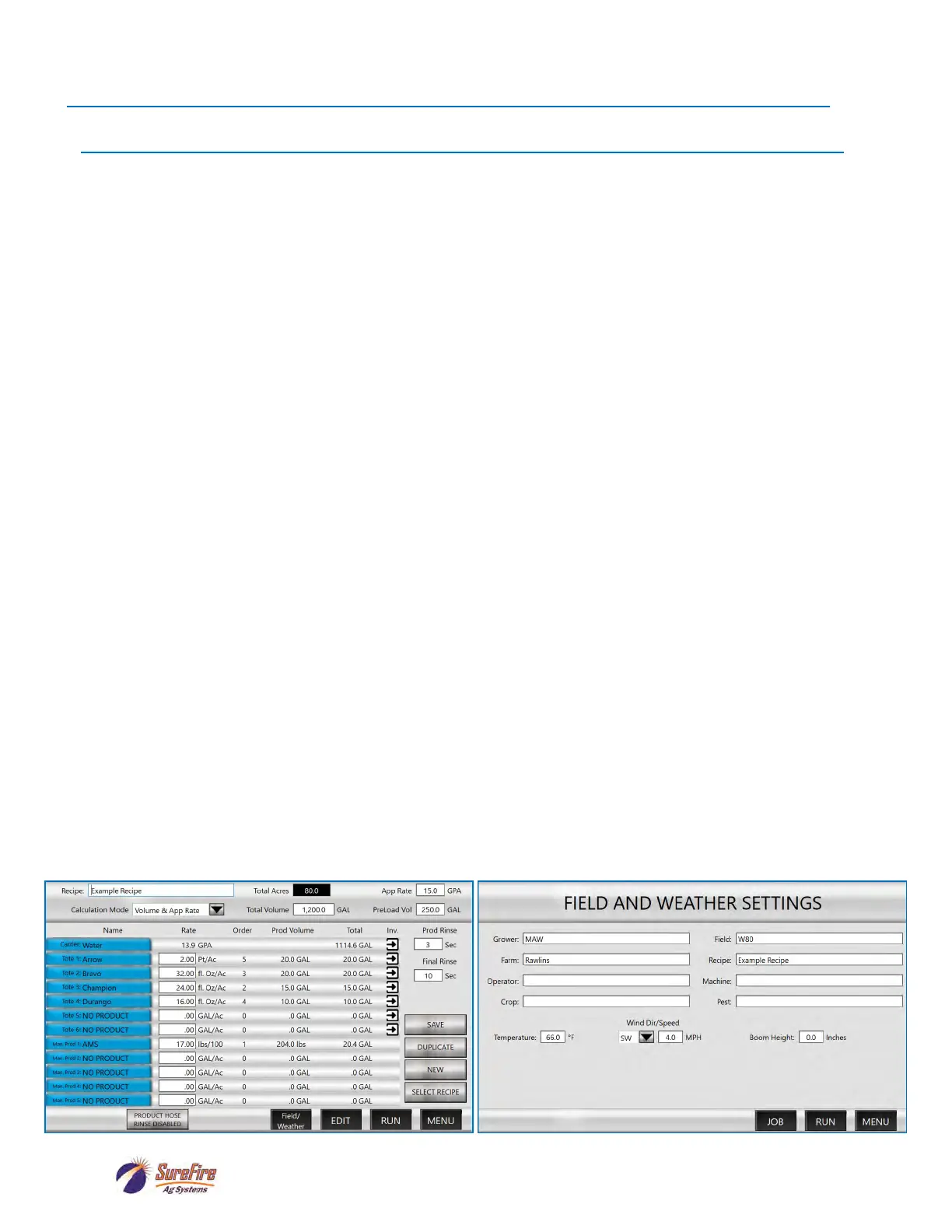
JOB SCREEN FIELD AND WEATHER SETTINGS
QuickDraw 3000 iPad App


 To Next Page