396-4412Y1 QuickDraw 3000 Operator’s Manual 35 Revised 02/20/2020
OPTIONAL Remote Connectivity Package
An optional Remote Connectivity Package is available for the QuickDraw 3000. This includes a
modem with antenna to allow the QuickDraw to communicate via the cloud. This option requires the
purchase of a renewable data plan.
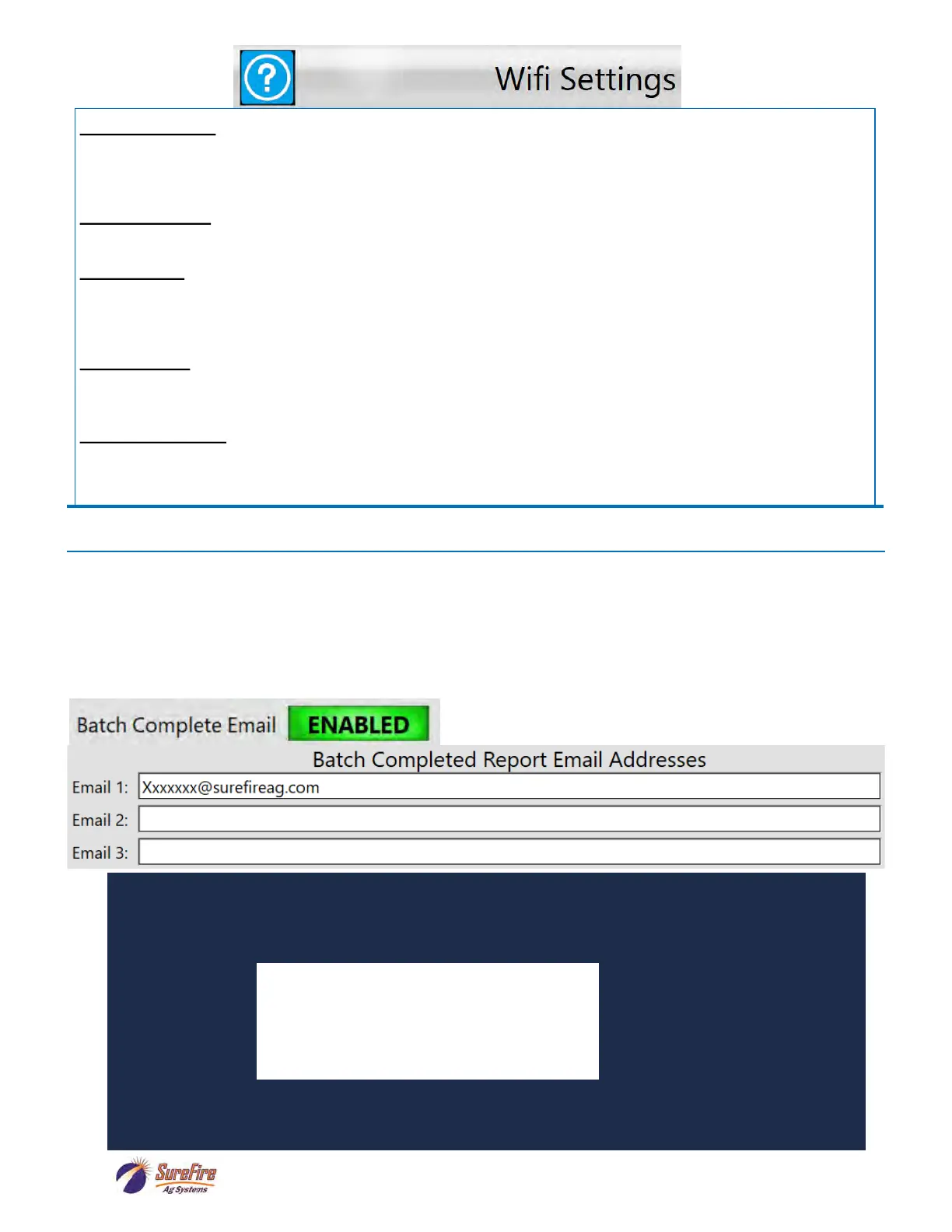
With the Remote Connectivity Package a batch report email can be sent at the completion of each
batch. Other cloud connectivity features are also available.
Batched Data 2020-02-10 14:00,
QuickDraw Idener QD1234
Mix Name Example Recipe
Batch ID 027-02/10/20
Client MAW
Farm Rawlins
Field W80
State CO
County Rawlins
Batch Status Completed
Wind/Temperature SW 4.0 MPH, 66.0 degF
Total Area 10.0 Acres
Total Batched 99.8 GAL
This is part of the report that will be sent to the
email address(es) listed.
The report will also include the Rate and Total
Amount of each carrier and chemical in the
batch (see page 42).
Wifi Connection:
This is used to determine whether the QuickDraw will connect to an existing Wifi network or create its own network
that can be connected to. When set to “Connect to QuickDraw Wifi” the QuickDraw controller will create a Wifi net-
work that can be connected to by other devices. When set to “Connect to External Wifi” the QuickDraw controller will
attempt to connect to an existing Wifi network. See “QuickDraw Wifi” and “Remote Wifi” for network login settings.
QuickDraw Wifi:
When “Wifi Connection” is set to “Connect to QuickDraw Wifi” the SSID will be the name of the network the Quick-
Draw controller creates and the Password will be the Network Security Key for that Wifi network.
Remote Wifi:
When “Wifi Connection” is set to “ Connect to External Wifi” the SSID will be the name of the network the Quick-
Draw controller will try to connect to and Password is the Network Security Key for that network. To select the net-
work to which you want to connect, click “Scan For Wifi”. This will create a list of all available networks at which
point you can choose the correct one by clicking it.
Scan for Wifi:
Clicking “Scan for Wifi” will display all available Wifi networks and associated signal strength. Clicking on an availa-
ble network will set that network to the network the QuickDraw attempts to connect to when “Wifi Connection” is
set to “Connect to External Wifi”.
Reset IP Address:
When “Wifi Connection” is set to “Connect to External Wifi” the “Reset IP Settings” button will be visible. Clicking
this will force the QuickDraw to reconnect to the network and find a new IP address. This is sometimes necessary
when connecting to a new network.


 To Next Page