396-4412Y1 QuickDraw 3000 Operator’s Manual 65 Revised 02/20/2020
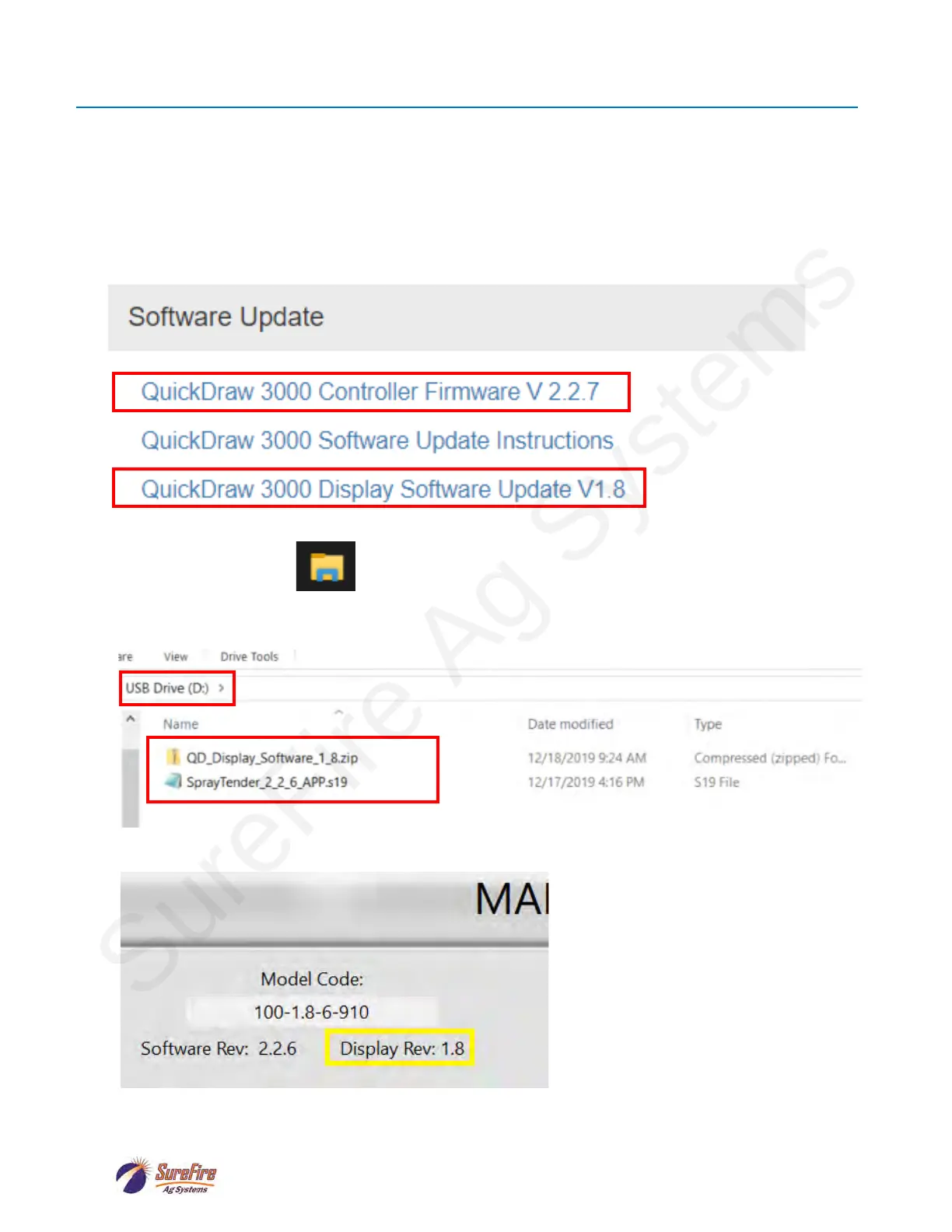
Software Update
Go to the SureFire Support website (support.surefireag.com)
Go to Home/Categories/Spray Tender Products/QuickDraw 3000 Max/QuickDraw 3000 Max
(10/2019-Present)
On the right-hand side of the screen there are links to download different documents. One of the
sections is titled “Software Update”, under which will be “QuickDraw 3000 Display Controller
Firmware V…..” and “QuickDraw 3000 Display Software Update V …..”. Click on both links to
download the software to your computer.
Open the File Explorer on your computer and go to Downloads. Copy the 2 files that you
downloaded in the previous step and paste them in your USB drive.
At this point the files on the USB stick should look similar to:
On the QuickDraw controller go to MENU->MAINTENANCE and look at the Display Rev:
If the Display Rev is less than 1.8, the QD_Display_Software_x_x.zip File on the USB will need to
be renamed. Change the name to QD_Display_Software.zip


 To Next Page