396-4412Y1 QuickDraw 3000 Operator’s Manual 30 Revised 02/20/2020
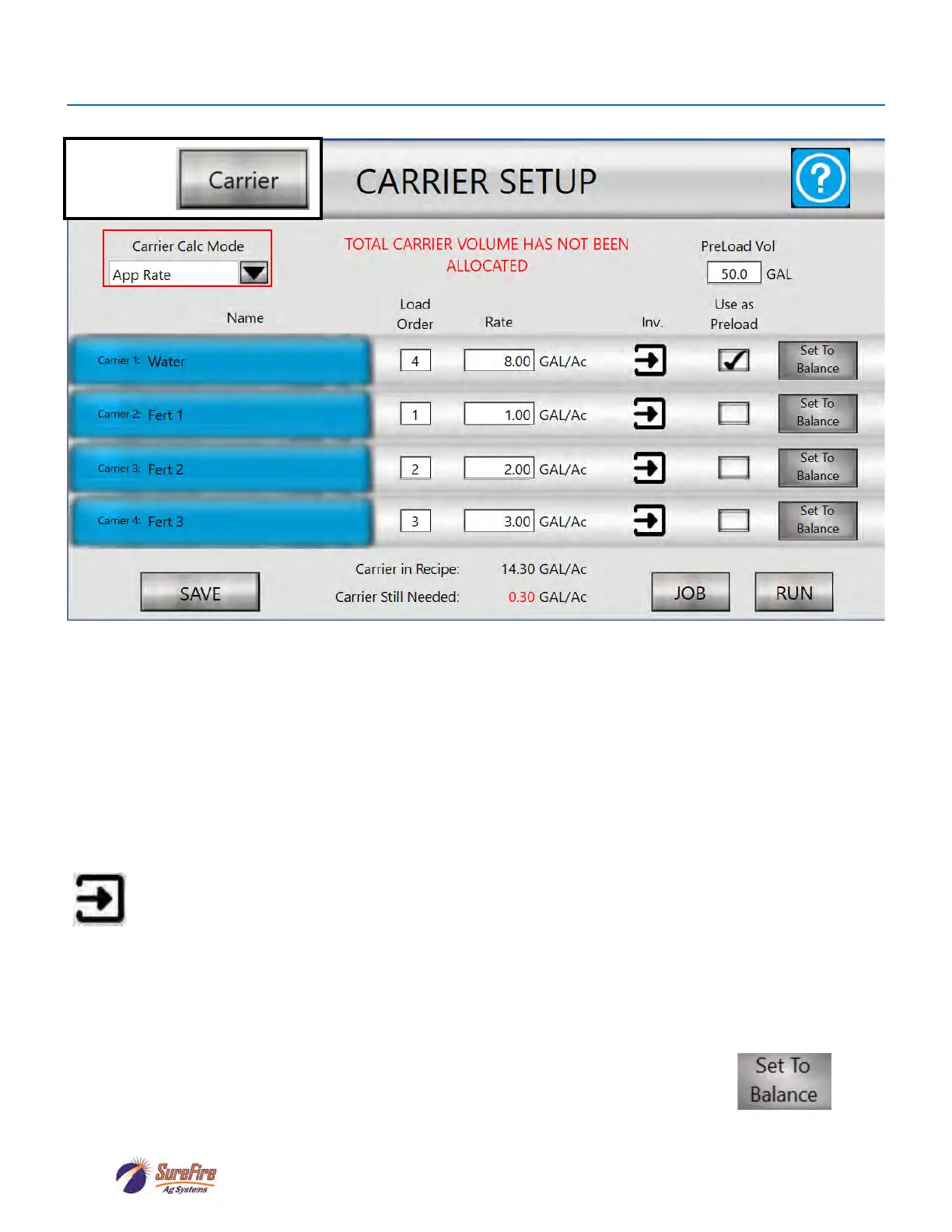
Multiple Carrier (Carrier Blending) Setup Screen
System must be set up for more than 1 carrier (see previous page). On the Run Screen, tap the Carrier tote.
Carrier Setup (for Carrier Blending) Help Screen
Carrier Calc Mode: Select how to enter the amount of each carrier to use. Pulldown menu to select
Percentage, Volume, or Application Rate.
Carrier Name: Press on the Carrier Name box to Select/Edit/Create New Carrier to be used.
Load Order: Specify the order in which the carriers will be loaded. Carriers must have a Load Order
to be included in the batch. Any Carrier without a Load Order will be ignored during batching.
Amount: The amount of each Carrier to be included in the Recipe. Units will match Carrier Calc Mode
selected above.
Press on this arrow to go the Inventory/Alarm screen for the selected Carrier. Press the arrow on
the Inventory screen to move from one carrier to another. Press CARRIERS to return to the
Carrier Setup screen.
Use as Preload: Check the box to indicate which Carrier should be used for the Preload.
Carrier in Recipe: This value indicates the total amount of Carrier in the current Recipe.
Carrier Still Needed: This value indicates how much Carrier is still needed to account for the total
amount in the Recipe.
Set to Balance: These buttons are only visible when “Carrier Still Needed” is not 0.
Pressing on one of these will allocate all of “Carrier Still Needed” to that Carrier.
SAVE: Press SAVE to save the changes.
PRESS:


 To Next Page