396-4412Y1 QuickDraw 3000 Operator’s Manual 48 Revised 02/20/2020
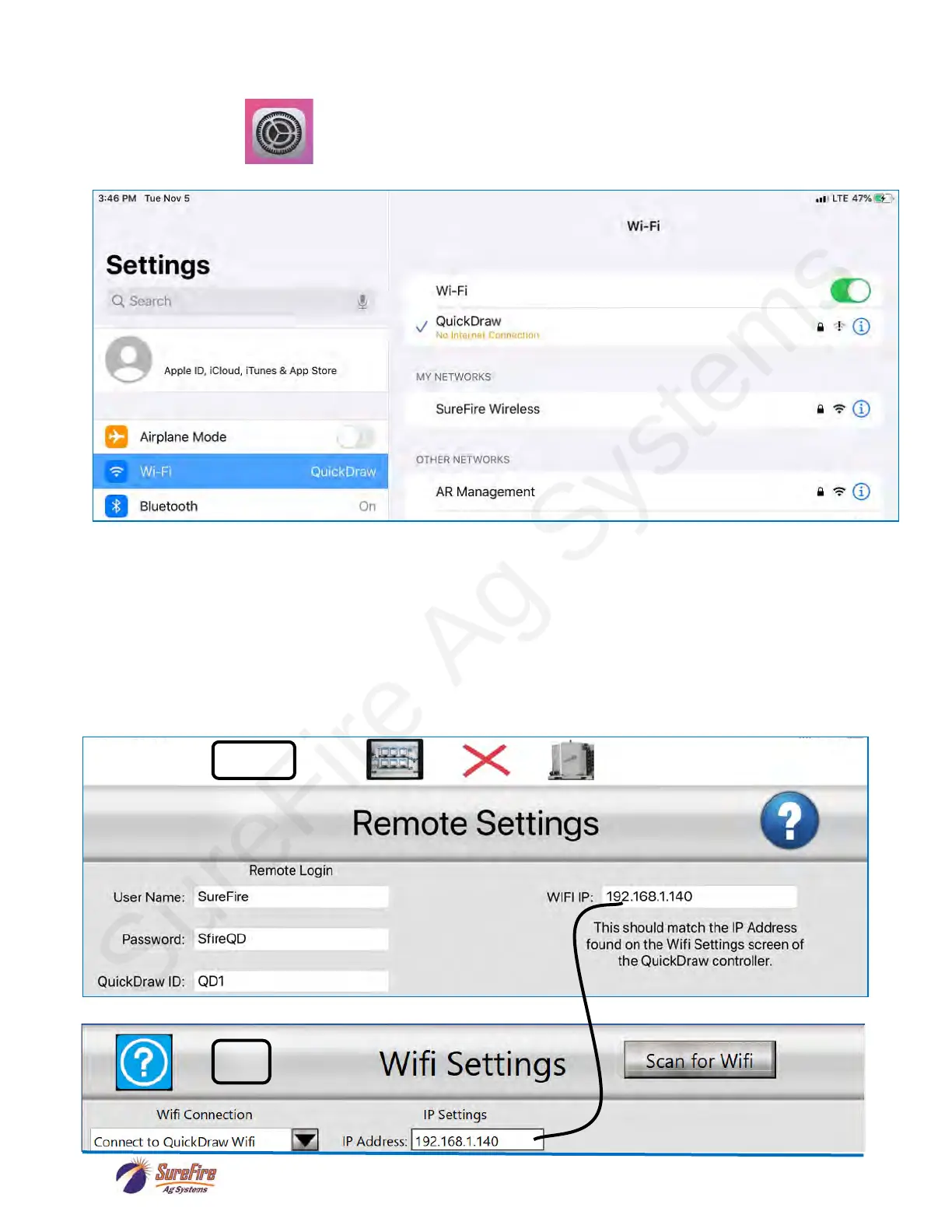
• The iPad needs to connect to the Wi-Fi network created by the QD Controller. To do this, click the
Settings button on your iPad to open the Settings. Select Wi-Fi:
• Select the Wi-Fi network that matched the SSID found on the Wifi Setup screen of the QD
Controller. In this case, “QuickDraw”.
• You will likely be prompted for a password to connect. Use the Passcode found below the SSID
used in the previous step. In this case, “SureFire”.
• You should now be connected to the QD Controller’s Wi-Fi network. The iPad will likely indicate
that it has “No Internet Connection” as it does in the image above. This is normal and not a
problem.
• Exit out of Settings on your iPad and open the QD3000 iPad app.
• On your iPad app, go to the Remote Settings screen via MENU->SETTINGS->Remote Settings.
iPad
QD
Press “?”
for setup
Help
WIFI IP and IP Address on Wifi Settings screen must match.


 To Next Page