396-4412Y1 QuickDraw 3000 Operator’s Manual 49 Revised 02/20/2020
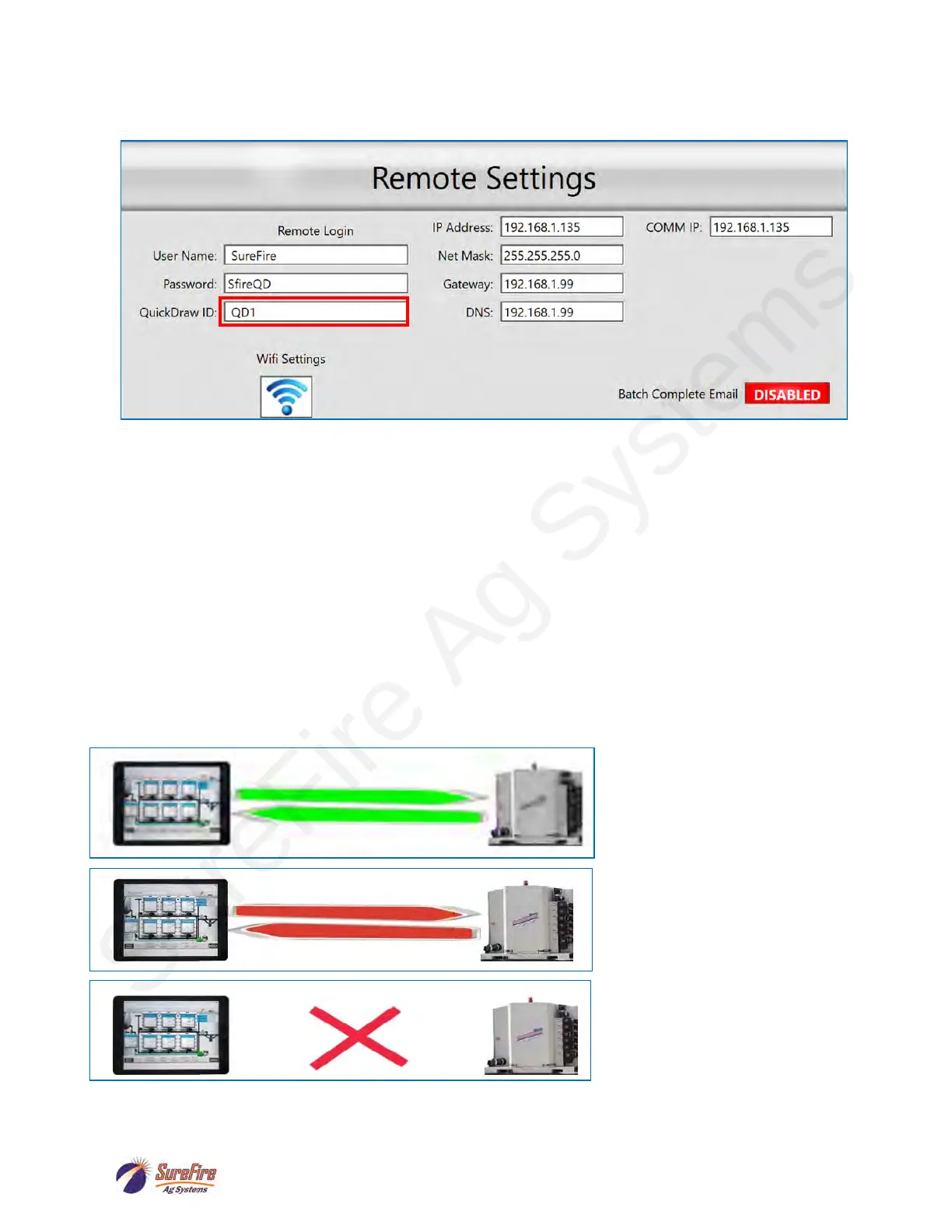
• The WIFI IP on the Remote Settings screen of the iPad app must be set to match the IP Address
found on the WIFI Settings screen of the QD Controller.
• On the QD Controller, go back to the Remote Settings screen.
• The above image shows the default values for User Name, Password, and QuickDraw ID. At least
one of these needs to be changed from default before attempting to connect. It usually makes the
most sense to change the QuickDraw ID as this is used to identify the controller in historical
records.
• The User Name, Password, and QuickDraw ID on the QD3000 iPad app must be set to match
those found on the Remote Settings screen on the QD Controller.
• On the iPad app, click the Connection Status icon (press the red X) at the top of the screen to
connect to the QD Controller.
• Successful connection will be indicated by the two green lines shown in the picture shown below:
• (Red lines indicate the connection has NOT been made.)
Change the QuickDraw ID here and on the QD Controller
Green Lines = Connected
(To go OFFLINE, press on the
Green Bars-will turn to Red X)
Red Lines = Connection FAILED
(Login Credentials are incorrect)
Red X = iPad is OFFLINE
(Press on Red X when you want
to connect)


 To Next Page