396-4412Y1 QuickDraw 3000 Operator’s Manual 14 Revised 02/20/2020
Calculation Mode: The information entered on the screen is used to calculate the size of the batch from
the recipe that was loaded. There are 4 different ways to calculate batches that can be chosen from the
drop-down menu, and they are as follows.
Volume and Application Rate: This setting will be used when filling the sprayer tank full. This uses
the Total Volume box and the App(lication) Rate box to come up with the number of acres
needed for this batch. Then all the product amounts are calculated. From this information, the
carrier amount is determined by subtracting all the product amounts from the total gallons.
Acres and Application Rate: Use this mode when spraying a known area requiring less than a full
sprayer tank. This uses the Total Acres box and the App(lication) Rate box to calculate how
many gallons of product are necessary. Then the number of acres is used to calculate how
much of each product is needed for this batch. From this information, the carrier amount is
determined by subtracting all the product amounts from the total gallons.
Individual Volume: This method does no math. The total amount of each product that needs
batched is entered into the column where the rate is normally entered. This amount is entered in
the units set up by the Total column. The batch will still be automatically batched out, but the
controller does no math on the batch.
Area and Carrier Rate: This uses the carrier rate box and the acres box. This mode is used if you
want to specify how much carrier is going to be applied per acre instead of specifying the overall
application rate. The application rate that gets entered into the sprayer is calculated in this case
instead of set.
Edit Recipe: The only things that can be changed on the Job Screen are the items in the white boxes.
Rate (for each product), Calculation Mode, and Calculation Variables (Total Acres, App Rate, Total
Volume) can be changed on the Job Screen. To change other variables, press EDIT. Changes made on
the Job Screen apply only to the current job and are not permanent changes to the recipe unless SAVE
is pressed. Changes made on the EDIT screen will be for the current batch only unless SAVE is
pressed. Permanent changes to the recipe will only be saved by pressing SAVE.
DUPLICATE: Use this to modify a base recipe with minor changes. The original recipe will remain
intact. A new recipe with “DUP” added to the name will be started. The name can be edited and
changes can be made to the recipe. Press SAVE when finished.
Run: Returns user to the RUN screen (does not start the batch)
Note on Individual Volume: This can be used to finish off a batch or top it off if something isn’t right. If
more chemical is needed, set that amount of chemical in the Rate column, set Preload Vol at 0. Enter an
amount for the Carrier. Start the batch. As soon as the product is mixed in, press PAUSE, and terminate
the batch. That will get the chemical added with as little water as possible.
If more water is needed, set the Rate on all the products to 0, and enter the amount of water desired in
the Carrier: Water column. Run this batch to add the extra water.
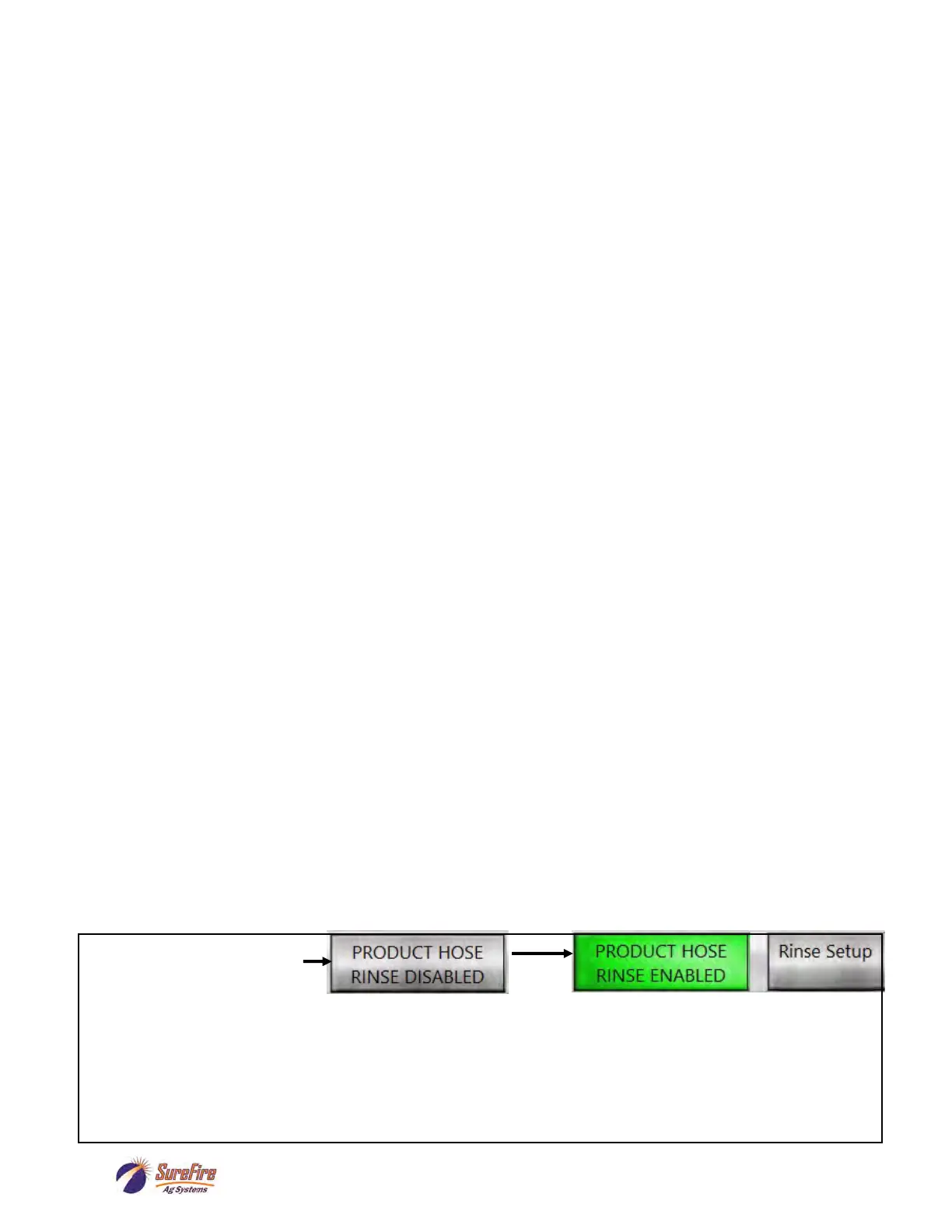
At bottom left on Job Screen
—See next pages for more information on using the Product Hose Rinse feature to rinse a hose from the tote
to the QuickDraw while a batch is running. This feature allows the user to rinse a product hose with clean wa-
ter while running a batch, and accounting for the chemical in the hose and the water used for rinsing as part
of the batch.
Product Hose Rinse can also be used in conjunction with the Bulk Blaster to rinse a tote and include that
chemical and rinse water as part of the batch.


 To Next Page