OPERATION OF THE MJB4
MJB4 - Operation Rev02 01-06 17
3
Table – Theta Motion
This is the small micrometer screw on the right side
of the adjusting table. The maximum turning range is
±5°.
Separation Lever
The separation lever is on the left side of the
adjusting station. Wedge error compensation, if
performed, must always be set to the contact
position. This lever moves the substrate from the
contact position to the adjusting distance. The
separation lever only works if the contact lever is in
the rear position.
The adjusting distance is set using the knurled knob
next to the separation lever on the right. After setting
the distance, tighten the knob until its is snug.
The maximum adjusting distance between the mask
and substrate is 50 µm.
Contact Lever
The contact lever is also on the left side of the
adjusting station.
Pulling this lever back activates wedge error
compensation and automatically connects the
vacuum for chuck and substrate.
Variable thickness Setting
The variable thickness setting is on the front side of
the adjusting station.
It sets the contact position between the mask and
substrate. It must be reset for different mask and
substrate thicknesses. The thickness setting can
also be used for higher contact pressure.
Turning the setting knob clockwise moves the Z axis
downward and turning it counterclockwise moves
the Z axis upward.
• 1 revolution equals 150 µm
• More instructions on this setting can be found in
section 1.3.7. "Setting the Mask Substrate Thick-
ness".
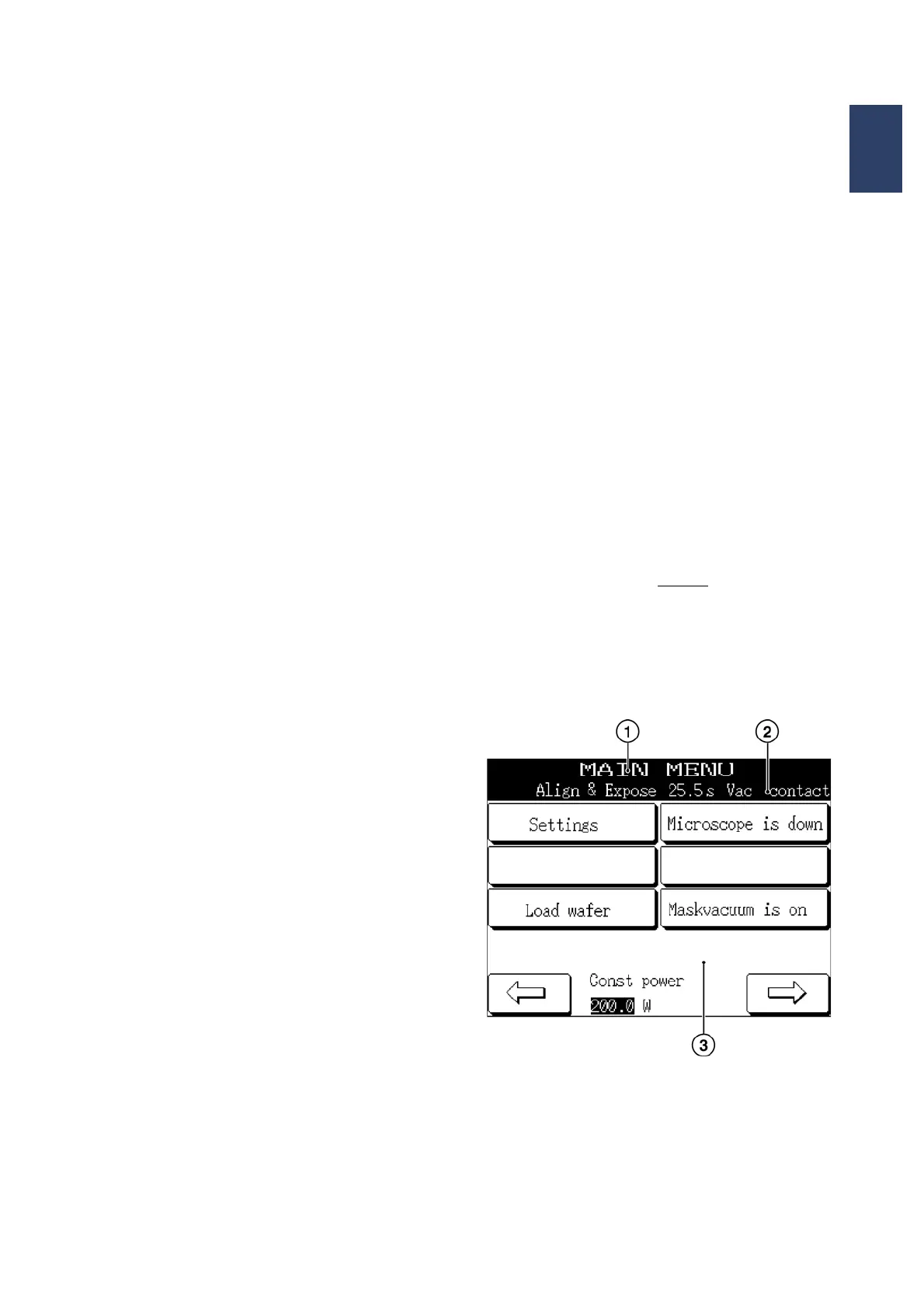
3.2.2. Display/Touch Screen
Instructions, confirmations and other information
appear on this screen depending on the situation.
The messages in the display always show the
ACTUAL status of settings.
For example:
If the microscope is in the operating position,
“MICROSCOPE IS DOWN” appears in the main
menu. Pressing this button moves the microscope
upward and the display button changes to
“MICROSCOPE UP.”
The arrows in the lower right and left of the display
function as follows:
• Right arrow:
Pressing this button always
moves you from
the current menu to the main menu.
• Left arrow:
Pressing this button moves you from the cur-
rent menu to the previously used menu.
Main menu
1 Screen name
2 Set parameters
3 Message lines for info, warnings and errors



 To Next Page