Swegon reserves the right to alter specications. 20220323
10
WISE User Manual
Tree
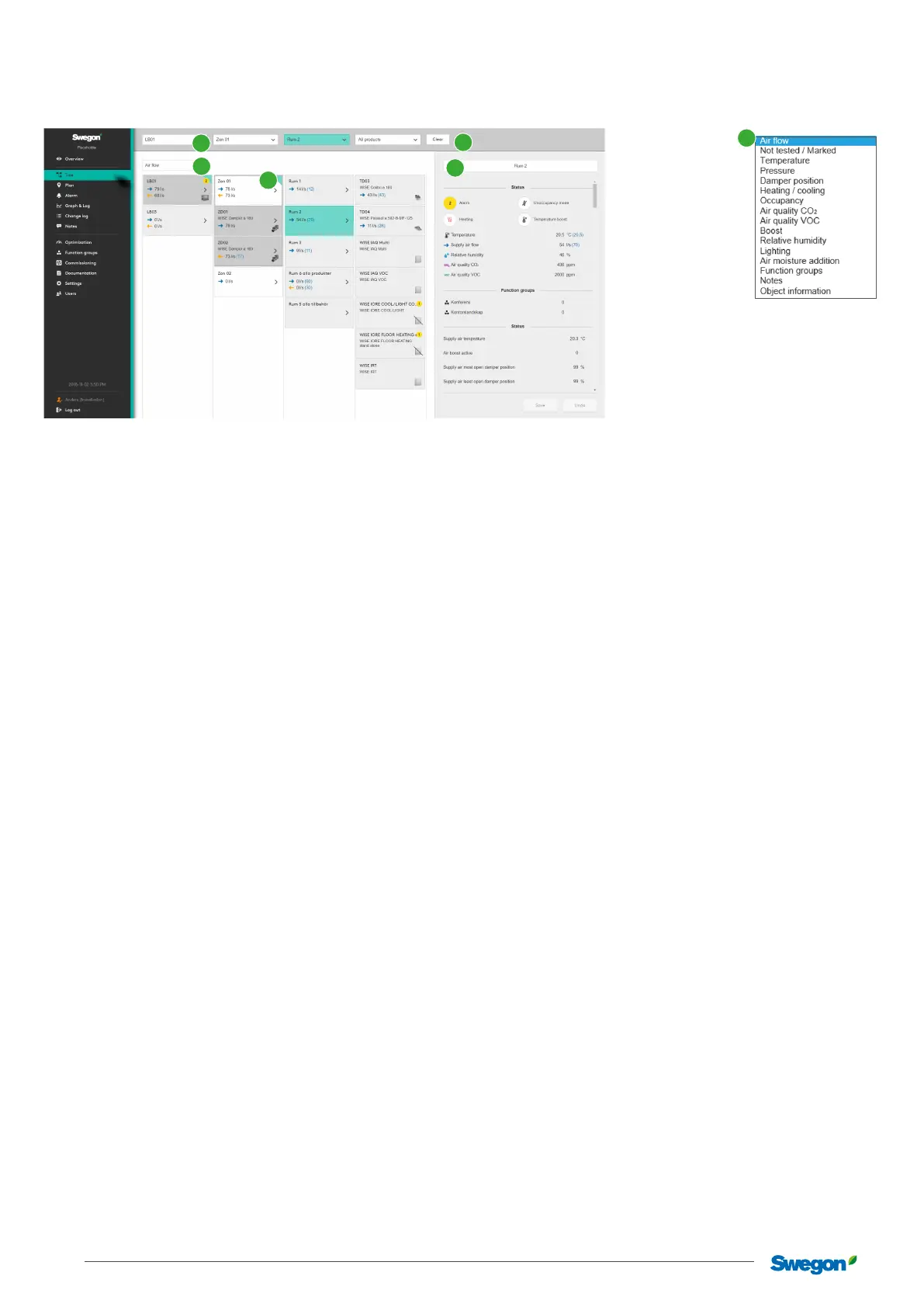
System overview with clear tree structure.
The tree structure (3) makes it possible to navigate through the system’s products and functions, to see detailed information,
change settings, etc.
Grey boxes indicates how the air ows. A whole turquoise box indicates a selected box. Boxes with turquoise corners indicate the path
you clicked on to reach the selected box in the tree structure.
In the section menu (2), it is possible to select which values are to be displayed: Air ow, Not tested/marked, Temperature, Pres-
sure, Damper position, Heating/cooling, Occupancy, Airquality CO
2
, Air quality VOC, Boosted air ow, Relative humidity, Light-
ing, Additional moisture, Function groups, Notes or Object information. Object information is used to identify the BACnet object.
Not tested/marked means that the product is not marked as tested in TuneWISE, or that the product is “agged” in TuneWISE
Navigating
Applies to the views Tree, Plan, Alarms, Log, Change log and Notes.
The object selector (1) at the top edge of the page has menus for Air handling unit, Zone, Room or Product. This can be used for
quick navigation to a specic part of the system.
Detailed information and possible settings, for the selected product or function, are shown and managed in the section to the right (4).
The path to the selected product or function is maintained with new selections from the main menu. To clear the object selection,
choose Clear to the far right of the upper menu (5).
1
2
3
4
5
2



 To Next Page