3
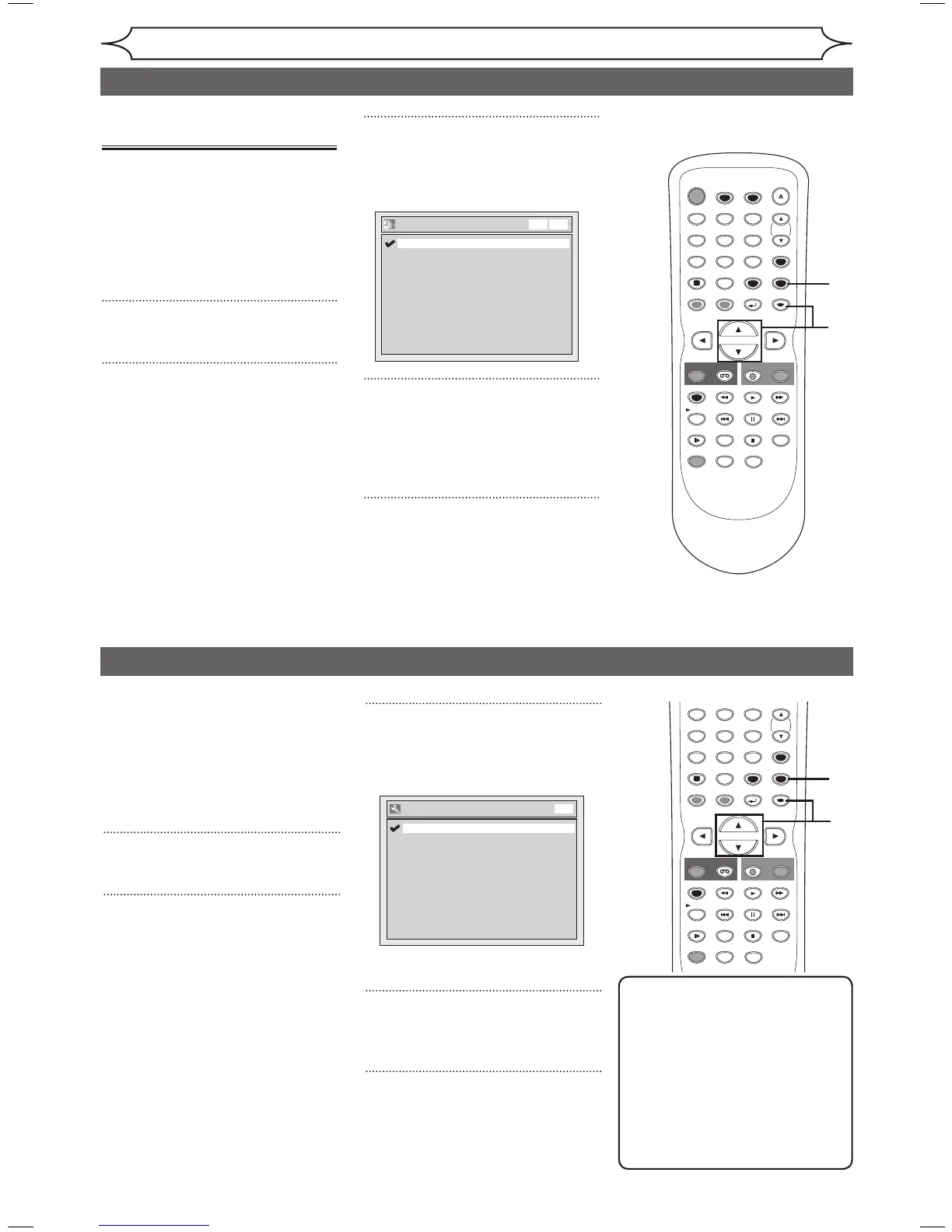
Using [K / L], select “TV
Aspect”. Press [ENTER].
Option window will appear.
Refer to the Note on this page.
4
Using [K / L], select a desired
option. Press [ENTER].
5
Press [SETUP] to exit.
3
Using [K / L], select “Daylight
Saving Time”. Press [ENTER].
Option window will appear.
4
Using [K / L], select “ON” or
“OFF”. Press [ENTER].
Choose “ON” if you are currently
observing the daylight saving time.
5
Press [SETUP] to exit.
XXXX
Getting started
Selecting the TV aspect ratio
Note
If you have a standard TV:
Select “4:3 Letter Box” for full
length picture with black bars
on the top and bottom of the
screen. Select “4:3 Pan &
Scan” for a full height picture
with both sides trimmed.
If you have a widescreen TV:
Select “16:9 Wide”.
Setting the clock (cont’d)
You can select the TV aspect ratio
to match the formats of what you
are playing back on the unit and
your TV screen (4:3 standard or
16:9 widescreen TV).
The default is set as “4:3 Letter
Box”.
1
Press [SETUP].
2
Using [K / L], select “Required
Setting”. Press [ENTER].
Required Setting menu will appear.
Setting the Daylight
Saving Time
When “Daylight Saving Time” is
“ON”, the clock will automatically
move forward one hour at 2:00a.
m. on the first Sunday in April and
move back one hour at 2:00a.m.
on the last Sunday in October.
“ON” is selected as a default.
1
Press [SETUP].
2
Using [K / L], select “Clock”.
Press [ENTER].
Clock menu will appear.


 To Next Page