EasyManua.ls Logo

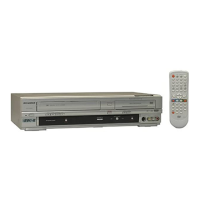
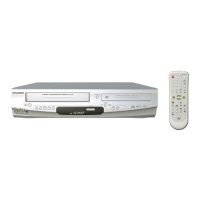
Sylvania DVR90VF - User Manual

Sylvania DVR90VF
90 pages
Print Icon
To Next Page IconTo Next Page
Loading...
ANTENNA
IN
AUDIO OUTAUDIO IN
S-VIDEO
AUDIO
OUT
DIGITAL
AUDIO OUT
COAXIAL
COMPONENT
VIDEO OUT
VIDEO OUTVIDEO IN
LY
IN
OUT
DVD
DVD/VCR
PB/CB
PR/CR
L
R
L
R
R
OUT
DVD
DVD
DVD/VCR
(Back of this unit)
[Cable Box or Satellite Box]
IN
OUT
OR
OR
Indoor or
Outdoor Antenna
From Cable
Company
(No Cable Box)
From Cable or
Satellite Company
AUDIO INVIDEO
Video
cable
(supplied)
(Back of TV)
Connect
Connect
2
3
Audio
cable
(supplied)
Connect
4
This unit can record to DVD-R and DVD-RW discs.
DVD-R discs can only be recorded to once and cannot be erased. DVD-RW discs can be recorded to
and erased many times.
DVD-R discs can only be recorded in Video mode, while DVD-RW discs can select a recording format
between Video mode and VR mode.
1 Connections
2 Watching TV/DVD
Follow to the back side of this sheet.
This unit is compatible to play the following discs.
Disc type Disc format
Video mode
VR mode
Video mode
Functions
Playing, limited recording,
limited editing
Playing, recording,
Original/Playlist editing
Playing, limited recording,
limited editing
DVD-RW: 1-4x
DVD-R: 2x.4x.8x
DVD-RW
DVD-R W
VR
DVD-RW
DVD-R W
Video
DVD-R
DVD-R
Attributes
8cm/12cm, single-sided, single layer disc
Approx. max. recording time (SEP mode):
600 minutes (4.7GB) (for 12cm)
180 minutes (1.4GB) (for 8cm)
8cm/12cm, single-sided, single layer disc
Approx. max. recording time (SEP mode):
600 minutes (4.7GB) (for 12cm)
180 minutes (1.4GB) (for 8cm)
LogoDisc LogoDisc
DVD-VIDEO
DVD-RW (VIDEO/VR mode)
DVD-R (VIDEO mode)
CD-DA (AUDIO CD)
CD-R (CD-DA FORMAT, MP3 files)
CD-RW (CD-DA FORMAT, MP3 files)
The number inside the globe refers to region of the world.
This unit can play DVDs that are labeled for ALL regions or for Region 1.
QQ
QQ
uu
uu
ii
ii
cc
cc
kk
kk
GG
GG
uu
uu
ii
ii
dd
dd
ee
ee
DVR90VF
(Example of a TV)
1.
Switch the input selector on your TV to an appropriate external input channel (usually near channel 0).
2. Hit a button on the TV’s original remote control (see the table below) to select an external
input channel until the DVD recorder’s picture appears.
Admiral
Curtis Mathis
GE
Hitachi
JVC
Kenwood
AUX
LINE1, LINE2, 00, 90, 91, 92, 93
INPUT, TV/VCR, 00, 90, 91, 92, 93
INPUT, AUX
A / V CHANNEL, INPUT1, SVIDEO, INPUT2
AUX
Input Mode Names for Common TV Brands
Sharp
Sony
Toshiba
Zenith
00
VIDEO1, VIDEO2, VIDEO3
TV/GAME
00
LXI-Series
Magnavox
Panasonic
RCA
Samsung
Sanyo
00
AUX CHANNEL
TV/VIDEO
INPUT, TV/VCR, 00, 90, 91, 92, 93
TV/VIDEO
VIDEO
Auto Presetting Now
CH 1
Channel
Manual Preset
Auto Preset
Easy Setting Menu
Clock
Channel
DVD-RW Recording Format Video mode
Timer Programming
Auto Finalize
Disc
Advanced Setting Menu
OSD Language English
Progressive OFF
VCR DVD
DVD Recorder with Video Cassette Recorder
Playable discs
Region codes
Recordable discs
is a trademark of DVD Format/Logo Licensing Corporation.
I
Both A/V and COAXIAL cables must be connected to the TV for operation.
I
See pages 14 and 15 of the Owner's Manual for the detailes.
Hit [DVD] on the remote control first.
Hit
[SETUP].
Using [
KK
/
LL
], select
Channel from the Menu.
Select Auto Preset and the unit will start getting available
channels in your area.
I
DVD+R/+RW discs are supported for playback only. *Some DVD+R/+RW discs are not compatible with this unit.
VIDEO
VIDEO 2
MENU VOLUME
L AUDIO R
CHANNEL
POWER
CHANNEL
0 +100
VOL
CH
CH
VOL
INPUT
SELECT
INPUT SELECT button
(Example of a TV remote control)
NOTE:You can either use A/V connection or COAXIAL connection with this unit.
NOTE: These steps are for A/V cable connection only.
E9610UD_QG_EN.qx3 05.3.7 14:10 Page 1

Table of Contents

Other manuals for Sylvania DVR90VF

Question and Answer IconNeed help?

Do you have a question about the Sylvania DVR90VF and is the answer not in the manual?

Summary

Connecting External Devices

Watching TV and DVD Operation

Using the INPUT SELECT Button

Switch TV input to display DVD recorder or external device output.

Input Mode Names for Common TV Brands

Common TV input names for selecting external sources.

DVD Recording Overview

Easy Recording Steps

Step-by-step guide for basic DVD recording.

Timer Recording Setup

Instructions for setting up timed DVD recordings.

Getting Started: Unit Components

Front Panel Overview

Description of buttons and indicators on the front panel.

Rear Panel Connections

Identification of input and output jacks on the rear panel.

Included Accessories

List of items supplied with the DVD recorder.

Important Safety Information

Crucial safety warnings and precautions for using the unit.

General Precautions

Further Precautions and Warnings

Maintenance and Cleaning Procedures

Instructions for unit maintenance, disc cleaning, and auto head cleaning.

Installation and Environmental Precautions

Copyright and Usage Information

Progressive Scan Output Considerations

Detailed Maintenance and Cleaning

Dolby Digital Recording Feature

Product Features Overview

Recording Capabilities

Details on recording formats, programming, and dubbing.

Playback and Editing Features

Audio quality, search functions, title list, and playlist editing.

Disc Compatibility and Progressive Scan

Information on disc playback compatibility and progressive scan.

Functional Overview: Unit Controls

Front Panel Controls

Description of buttons and indicators on the front panel.

Rear Panel Connections

Identification of input and output jacks on the rear panel.

Remote Control Layout and Functions

Remote Control Usage and Setup

Installing Remote Control Batteries

Instructions for inserting AA batteries into the remote control.

Remote Control Usage Guidelines

Tips for optimal remote control operation and range.

Switching Between VCR and DVD Modes

How to select the VCR or DVD component for operation.

On-Screen Menu Navigation

Setting;DISC;CD Menus

Accessing and navigating Easy/Advanced Setting Menus.

Disc Playback Modes

Options for Disc, Format, Finalize, and Disc Protect.

Display Menu Information

VCR Mode Display Information

Front Panel Display Indicators

Front Panel Display Messages

Connecting the Unit to a TV

TV Connection Methods

Options for basic, good, better, and best picture quality connections.

Connecting Other Devices

Post-Connection TV Setup

Switching TV input and using TV remote for DVD recorder.

Progressive Scan Setup

Setting up progressive scan for compatible TVs or using interlace mode.

Connecting to Cable or Satellite Boxes

How to connect and view/record scrambled channels.

Connecting to an Audio System

Stereo System Connection

Connecting to a stereo system via analog audio jacks.

Dolby Digital Decoder Connection

Connecting to Dolby Digital decoder or MD/DAT deck.

Easy DVD Recording Guide

Step 1: Choose a Disc Type

Selecting the appropriate DVD disc for recording needs.

Step 2: Insert a Blank Disc

Procedure for inserting a blank disc into the unit.

DVD Disc Types and Compatibility

Comparison of DVD-RW VR, DVD-RW Video, and DVD-R disc features.

Formatting a Disc

Instructions for formatting a previously recorded disc.

Easy DVD Recording Steps

Step 3: Select Recording Speed

Choosing the recording speed for optimal quality and time.

Step 4: Select Desired Channel

Selecting the TV channel for recording.

Step 5: Record to DVD Discs

Initiating the recording process onto the DVD disc.

Step 6: Stop Recording

Procedure for stopping the recording process.

Hint 1: Play Recorded Contents

Tips for selecting and playing recorded titles and chapters.

Hint 2: Edit Recorded Disc

Overview of editing functions available for DVD-R/RW discs.

Finalizing a Disc

Importance of finalizing discs for playback on other players.

Channel Setting Overview

Getting Channels Automatically

Setting up the unit to scan and store available TV channels.

Selecting a TV Channel

Manually selecting a TV channel using the remote control.

Notes on TV Channel Audio

Guidance on selecting audio for recording TV programs.

Adding and Deleting Channels

Selecting TV Audio (Stereo or SAP)

Setting the Clock Overview

Auto Clock Setting

Automatically setting the clock using PBS or manual input.

Manual Clock Setting Procedure

Setting Daylight Saving Time

Selecting TV Aspect Ratio

DVD Recording Information

Recording Speed Options

Details on recording speeds and their effect on time/quality.

Recordable Disc Types and Compatibility

Information on compatible and incompatible recordable discs.

Video Mode vs. VR Mode Explained

Explanation of Video and VR recording modes.

Recording Restrictions and Copy Control

Recording Restrictions

Limitations on recording copy-protected materials.

Understanding CPRM

Explanation of CPRM for copy-once programs.

Finalizing Discs for Other Players

Procedure and importance of finalizing discs for playback.

Copy Control Information

Details on copy protection for satellite broadcasts.

Formatting a Disc

Choosing the Recording Format

Selecting Video mode or VR mode for DVD-RW discs.

Setting Auto Chapter Intervals

Configuring automatic chapter marker intervals.

Reformatting a Disc

Basic Recording Procedure

Recording Process Steps

Steps for turning on the unit, selecting speed, and starting recording.

Checking Recording Quality

How to preview picture and sound quality before recording.

One-Touch Timer Recording (OTR)

Timer Recording Setup

Selecting Recording Schedule

Choosing daily or weekly programs for timer recording.

Entering Timer Programming Details

Setting date, time, channel, and recording media.

Managing Timer Recordings

Storing and Exiting Program Settings

Saving programmed settings and exiting the menu.

Checking, Canceling, or Correcting Programs

How to view, cancel, or modify programmed timer recordings.

Stopping Timer Recording in Progress

Procedure to stop an active timer recording.

Timer Recording Hints and Overlap Priority

Timer Recording Hints and Notes

Important notes and tips for timer recording.

Handling Overlapping Timer Recordings

Rules for prioritizing recordings when times overlap.

Recording from External Sources

Connecting External Equipment

Steps for connecting VCRs or camcorders to the unit.

Selecting Input Jacks and Types

Choosing the correct input jacks (L1/L2, S-Video, Video).

External Source Recording Steps

Protecting a Disc from Editing;Erasing

Finalizing Discs for Playback

To Cancel Finalizing (DVD-RW only)

How to cancel the finalizing process on DVD-RW discs.

Notes on Disc Finalization

Important notes regarding disc finalization and its effects.

Automatic Disc Finalization

Dubbing Mode: VCR to DVD; DVD to VCR

Dubbing Mode Operation Details

VCR to DVD Dubbing Procedure

Steps for copying video from VCR to DVD.

DVD to VCR Dubbing Procedure

Steps for copying video from DVD to VCR.

DVD Playback Information

Playable Disc Types

List of discs compatible with the unit for playback.

Region Codes and Playback Hint

Understanding region codes and DVD playback structure.

Color Systems for DVDs

Information on NTSC and other color systems for DVDs.

Basic DVD Playback Operations

Starting Basic Playback

Steps to play back a DVD disc, including title menu.

Using the Disc Menu for Playback

Navigating and using the disc menu for playback options.

Using the Title Menu for Playback

Selecting and playing titles using the title menu.

Basic DVD Playback: MP3 Disc Playback

Advanced DVD Playback Functions

Using the Disc Menu for Playback

Navigating and using the disc menu for playback options.

Using the Title Menu for Playback

Selecting and playing titles using the title menu.

Special Playback Features

Resume Playback Function

Resuming playback from where it was last stopped.

Fast Forward and Fast Reverse Speeds

Adjusting playback speed for fast forward and reverse.

Skipping TV Commercials During Playback

Using CM SKIP to bypass commercials.

More Special Playback Features

Pause and Step-by-Step Playback

Pausing playback and advancing frame by frame.

Slow Forward and Slow Reverse Playback

Playing back at slow speeds for detailed viewing.

Zoom and Marker Setup Features

Zoom Functionality

Enlarging and adjusting the picture during playback.

Marker Setup for Playback Points

Assigning and recalling specific points on a disc.

Disc Search Functions

Title and Chapter Search

Locating specific titles or chapters on the disc.

Disc Search Operations

Track Search

Finding specific tracks on audio or MP3 discs.

Time Search Function

Locating a specific point on a disc by time.

Playback Modes: Repeat, Random, Program

Repeat Playback Options

Setting playback to repeat title, chapter, track, or A-B segment.

Random Playback Mode

Playing disc content in a random, non-sequential order.

Program Playback Setup

Selecting Audio and Video Formats

Switching Subtitles

Changing subtitle languages during DVD playback.

Audio and Video Format Options

Switching Audio Soundtrack

Changing audio tracks or channels for DVD, VR mode, and audio discs.

Switching Camera Angles and Reducing Noise

Switching Camera Angles

Selecting different camera angles on multi-angle DVD-Video discs.

Visual Noise Reduction Function

Reducing visual noise during playback of certain recording modes.

Disc Editing Overview

Guide to a Title List

Navigating the title list for playback and editing.

Editing Discs in Video Mode

Editing options available for discs recorded in Video mode.

Editing Discs in VR Mode (Original)

Editing original titles on discs recorded in VR mode.

Editing Titles in Video Mode

Deleting Titles in Video Mode

Removing unwanted titles from discs recorded in Video mode.

Naming Titles in Video Mode

Renaming titles for easier identification.

Chapter Markers and VR Mode Title Editing

Setting;Clearing Chapter Markers (Video Mode)

Adding or removing chapter markers for easier navigation.

VR Mode Original Title Editing

Editing original titles on discs recorded in VR mode.

VR Mode Original Title Protection

Protecting Titles in VR Mode

Preventing accidental editing or erasing of VR mode titles.

Releasing Titles from Protection (VR Mode)

Removing protection from VR mode titles.

VR Mode Playlist Editing Functions

Deleting Titles from Playlist (VR Mode)

Removing titles from a playlist without affecting the original.

Deleting Parts of Titles (VR Mode)

Removing specific segments from a title in a playlist.

VR Mode Playlist Editing Operations

Naming Titles in Playlist (VR Mode)

Renaming titles within a playlist for better organization.

Setting Chapter Markers in VR Playlist

Adding or removing chapter markers in VR mode playlists.

VR Mode Playlist Editing Functions

Setting Thumbnails for Titles (VR Mode)

Choosing custom images for title thumbnails.

Dividing a Title into Two (VR Mode)

Splitting a single title into two separate titles.

Combining and Adding Titles in VR Playlist

Combining Two Titles into One (VR Mode)

Merging two titles into a single combined title.

Adding Titles to a Playlist (VR Mode)

Adding existing titles to a playlist for custom playback.

Managing Playlists in VR Mode

Deleting a Playlist (VR Mode)

Removing an entire playlist from the disc.

Setting Menu Overview

Tour of the Setting Menu

Overview of available settings and their default values.

Language Setting Options

Setting Disc Menu, Audio, and Subtitle languages.

Display Setting Options

Audio Setting Configuration

Audio Setting Details

Dynamic Range Control Setting

Compressing the range between soft and loud sounds.

Fast Forward with Audio Setting

Enabling audio output during fast forward playback.

Parental Lock Level Settings

Managing Parental Lock and Passwords

VCR Functions Overview

VCR Playback Operations

Instructions for playing back videotapes.

VCR Recording and OTR

Recording TV programs or using OTR on VCR.

VCR Recording and OTR Details

One-Touch Timer Recording (VCR)

Using OTR for simple timed VCR recordings.

VCR Search Functions

Using Index Search to find recorded points on videotapes.

VCR Search and Other Operations

Time Search Function

Locating specific points on a videotape by entering time.

Other VCR Operations

Fast forward, rewind, picture search, slow motion, and counter reset.

Troubleshooting Common Issues

Troubleshooting Further Issues

Troubleshooting Error Messages

Troubleshooting Disc Playback Issues

RF Output Switch Operation

Glossary of Technical Terms

Frequently Asked Questions (FAQ)

Product Specifications

Español: Fácil Grabación de DVD

Español: Grabación de DVD Pasos

Español: Sugerencias y Edición de DVD

Español: Reproducción y Grabación VCR

Español: Grabación y Temporizador VCR

SYLVANIA Limited Warranty Information

Summary

Connecting External Devices

Watching TV and DVD Operation

Using the INPUT SELECT Button

Switch TV input to display DVD recorder or external device output.

Input Mode Names for Common TV Brands

Common TV input names for selecting external sources.

DVD Recording Overview

Easy Recording Steps

Step-by-step guide for basic DVD recording.

Timer Recording Setup

Instructions for setting up timed DVD recordings.

Getting Started: Unit Components

Front Panel Overview

Description of buttons and indicators on the front panel.

Rear Panel Connections

Identification of input and output jacks on the rear panel.

Included Accessories

List of items supplied with the DVD recorder.

Important Safety Information

Crucial safety warnings and precautions for using the unit.

General Precautions

Further Precautions and Warnings

Maintenance and Cleaning Procedures

Instructions for unit maintenance, disc cleaning, and auto head cleaning.

Installation and Environmental Precautions

Copyright and Usage Information

Progressive Scan Output Considerations

Detailed Maintenance and Cleaning

Dolby Digital Recording Feature

Product Features Overview

Recording Capabilities

Details on recording formats, programming, and dubbing.

Playback and Editing Features

Audio quality, search functions, title list, and playlist editing.

Disc Compatibility and Progressive Scan

Information on disc playback compatibility and progressive scan.

Functional Overview: Unit Controls

Front Panel Controls

Description of buttons and indicators on the front panel.

Rear Panel Connections

Identification of input and output jacks on the rear panel.

Remote Control Layout and Functions

Remote Control Usage and Setup

Installing Remote Control Batteries

Instructions for inserting AA batteries into the remote control.

Remote Control Usage Guidelines

Tips for optimal remote control operation and range.

Switching Between VCR and DVD Modes

How to select the VCR or DVD component for operation.

On-Screen Menu Navigation

Setting;DISC;CD Menus

Accessing and navigating Easy/Advanced Setting Menus.

Disc Playback Modes

Options for Disc, Format, Finalize, and Disc Protect.

Display Menu Information

VCR Mode Display Information

Front Panel Display Indicators

Front Panel Display Messages

Connecting the Unit to a TV

TV Connection Methods

Options for basic, good, better, and best picture quality connections.

Connecting Other Devices

Post-Connection TV Setup

Switching TV input and using TV remote for DVD recorder.

Progressive Scan Setup

Setting up progressive scan for compatible TVs or using interlace mode.

Connecting to Cable or Satellite Boxes

How to connect and view/record scrambled channels.

Connecting to an Audio System

Stereo System Connection

Connecting to a stereo system via analog audio jacks.

Dolby Digital Decoder Connection

Connecting to Dolby Digital decoder or MD/DAT deck.

Easy DVD Recording Guide

Step 1: Choose a Disc Type

Selecting the appropriate DVD disc for recording needs.

Step 2: Insert a Blank Disc

Procedure for inserting a blank disc into the unit.

DVD Disc Types and Compatibility

Comparison of DVD-RW VR, DVD-RW Video, and DVD-R disc features.

Formatting a Disc

Instructions for formatting a previously recorded disc.

Easy DVD Recording Steps

Step 3: Select Recording Speed

Choosing the recording speed for optimal quality and time.

Step 4: Select Desired Channel

Selecting the TV channel for recording.

Step 5: Record to DVD Discs

Initiating the recording process onto the DVD disc.

Step 6: Stop Recording

Procedure for stopping the recording process.

Hint 1: Play Recorded Contents

Tips for selecting and playing recorded titles and chapters.

Hint 2: Edit Recorded Disc

Overview of editing functions available for DVD-R/RW discs.

Finalizing a Disc

Importance of finalizing discs for playback on other players.

Channel Setting Overview

Getting Channels Automatically

Setting up the unit to scan and store available TV channels.

Selecting a TV Channel

Manually selecting a TV channel using the remote control.

Notes on TV Channel Audio

Guidance on selecting audio for recording TV programs.

Adding and Deleting Channels

Selecting TV Audio (Stereo or SAP)

Setting the Clock Overview

Auto Clock Setting

Automatically setting the clock using PBS or manual input.

Manual Clock Setting Procedure

Setting Daylight Saving Time

Selecting TV Aspect Ratio

DVD Recording Information

Recording Speed Options

Details on recording speeds and their effect on time/quality.

Recordable Disc Types and Compatibility

Information on compatible and incompatible recordable discs.

Video Mode vs. VR Mode Explained

Explanation of Video and VR recording modes.

Recording Restrictions and Copy Control

Recording Restrictions

Limitations on recording copy-protected materials.

Understanding CPRM

Explanation of CPRM for copy-once programs.

Finalizing Discs for Other Players

Procedure and importance of finalizing discs for playback.

Copy Control Information

Details on copy protection for satellite broadcasts.

Formatting a Disc

Choosing the Recording Format

Selecting Video mode or VR mode for DVD-RW discs.

Setting Auto Chapter Intervals

Configuring automatic chapter marker intervals.

Reformatting a Disc

Basic Recording Procedure

Recording Process Steps

Steps for turning on the unit, selecting speed, and starting recording.

Checking Recording Quality

How to preview picture and sound quality before recording.

One-Touch Timer Recording (OTR)

Timer Recording Setup

Selecting Recording Schedule

Choosing daily or weekly programs for timer recording.

Entering Timer Programming Details

Setting date, time, channel, and recording media.

Managing Timer Recordings

Storing and Exiting Program Settings

Saving programmed settings and exiting the menu.

Checking, Canceling, or Correcting Programs

How to view, cancel, or modify programmed timer recordings.

Stopping Timer Recording in Progress

Procedure to stop an active timer recording.

Timer Recording Hints and Overlap Priority

Timer Recording Hints and Notes

Important notes and tips for timer recording.

Handling Overlapping Timer Recordings

Rules for prioritizing recordings when times overlap.

Recording from External Sources

Connecting External Equipment

Steps for connecting VCRs or camcorders to the unit.

Selecting Input Jacks and Types

Choosing the correct input jacks (L1/L2, S-Video, Video).

External Source Recording Steps

Protecting a Disc from Editing;Erasing

Finalizing Discs for Playback

To Cancel Finalizing (DVD-RW only)

How to cancel the finalizing process on DVD-RW discs.

Notes on Disc Finalization

Important notes regarding disc finalization and its effects.

Automatic Disc Finalization

Dubbing Mode: VCR to DVD; DVD to VCR

Dubbing Mode Operation Details

VCR to DVD Dubbing Procedure

Steps for copying video from VCR to DVD.

DVD to VCR Dubbing Procedure

Steps for copying video from DVD to VCR.

DVD Playback Information

Playable Disc Types

List of discs compatible with the unit for playback.

Region Codes and Playback Hint

Understanding region codes and DVD playback structure.

Color Systems for DVDs

Information on NTSC and other color systems for DVDs.

Basic DVD Playback Operations

Starting Basic Playback

Steps to play back a DVD disc, including title menu.

Using the Disc Menu for Playback

Navigating and using the disc menu for playback options.

Using the Title Menu for Playback

Selecting and playing titles using the title menu.

Basic DVD Playback: MP3 Disc Playback

Advanced DVD Playback Functions

Using the Disc Menu for Playback

Navigating and using the disc menu for playback options.

Using the Title Menu for Playback

Selecting and playing titles using the title menu.

Special Playback Features

Resume Playback Function

Resuming playback from where it was last stopped.

Fast Forward and Fast Reverse Speeds

Adjusting playback speed for fast forward and reverse.

Skipping TV Commercials During Playback

Using CM SKIP to bypass commercials.

More Special Playback Features

Pause and Step-by-Step Playback

Pausing playback and advancing frame by frame.

Slow Forward and Slow Reverse Playback

Playing back at slow speeds for detailed viewing.

Zoom and Marker Setup Features

Zoom Functionality

Enlarging and adjusting the picture during playback.

Marker Setup for Playback Points

Assigning and recalling specific points on a disc.

Disc Search Functions

Title and Chapter Search

Locating specific titles or chapters on the disc.

Disc Search Operations

Track Search

Finding specific tracks on audio or MP3 discs.

Time Search Function

Locating a specific point on a disc by time.

Playback Modes: Repeat, Random, Program

Repeat Playback Options

Setting playback to repeat title, chapter, track, or A-B segment.

Random Playback Mode

Playing disc content in a random, non-sequential order.

Program Playback Setup

Selecting Audio and Video Formats

Switching Subtitles

Changing subtitle languages during DVD playback.

Audio and Video Format Options

Switching Audio Soundtrack

Changing audio tracks or channels for DVD, VR mode, and audio discs.

Switching Camera Angles and Reducing Noise

Switching Camera Angles

Selecting different camera angles on multi-angle DVD-Video discs.

Visual Noise Reduction Function

Reducing visual noise during playback of certain recording modes.

Disc Editing Overview

Guide to a Title List

Navigating the title list for playback and editing.

Editing Discs in Video Mode

Editing options available for discs recorded in Video mode.

Editing Discs in VR Mode (Original)

Editing original titles on discs recorded in VR mode.

Editing Titles in Video Mode

Deleting Titles in Video Mode

Removing unwanted titles from discs recorded in Video mode.

Naming Titles in Video Mode

Renaming titles for easier identification.

Chapter Markers and VR Mode Title Editing

Setting;Clearing Chapter Markers (Video Mode)

Adding or removing chapter markers for easier navigation.

VR Mode Original Title Editing

Editing original titles on discs recorded in VR mode.

VR Mode Original Title Protection

Protecting Titles in VR Mode

Preventing accidental editing or erasing of VR mode titles.

Releasing Titles from Protection (VR Mode)

Removing protection from VR mode titles.

VR Mode Playlist Editing Functions

Deleting Titles from Playlist (VR Mode)

Removing titles from a playlist without affecting the original.

Deleting Parts of Titles (VR Mode)

Removing specific segments from a title in a playlist.

VR Mode Playlist Editing Operations

Naming Titles in Playlist (VR Mode)

Renaming titles within a playlist for better organization.

Setting Chapter Markers in VR Playlist

Adding or removing chapter markers in VR mode playlists.

VR Mode Playlist Editing Functions

Setting Thumbnails for Titles (VR Mode)

Choosing custom images for title thumbnails.

Dividing a Title into Two (VR Mode)

Splitting a single title into two separate titles.

Combining and Adding Titles in VR Playlist

Combining Two Titles into One (VR Mode)

Merging two titles into a single combined title.

Adding Titles to a Playlist (VR Mode)

Adding existing titles to a playlist for custom playback.

Managing Playlists in VR Mode

Deleting a Playlist (VR Mode)

Removing an entire playlist from the disc.

Setting Menu Overview

Tour of the Setting Menu

Overview of available settings and their default values.

Language Setting Options

Setting Disc Menu, Audio, and Subtitle languages.

Display Setting Options

Audio Setting Configuration

Audio Setting Details

Dynamic Range Control Setting

Compressing the range between soft and loud sounds.

Fast Forward with Audio Setting

Enabling audio output during fast forward playback.

Parental Lock Level Settings

Managing Parental Lock and Passwords

VCR Functions Overview

VCR Playback Operations

Instructions for playing back videotapes.

VCR Recording and OTR

Recording TV programs or using OTR on VCR.

VCR Recording and OTR Details

One-Touch Timer Recording (VCR)

Using OTR for simple timed VCR recordings.

VCR Search Functions

Using Index Search to find recorded points on videotapes.

VCR Search and Other Operations

Time Search Function

Locating specific points on a videotape by entering time.

Other VCR Operations

Fast forward, rewind, picture search, slow motion, and counter reset.

Troubleshooting Common Issues

Troubleshooting Further Issues

Troubleshooting Error Messages

Troubleshooting Disc Playback Issues

RF Output Switch Operation

Glossary of Technical Terms

Frequently Asked Questions (FAQ)

Product Specifications

Español: Fácil Grabación de DVD

Español: Grabación de DVD Pasos

Español: Sugerencias y Edición de DVD

Español: Reproducción y Grabación VCR

Español: Grabación y Temporizador VCR

SYLVANIA Limited Warranty Information

Sylvania DVR90VF Specifications

General IconGeneral
Video FormatNTSC
Remote ControlYes
Number of Discs1
Output Resolution480i
TypeDVD VCR Combo
Recording FormatDVD+R, DVD+RW, DVD-R, DVD-RW
Playback FormatsDVD, CD, VHS
VCR TypeVHS
Playable Media FormatDVD, CD, VHS
Recordable Media FormatDVD+R, DVD+RW, DVD-R, DVD-RW
Audio OutputStereo
ConnectionsComposite Video Output x 1, S-Video Output x 1

Related product manuals