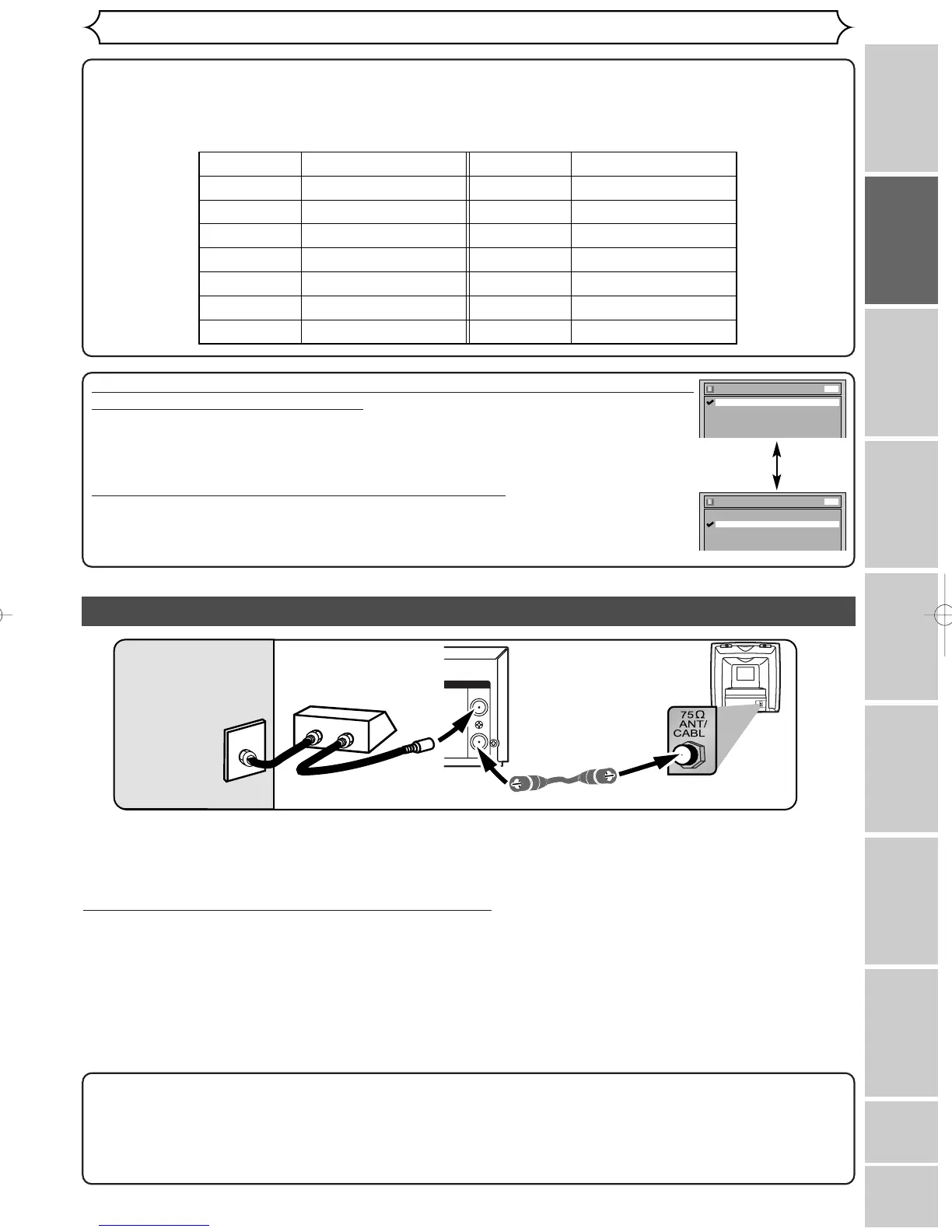
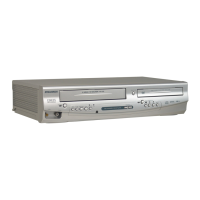
Connection to a cable box or satellite box
Note to the Cable TV System Installer :
This reminder is provided to call the Cable TV system installer’s attention to Article 820-40 of the
National Electrical Code, which provides guidelines for proper grounding - in particular, specifying that the
cable ground shall be connected to the grounding system of the building, as close to the point of cable
entry as possible.
This connection allows you to view or record a scrambled channel.With this connection, channels cannot be
changed on this unit.You can view or record ONLY the channels you have selected on the cable box or the
satellite box.
• While you are recording, only the recorded channel can be viewed.
To select channels of the cable box or satellite box
1) Turn on this unit by hitting [POWER].The “POWER” indicator on the front panel will appear. Then, hit
[CHANNEL L / K] to select channel 3 or 4 (the same channel as the output channel of the cable box
or satellite box).
• If noise appears on the TV screen
, hit [VIDEO/TV] on the remote control.
• If you use the channel 4, you will need to change this unit’s RF output to channel 4. Refer to “RF converter
output” on page 81.
2) At the TV, select channel 3 or 4 (the same channel as you have selected at step 1).
3) At the cable box or satellite box, select the channel you want to view or record.
If your TV is compatible with Progressive Scan (525p / 480p) and you want
to enjoy that high quality picture;
You must select the connection Method 3 above and Progressive Scan mode.To set the
mode, hit [SETUP] and select “Progressive ON” on the Easy Setting Menu, or on the
“Playback” sub menu of the Advanced Setting Menu.Then hit [ENTER].“P.SCAN” will
appear on the display of this unit.
If your TV is not compatible with Progressive Scan;
Use this unit in Interlace mode. Make sure that no “P.SCAN” is on the display of this unit.
If not, hit [SETUP] and select “Progressive OFF” on the Easy Setting Menu, or on the
“Playback” sub menu of the Advanced Setting Menu.Then hit [ENTER].“P.SCAN” on
the display of this unit will disappear.
Admiral
Curtis Mathis
GE
Hitachi
JVC
Kenwood
LXI-Series
Magnavox
AUX
LINE1, LINE2, 00, 90, 91, 92, 93
INPUT, TV/VCR, 00, 90, 91, 92, 93
INPUT, AUX
A/V CHANNEL, INPUT1, SVIDEO, INPUT2
AUX
00
AUX CHANNEL
Input Mode Names for Common TV Brands (Example)
Panasonic
RCA
Samsung
Sanyo
Sharp
Sony
Toshiba
Zenith
TV/VIDEO
INPUT, TV/VCR, 00, 90, 91, 92, 93
TV/VIDEO
VIDEO
00
VIDEO1, VIDEO2, VIDEO3
TV/GAME
00


 To Next Page