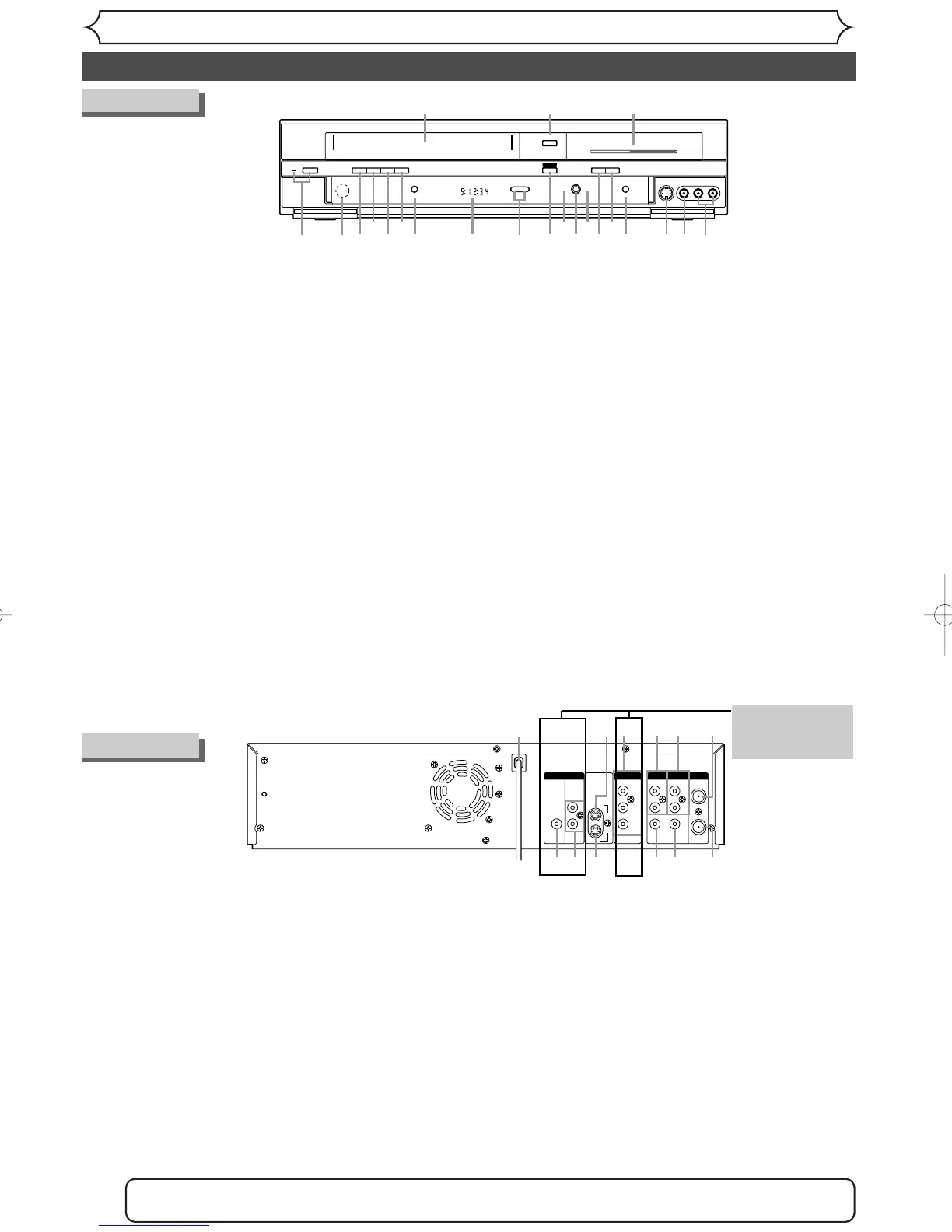
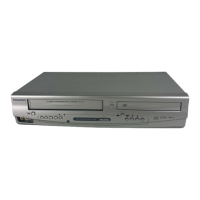
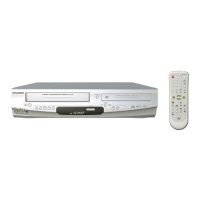
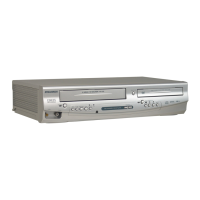
1.POWER button / indicator (DVD/VCR)
Hit to turn on and off the unit.
Red LED lights up when power is on.
2. Cassette compartment (VCR)
Insert a videotape here.
3. OPEN/CLOSE A button (DVD)*
Hit to open or close the disc tray.
4. Disc tray (DVD)
Place a disc when it is open.
5.AUDIO input jacks (LINE2) (DVD/VCR)
Use to connect external equipment with standard audio cables.
6. VIDEO input jack (LINE2) (DVD/VCR)
Use to connect external equipment with a standard video cable.
7. S-VIDEO input jack (LINE2) (DVD/VCR)
Use to connect the S-Video output of external equip-
ment with an S-Video cable.
8.DVD RECORD button
Hit once to start recording.
Hit repeatedly to start a One-Touch Timer Recording.
9. PLAY B button (DVD)*
Hit to start or resume play.
10.STOP C button (DVD)*
Hit to stop playback or recording.
Hit to stop the proceeding Timer Recording in DVD.
11.DVD indicator
Appears when the DVD output mode is selected.
12. OUTPUT SELECT button (DVD/VCR)
Hit to select the component you wish to operate.
13. VCR indicator
Appears when the VCR output mode is selected.
14. DUBBING button (DVD/VCR)
Hit to start VCR to DVD (DVD to VCR) duplication
which you set in the Setting menu.
15. CHANNEL L / K button (DVD/VCR)
Press to change the channel up and down.
16. Display
Shows various information and messages.
17. VCR RECORD button
Hit once to start a recording. Hit repeatedly to start
a One-Touch Timer Recording.
18.PLAY B button (VCR)
Hit to start playback.
19.STOP C / EJECT A button (VCR)
EJECT
A button-
Hit to remove the videotape from
the cassette compartment when the power is on or off.
STOP
CC
button-Hit to stop videotape playback or
recording.
Hit to stop the proceeding Timer Recording in VCR.
20.F.FWD D button (VCR)*
Hit to rapidly advance the videotape, or view the picture
rapidly in forward during playback. (Forward Search)
21. REW E button (VCR)*
Hit to rewind the videotape, or to view the picture rapidly
in reverse during the playback mode. (Rewind Search)
22. Remote control sensor (DVD/VCR)
Receive signals from your remote control so that you
can control the unit from a distance.
Rear Panel
1.AC Power Cord (DVD/VCR)
Connect to a standard AC outlet to supply power to this unit.
2. S-VIDEO IN jack (LINE1)
(DVD/VCR)
Use to connect the S-Video output of external equip-
ment with an S-Video cable.
3.
COMPONENT VIDEO OUTPUT jacks (DVD only)
Use to connect a TV monitor with component video
inputs with component video cables.
4.AUDIO IN jacks (LINE1) (DVD/VCR)
Use to connect external equipment with standard
audio cables.
5.AUDIO OUT jacks (DVD/VCR)
Use to connect a TV monitor,AV receiver or other
equipment with standard audio cables.
6. TV ANTENNA IN jack (DVD/VCR)
Use to connect an antenna.
7. TV ANTENNA OUT jack (DVD/VCR)
Use to connect an antenna cable to pass the signal
from the TV ANTENNA IN to your TV monitor.
8. VIDEO OUT jack (DVD/VCR)
Use to connect a TV monitor,AV receiver or other
equipment with a standard video cable.
9.VIDEO IN jack (LINE1) (DVD/VCR)
Use to connect external equipment with a standard
video cable.
10. S-VIDEO OUT jack (DVD only)
Use to connect the S-Video input of a TV monitor,AV
receiver or other equipment with an S-Video cable.
11.AUDIO OUT jacks (DVD only)
Use to connect a TV monitor,AV receiver or other
equipment with standard audio cables.
12.COAXIAL DIGITAL AUDIO OUTPUT jack
(DVD only)
Use to connect an AV receiver, Dolby Digital decoder
or other equipment with a coaxial digital input jack
with a digital coaxial cable.
Note: Do not touch the inner pins of the jacks on the rear panel. Electrostatic discharge may cause perma-
nent damage to the unit.
•
These jacks are
useful only in
DVD mode.
(
*
) The unit can also
be turned on by
pressing these
buttons.


 To Next Page